
Omnisend Emails Going to Spam? Check the Automation First
Trace an Omnisend abandoned-checkout email from its store event to the received message. Check workflow eligibility, product data, client layouts and inbox placement separately.
If an Omnisend email hasn't arrived, first check whether it was sent. A checkout reminder can stop at the store event, an audience filter or a channel rule before Gmail or Outlook has anything to place in a folder. A sent message still needs a separate inbox check.
There is another question once it arrives: did it contain the right products, and can the shopper read them and return to checkout? Answering that by hand means repeating the store action, checking the automation history, opening the email in several apps and following its links.
MailSlurp is an email testing platform that helps you inspect the delivered message. Its device previews capture the email in selected clients; inbox placement tests separately show where a send lands in monitored mailboxes. We'll use a two-product checkout reminder to connect the store event, Omnisend's send record and the email the recipient actually receives.
Trace the missing message
For a campaign, start with the selected audience and the recipient's send status. For an automation, open that contact's activity and the workflow report. Find the first stage that has no matching result:
| What you can confirm | What to inspect next |
|---|---|
| No matching store event | Contact identification and the store integration |
| Event recorded, but no workflow entry | Trigger, filters, activation time and re-entry rules |
| Contact entered, but no email was sent | Delay, exit condition and email-channel eligibility |
| Message sent or delivered | Receipt and mailbox-folder placement |
| Message received | Populated products, client layout and actual link destinations |
Skipped and Exited describe workflow outcomes. They do not establish that a mailbox put the message in Spam. Likewise, Omnisend's Delivered status does not identify the recipient's folder, as its deliverability documentation explains.
How automated device rendering works
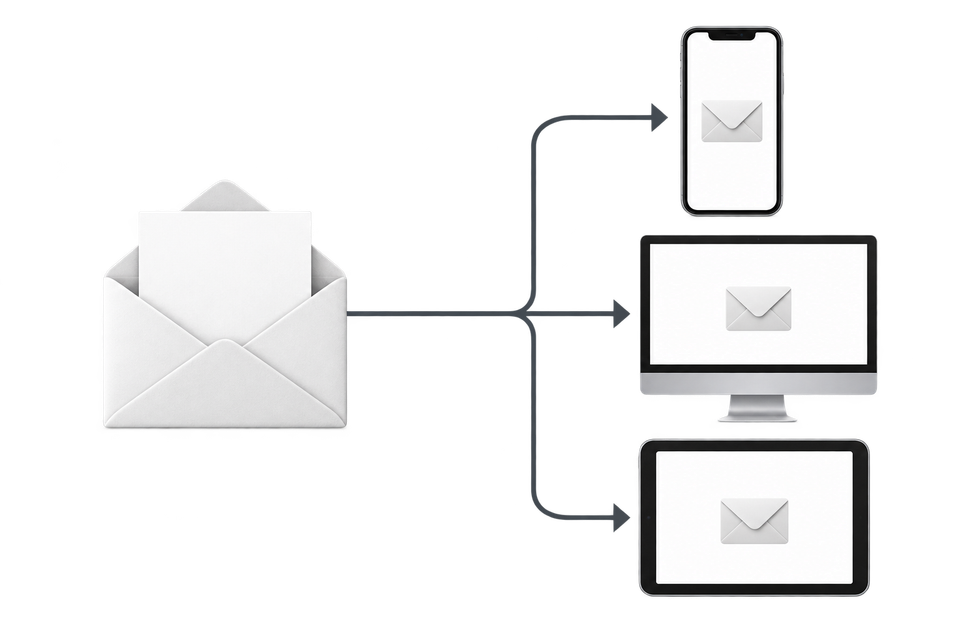
Choose the devices and email services you want to test, and MailSlurp gives you a special email address. Send your campaign to that address. MailSlurp opens the email in the selected apps and webmail services, then captures screenshots automatically.
The screenshots come back together, ready to compare across phones, tablets and computers. Check the layout, images and buttons, then share a result link so your team can review the same version of the email.
Test an abandoned checkout with real product data
Our example is Slurp Store, a fictional shop selling reusable drinking straws. The shopper adds a Colour Pop Silicone Straws six-pack at NZ$18.90 and a Stainless Steel Straws four-pack at NZ$14.90. The two products total NZ$33.80 before shipping. The reminder should show those products, their photographs and prices, plus a clear way back to checkout.
The native Shopify checkout event reached Omnisend, which sent a populated reminder. In the finished version, both phone apps kept the products side by side, with readable names and aligned prices and buttons. Opening the received recovery button also returned to a checkout containing both products. Inspect the client comparison and checkout check, or follow the workflow below with two products from your own store.
1. Choose where the test email will arrive
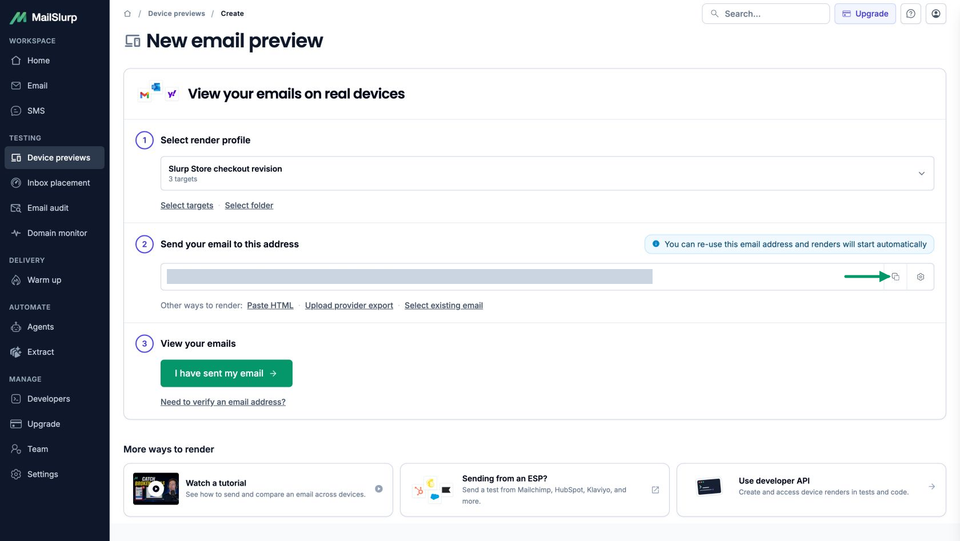
Open MailSlurp's new device preview form, expand the target selector and choose the apps you need. This example uses Gmail Android, iOS Mail and Outlook Classic, all in their default light appearances.
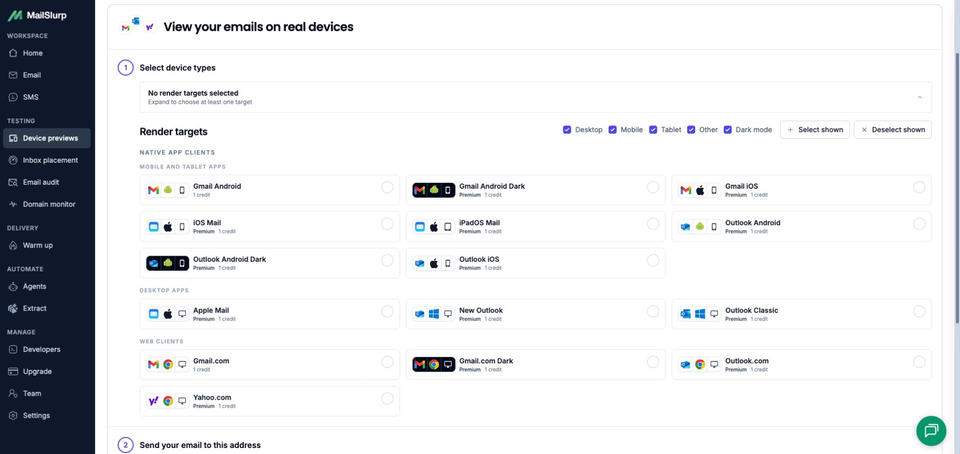
Review the selected clients and credit requirement, then choose Use selected and copy the complete receiving address. If you reuse a saved render profile, check the clients it contains. Use the copied address for the controlled shopper in the following steps. A regular editor test is the shorter route for a static campaign; the Omnisend email preview guide covers that workflow.
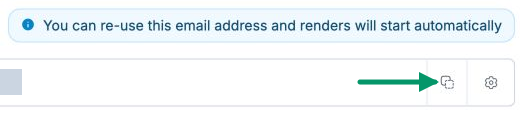
Inspect the complete receiving-address screen
2. Restrict a separate workflow to the test contact
In Omnisend, open Automation, choose Explore templates and select the single-email Abandoned Checkout preset. Check its Started checkout trigger and Placed order exit condition. Abandoned Cart and Abandoned Checkout are different events; choose the one your test will actually perform.
Create a controlled contact using the copied receiving address, give it a unique test tag and add an audience rule requiring that exact tag. Verify the contact and rule before starting the workflow. Keep customer-facing workflows separate from this test.
Open the trigger's Workflow channel settings and check which email subscription statuses qualify. Also inspect Frequency. This example retained its one-day re-entry rule and used a one-minute inactivity period in the isolated workflow, so the test did not require waiting for the store's normal reminder schedule.
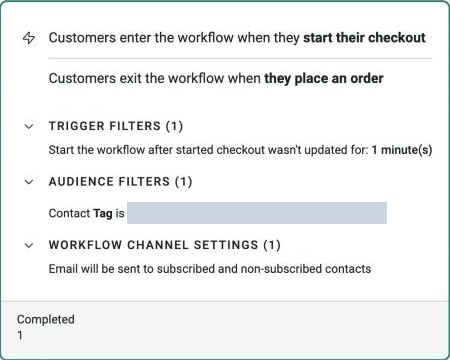
Inspect the complete trigger configuration
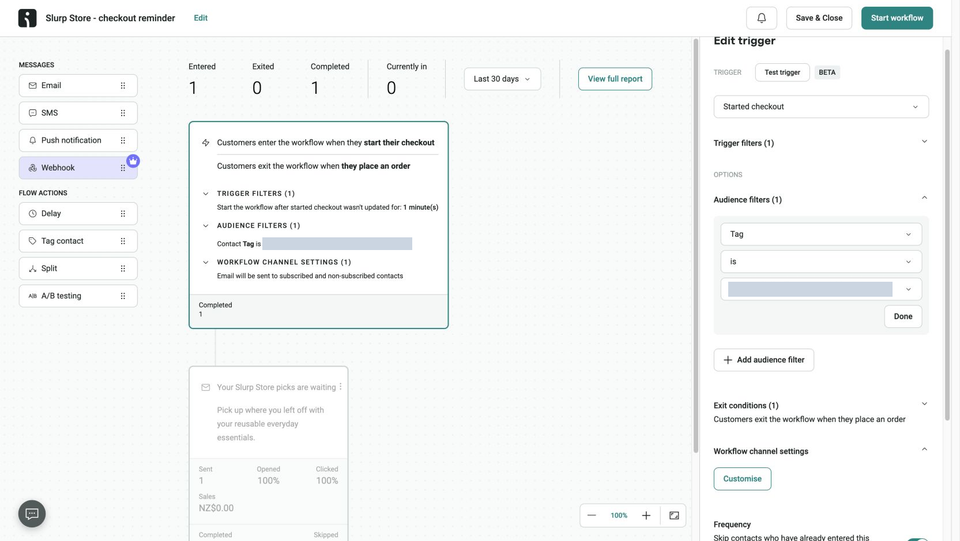
Omnisend requires an identified contact and an event that occurs after activation. Entering an email at checkout is one identification method; a basket created before the workflow starts does not retroactively trigger it. See its abandoned-cart and checkout instructions.
3. Prepare the event-based reminder
Open the email block and set the sender, subject and preview text. The Slurp Store email uses Your Slurp Store picks are waiting as its subject and Your next good sip is waiting as its headline. It keeps Omnisend's native abandoned-product block and a separate Return to my checkout button.
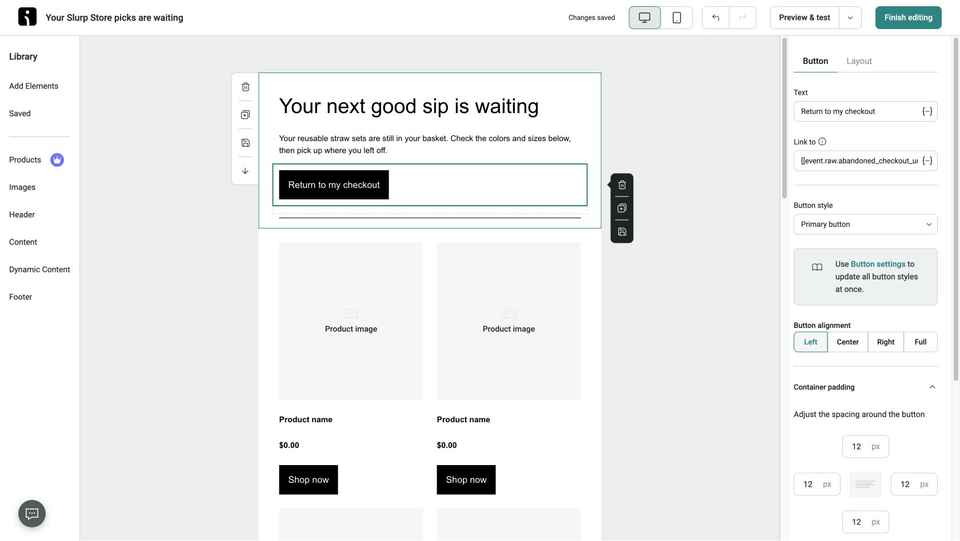
Product placeholders in the editor are expected until the message has event data. Omnisend's ordinary Send test email action does not attach that data. Use Dynamic Preview with a contact's relevant event history to check populated content while editing, or trigger the actual automation as we do here. Its event-based content instructions explain the difference.
Use the appropriate event value for the recovery button. In this native checkout preset, the button uses [[event.raw.abandoned_checkout_url]]. A product's Shop now link opens that product; it is a different destination from recovering the checkout.
Choose which catalog fields the reminder needs. In the product block's Product details, this version keeps Image, Price, Button and Title selected, with Description unchecked. That keeps the long catalog descriptions out of the reminder without changing the store's product pages.
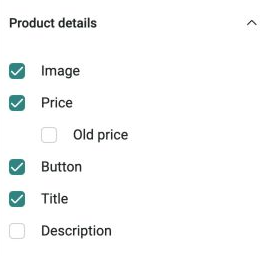
Inspect the product-block settings in the complete editor
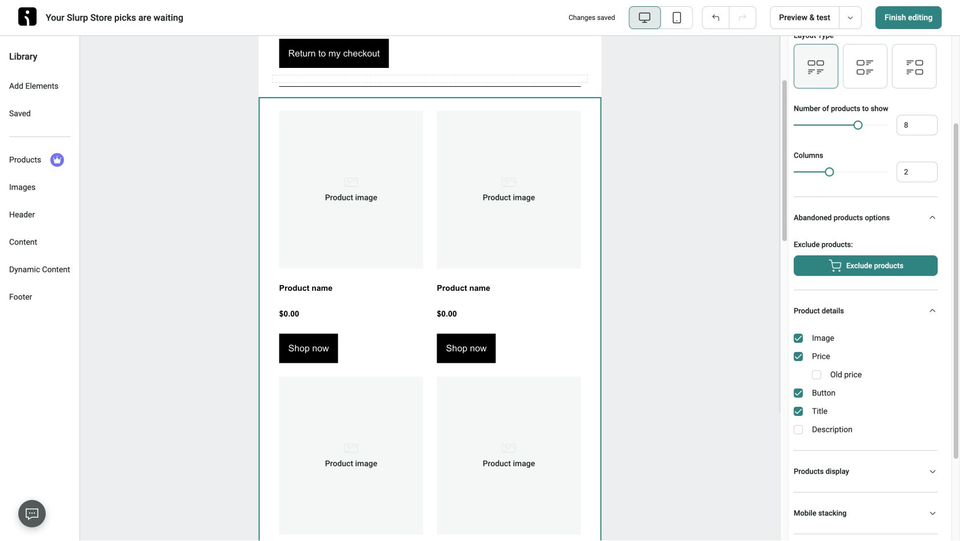
4. Start checkout and follow the contact through the workflow
After confirming the restricted audience, start the workflow. In the connected store, add the two products, begin checkout and enter the controlled contact's email. Leave checkout without paying, then allow the configured inactivity period to pass.
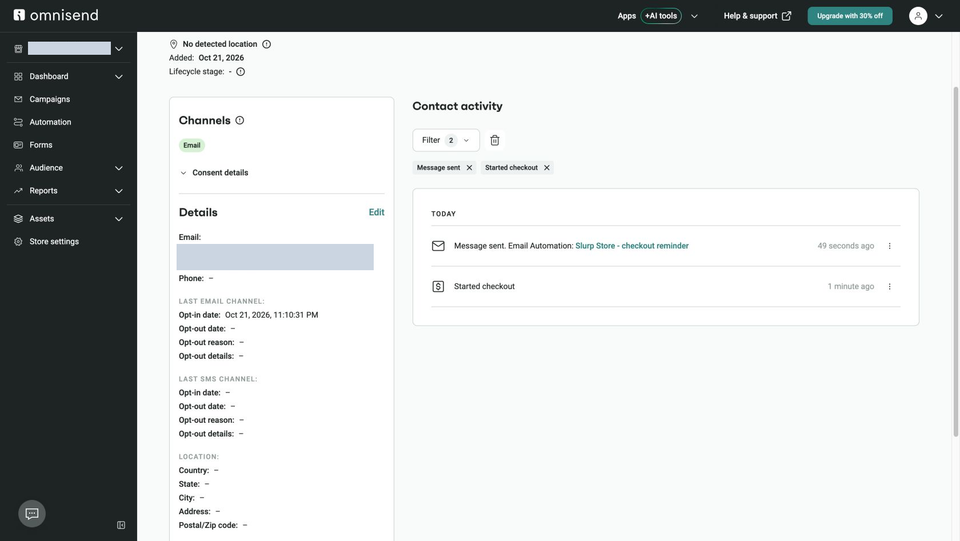
Open the contact's activity in Omnisend and look for Started checkout. Follow that event into the workflow report and inspect the email block's send status. We sent an initial version and then repeated the checkout after removing its long product descriptions. The workflow's cumulative totals therefore show two entries, two sent messages and two completions, with nobody still in the workflow. The client results below belong to the second message.
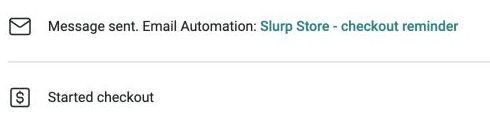
Return to MailSlurp and choose I have sent my email to open the waiting view. Receipt starts rendering automatically. Open the matching subject and wait for each selected client to become Ready. A send record, receipt and completed screenshot are separate confirmations; check the existing message before sending another copy.
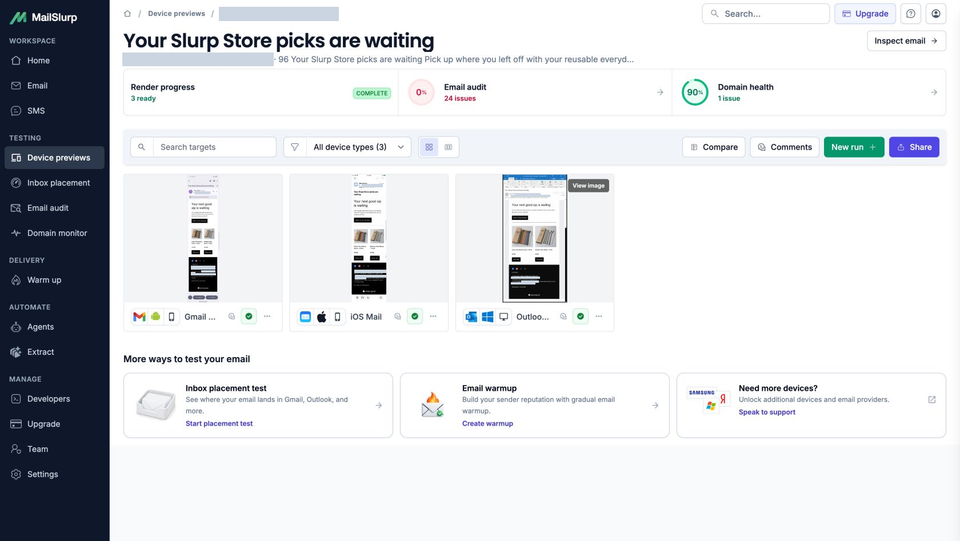
Inspect the complete contact activity and three-client result
Inspect the populated email and recovery link
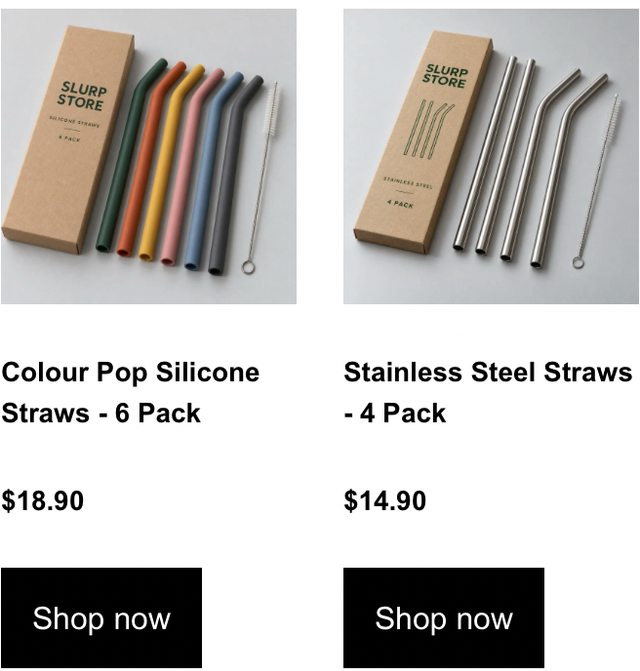
The final email keeps both products in two columns in Gmail Android, iOS Mail and Outlook Classic. Both photographs load, the silicone set is $18.90 and the steel set is $14.90, matching the checkout's New Zealand dollar prices. On the phones, the product names wrap onto two lines; Outlook Classic has room to keep each on one line.
iOS Mail: product detail
Outlook Classic: product detail
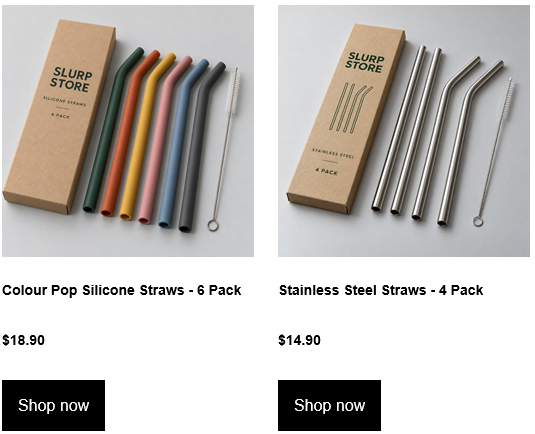
The Description setting changed what the native block included: the final email contains the product photos, names, prices and buttons without the long catalog paragraphs. The two prices and Shop now buttons align in all three returned captures. This is a content-selection change inside Omnisend, followed by a new checkout and a new delivered email.
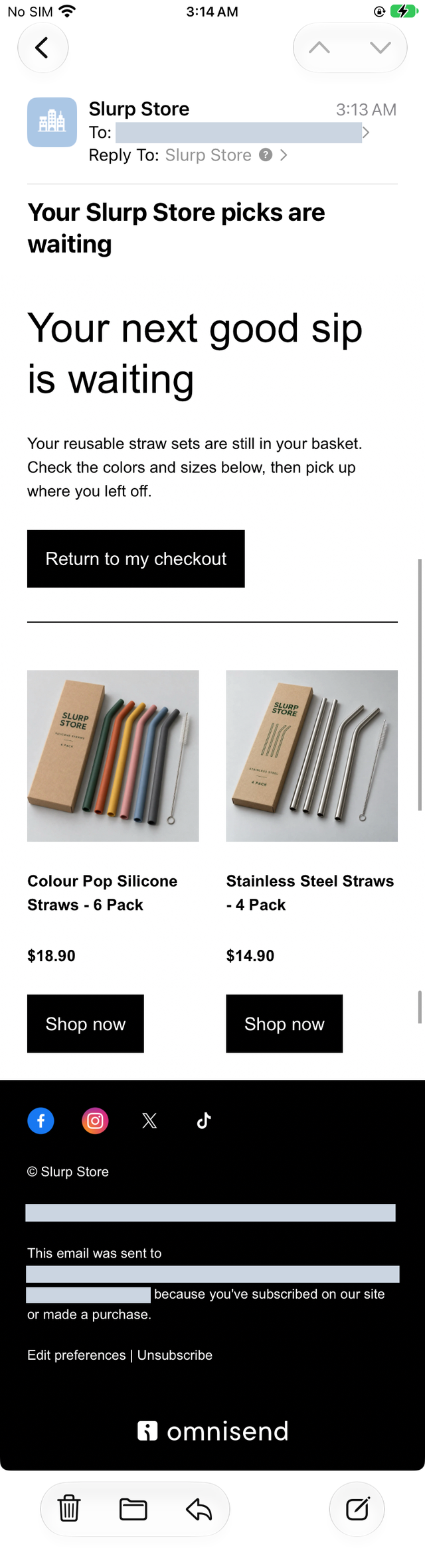
Inspect the complete iPhone, Outlook and Gmail Android emails
iOS Mail
Outlook Classic
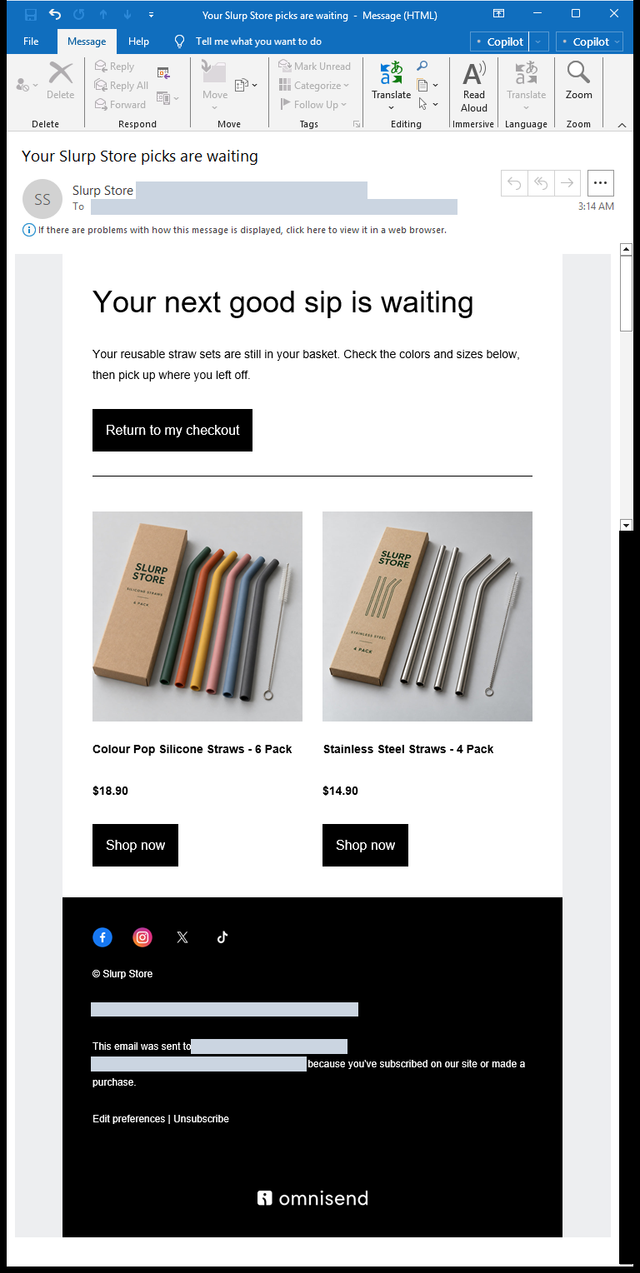
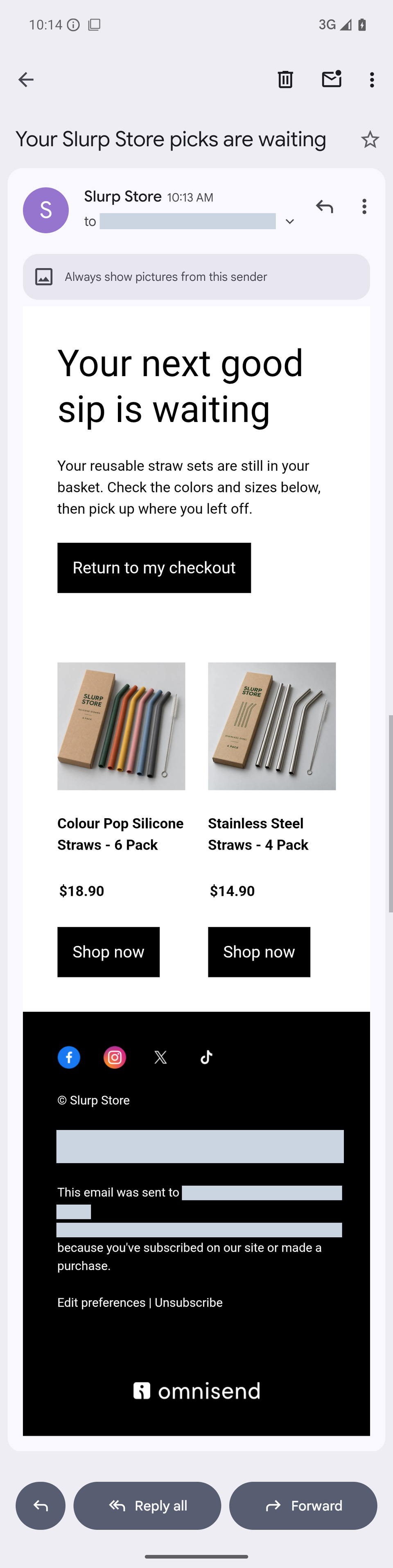
Read the whole email, including the footer. These captures include the recovery button, both products, the preference and unsubscribe links, and the provider footer. They cover the selected light appearances; add supported dark targets explicitly if your campaign also needs that comparison.
Follow the received recovery button
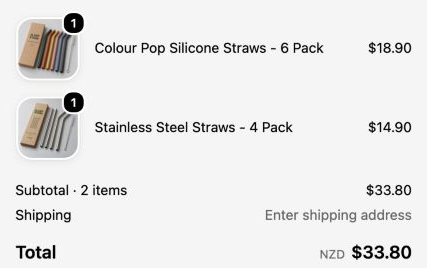
Open Return to my checkout from the received message, rather than testing only the button in the editor. For this final version, the tracked link opened the store's checkout with one silicone six-pack and one steel four-pack, a NZ$33.80 subtotal and no order placed. The destination encoded in the received link matched the checkout URL from the native event.
Inspect the complete recovered checkout
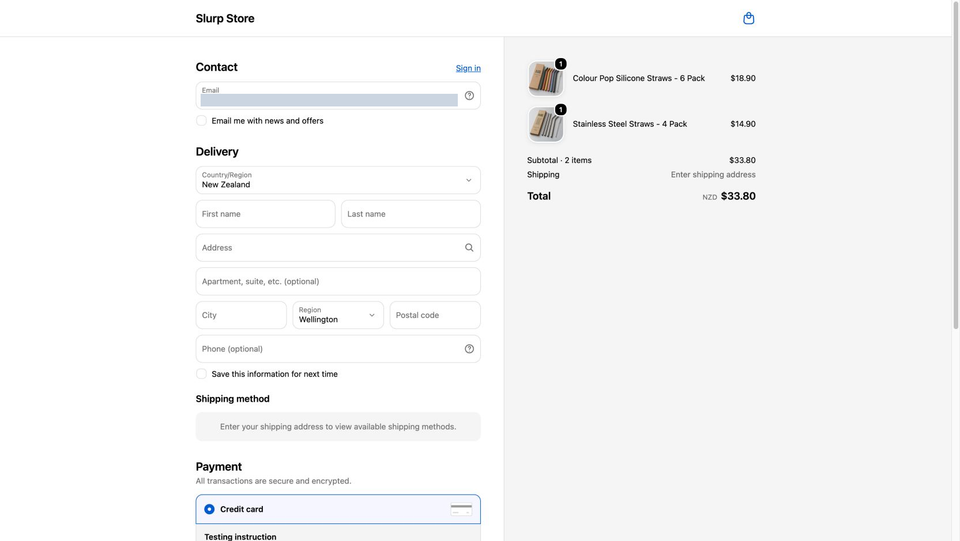
Check your own link in the same way: compare the recovered items, quantities and prices with the triggering checkout. The product Shop now buttons serve a different purpose, so opening a product page does not verify checkout recovery. The client captures establish appearance; this separate browser check establishes the observed destination.
When changing a product-block setting or link, send the revised message through a fresh controlled checkout and compare the new result. Keep the earlier captures with their original revision. The Omnisend device-rendering guide explains the broader client review, and the Outlook preview guide distinguishes Classic and New Outlook when choosing additional targets.
If the contact does not receive a reminder
Work back from the contact's recorded event and status. Repeating an editor test won't reveal why the automation excluded a shopper.
Check identification, event timing and filters
Confirm that Omnisend recorded Started checkout for the same contact you expect to receive the email. Compare that event with the workflow's activation and inactivity rules, then read every trigger and audience filter. A segment rule may depend on membership that has not updated yet; an exact test tag is easier to inspect in an isolated test.
Check any Placed order exit separately. The Slurp Store checkout was left unpaid, so this example does not establish how a completed purchase would exit the workflow. To test that branch, perform an authorized test order and inspect the resulting exit and send history instead of assuming the configured condition ran.
Check re-entry and overlapping reminders
Frequency measures elapsed time from workflow entry. Editing the workflow or completing its steps does not reset that contact's entry history. A second checkout within the retained one-day window may therefore be ineligible for the same workflow.
Use a fresh controlled contact for another test when appropriate. For customer journeys, review Skip Contacts alongside Frequency: one controls participation across workflows, while the other limits re-entry to the same workflow. Check related browse, cart, checkout and post-purchase messages together so one shopper does not receive overlapping reminders. Omnisend's frequency documentation explains the entry-time rule and how existing participants are handled after changes.
Check email-channel eligibility
Open the trigger's Workflow channel settings and compare them with the contact's email status. Email, SMS and push have separate subscription states. A contact can enter a workflow but skip an email block when its channel status does not qualify.
Use the settings appropriate to the message and the permission collected from the customer. Do not broaden the audience merely to increase the sent count. The channel-settings documentation describes the available subscription rules.
If Omnisend sent the email, check inbox placement
A message can complete the automation and still reach Spam or Junk. Start with the sender configuration, then collect a folder result rather than inferring placement from an open rate or a rendering screenshot.
Use a sender address on the domain verified for automation in Omnisend, and keep its reply-to mailbox monitored. Inspect SPF, DKIM and DMARC on a received message. A verified domain in the provider's settings and authentication results in the received message answer related but different questions; neither guarantees primary-inbox placement. Follow the sender-address setup instructions if the sender is unavailable or mismatched.
For folder testing, follow the Omnisend inbox placement guide. It uses a separate controlled campaign send with a fresh marker and the complete seed set. Preserve the message's sender, content, links and footer when comparing results. That campaign procedure checks its own delivery path; it does not exercise a checkout trigger.
Read each provider's folder result. Gmail Promotions is different from Spam; a missing seed needs send and eligibility checks before assigning a folder. If Gmail and Outlook differ, investigate the affected provider rather than treating the whole audience as one result.
The checkout workflow here establishes an actual automation send and client captures. It does not supply an automation inbox-placement result. To test that path, the controlled seed contacts would each need to qualify for the same event-based send.
Review engagement without excluding recent buyers
If repeated campaign results point to a broader sender problem, review consent, complaints, bounces and changes in send volume. When identifying inactive contacts, combine email activity with purchase history and a period appropriate to your send frequency. A recent buyer is not necessarily inactive because they did not open a newsletter.
Inspect the actual segment membership before changing subscription status, especially after a migration with limited history. Omnisend's inactive-contact guidance explains the purchase-history check. Use MailSlurp domain monitoring for ongoing sender-DNS checks when store and marketing systems share a domain.
After changing the stage that failed, repeat the relevant test. A filter edit needs another eligible event; a product-layout edit needs a newly delivered message and client captures; a sender correction needs fresh authentication and placement evidence. Keep those results separate so a successful render cannot be mistaken for a recovered checkout or an inbox result.
Frequently asked questions
Why are my Omnisend emails going to spam?
First confirm that Omnisend sent the message. Then examine the received message's authentication and a provider-folder result, alongside consent, complaints, inactive exposure and recent volume changes. A skipped automation message never reached the mailbox's filtering stage.
Why did an Omnisend contact enter an automation but miss the email?
Check the email block's status, remaining delays, exit conditions and Workflow channel settings. Entry alone does not establish that the contact qualified for every message.
How do I stop Omnisend automations from overlapping?
Review Frequency for repeated entry to one workflow and Skip Contacts for overlap across workflows. Include the full sequence and its delays when deciding how soon another reminder should be allowed.
Does Delivered mean the primary inbox?
No. It indicates delivery rather than a specific folder. Inspect a separate inbox-placement result to distinguish Inbox, Promotions, Spam and unresolved messages.
Which MailSlurp checks should I use with Omnisend?
Use device previews to inspect the received layout, inbox placement testing for provider folders and domain monitoring for sender-DNS changes. For an automation, first establish the store event and actual send in Omnisend.