
How to Preview Shopify Emails on Different Devices
Check your Shopify email layout in Gmail, Outlook, iPhone and Android before sending a campaign to subscribers.
By MailSlurpUpdated
Use with your tools
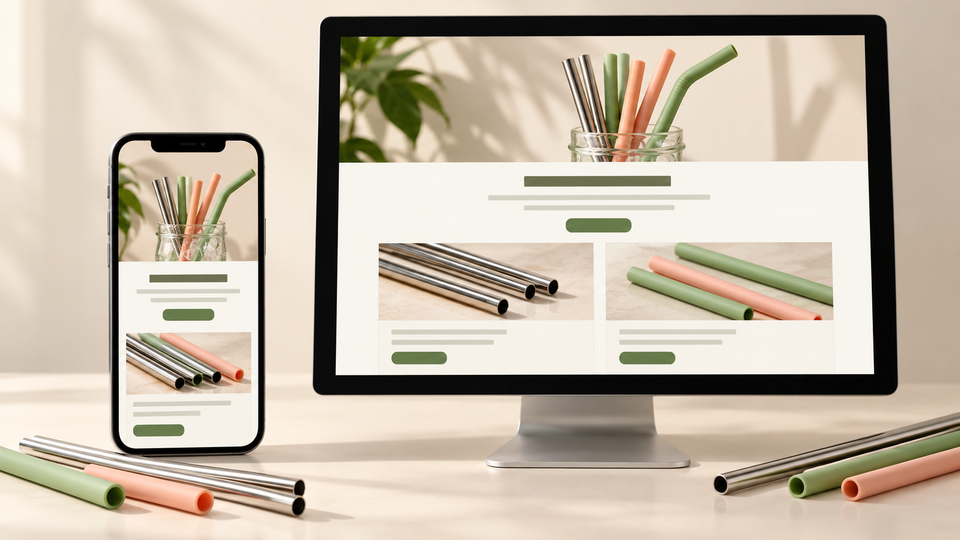
Shopify's desktop and mobile email previews help you build a campaign, but your subscribers open it in different apps. Product columns, image sizes and button spacing can change between Gmail, Outlook and Apple Mail, even when the editor preview looks right.
Checking a phone manually helps with one app. Repeating that check across several apps, collecting screenshots and making sure everyone reviewed the same revision takes more work. MailSlurp is an email testing platform that captures your campaign in selected email clients so you can compare the results together.
You will need a Shopify store with email sending available, a saved email draft and a MailSlurp workspace with device previews available.
How automated device rendering works
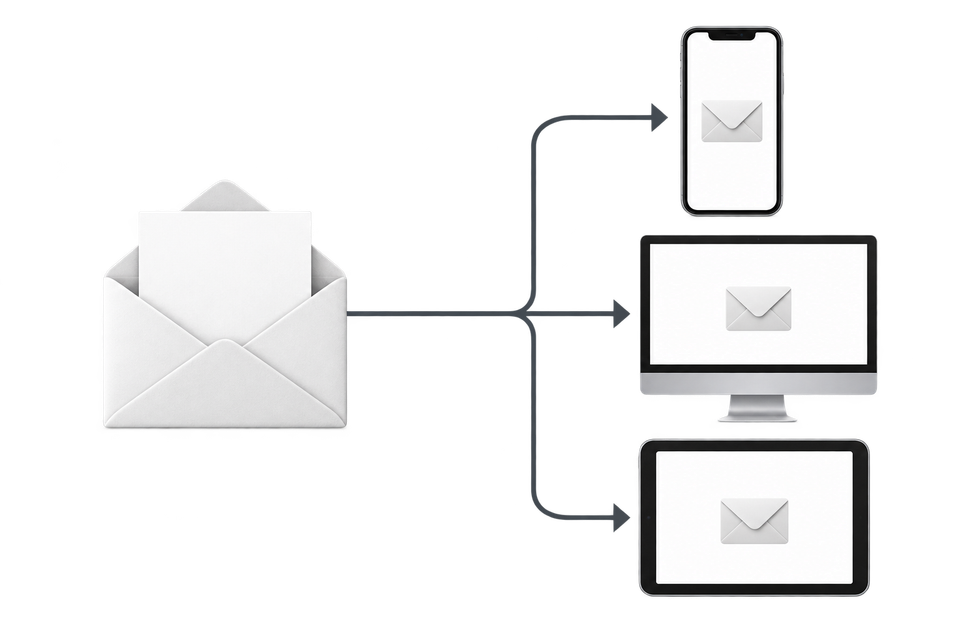
Choose the devices and email services you want to test, and MailSlurp gives you a special email address. Send your campaign to that address. MailSlurp opens the email in the selected apps and webmail services, then captures screenshots automatically.
The screenshots come back together, ready to compare across phones, tablets and computers. Check the layout, images and buttons, then share a result link so your team can review the same version of the email.
Let's test a Shopify campaign
The example is a product launch email from Slurp Store, a demonstration shop selling reusable straws. It introduces a starter set, links to the collection and shows four product packs with photographs and prices. The product grid has two columns on a wide screen; on a phone, the names, prices and shopping button still need to be readable without horizontal scrolling.
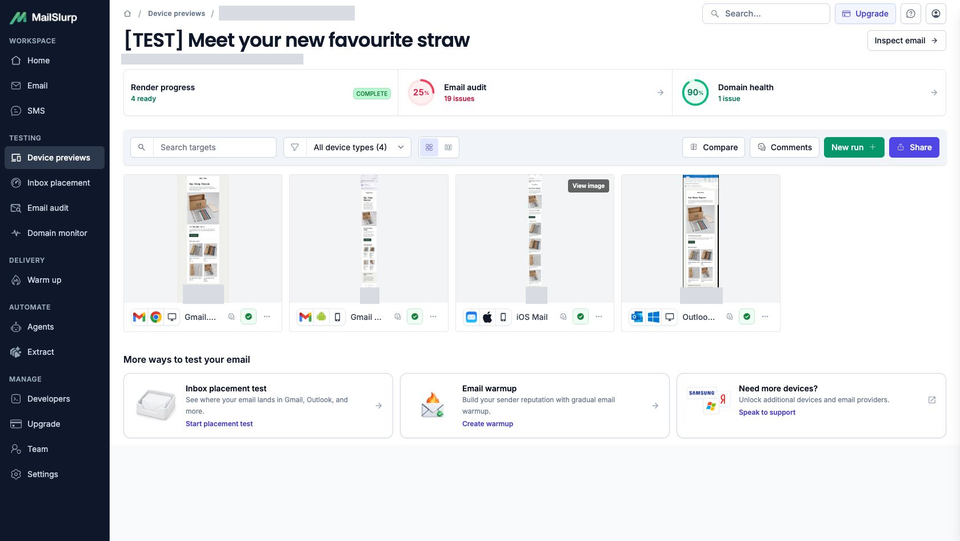
The saved draft was sent through Shopify's Send test control. MailSlurp received the email with [TEST] at the start of its subject and completed captures for Gmail Android, iOS Mail, Gmail.com and Outlook Classic. Gmail Android kept the products in two columns, while iOS Mail stacked them into one. The mobile comparison explains what to inspect in those results.
This is a preview of a Shopify test email. A normal campaign sent to a subscriber segment is a separate send; these screenshots do not establish its delivery or inbox placement.
Prepare your draft in Shopify
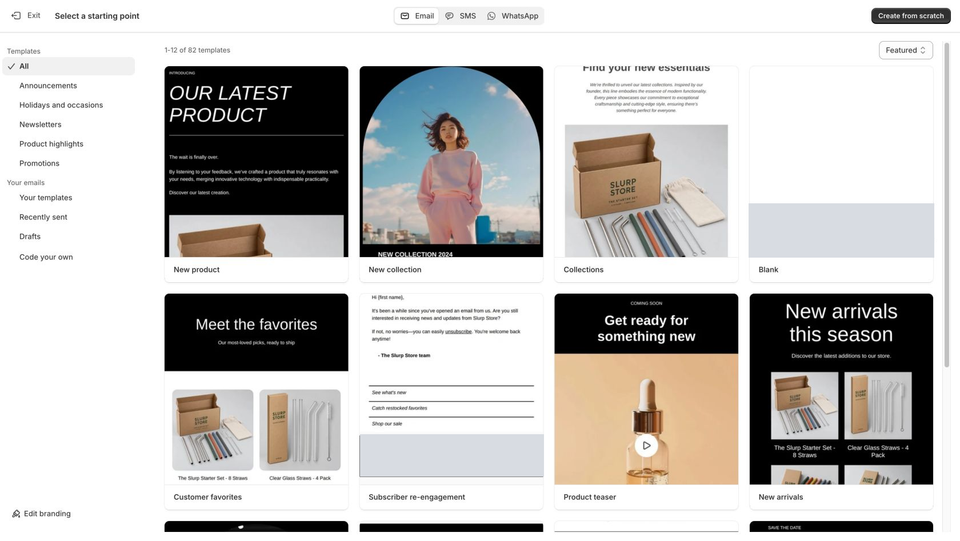
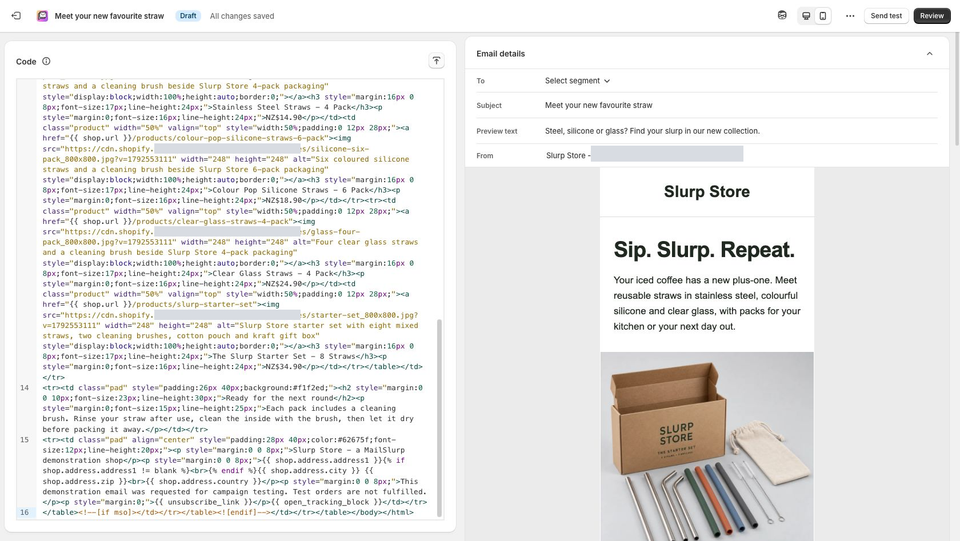
Open your existing campaign in Messaging, or choose Create message, then Email. Use a Shopify template or your own saved design; the MailSlurp address workflow is the same. The Slurp Store example uses Code your own, which accepts Shopify-compatible HTML and Liquid. If you use that option, follow Shopify's custom Liquid instructions for the required unsubscribe and open-tracking variables.
To try the example layout, download the Shopify email template and four product images. Unzip the archive, then:
- Upload the four JPEGs to Files in Shopify. In
slurp-launch.liquid.html, replace eachhttps://example.com/uploaded-images/image URL with the URL of its matching uploaded file. The starter-set image appears twice. - Update the product and collection links, wording and sample prices for your store. Keep the Shopify unsubscribe and open-tracking variables. The footer uses your store's address, so check that it is correct.
- Paste the adapted HTML into Code your own, save the draft and send it through the test workflow below.
This portable version uses replacement image URLs. The screenshots show the original Slurp Store send; test your adapted version again to see how it displays with your own images, links and store details.
Set the subject, preview text and sender details. Keep the images, product links, footer and tracking settings representative of the campaign you intend to send. Use the desktop and mobile preview controls to catch obvious problems before starting client tests.
Send a Shopify test email to MailSlurp
1. Choose the email clients
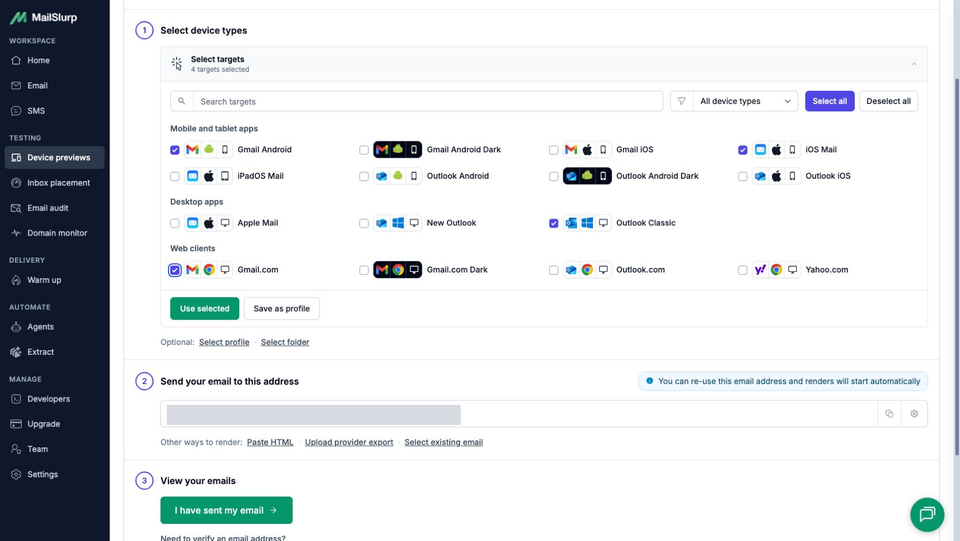
Open the new device preview form in MailSlurp. Expand the target selector under Select device types, choose the clients you need, then confirm with Use selected.
For this example, select Gmail Android, iOS Mail, Outlook Classic and Gmail.com. Use your campaign's audience information to choose additional clients. Gmail on an iPhone and Apple's Mail app are separate checks, even though they run on the same phone. Add a named dark-mode target if you need to inspect color changes; the four captures here do not demonstrate dark mode.
2. Copy your generated address
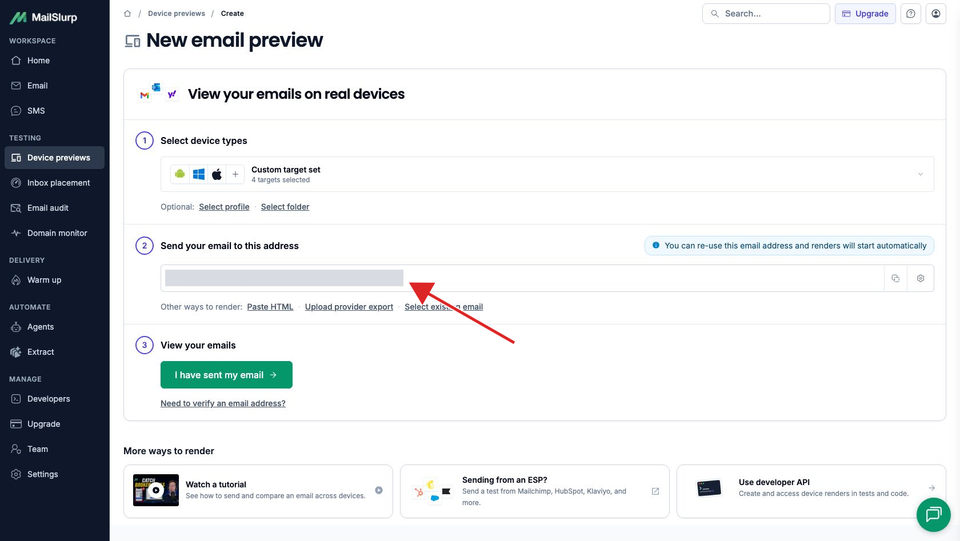
Copy the complete value under Send your email to this address. That recipient tells MailSlurp which selected clients to capture when the email arrives. Use the address generated in your account.
3. Send the test from Shopify
Return to the saved Shopify email and click Send test. Remove any default recipient you do not need, paste the MailSlurp address into Email addresses, then press Enter so it becomes a recipient chip. Check the complete address before clicking Send.
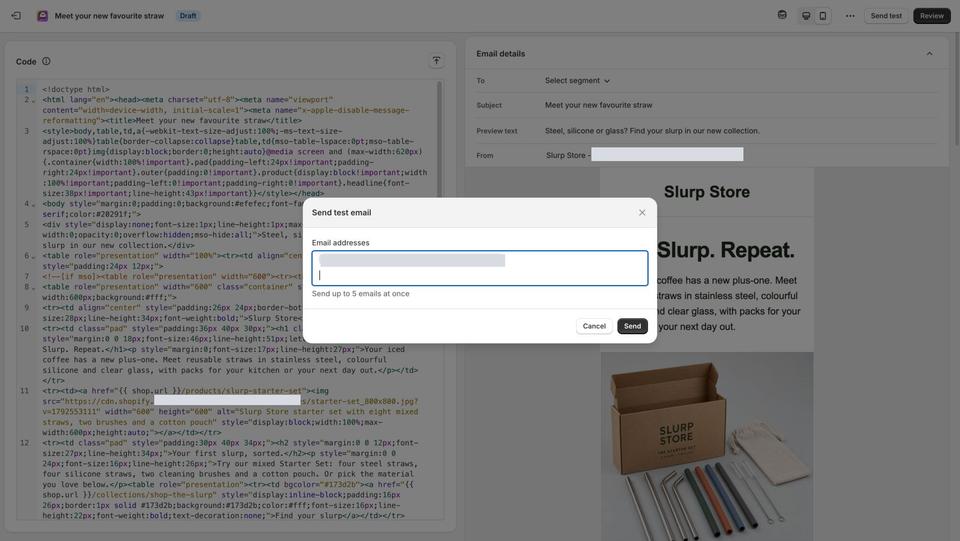
Wait for Shopify to confirm the send. If the dialog reports an error, use the send troubleshooting steps before trying again. Opening MailSlurp's waiting screen does not send the email from Shopify.
4. Open the completed captures
After Shopify accepts the test, return to MailSlurp and click I have sent my email. Open View results when the received message appears. Match the sender and subject to your draft, allowing for Shopify's [TEST] subject prefix, then wait for each client you selected to finish.
All four selected clients completed for the Slurp Store test. A Ready capture means its screenshot is available to inspect; reviewing the image is the next step.
Compare the layout in two apps
Open a client image and use Compare inside the screenshot viewer to select another client from the same email. Start at the top, then continue through the products, button and footer. Compare the same source revision before deciding which differences need a change.
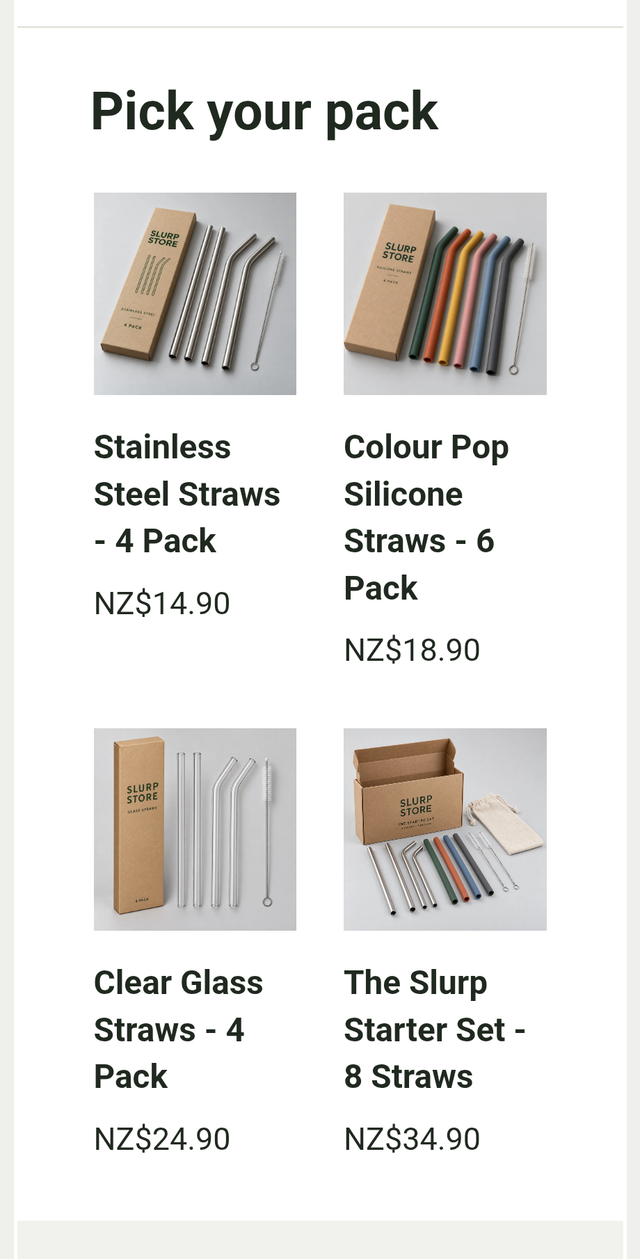
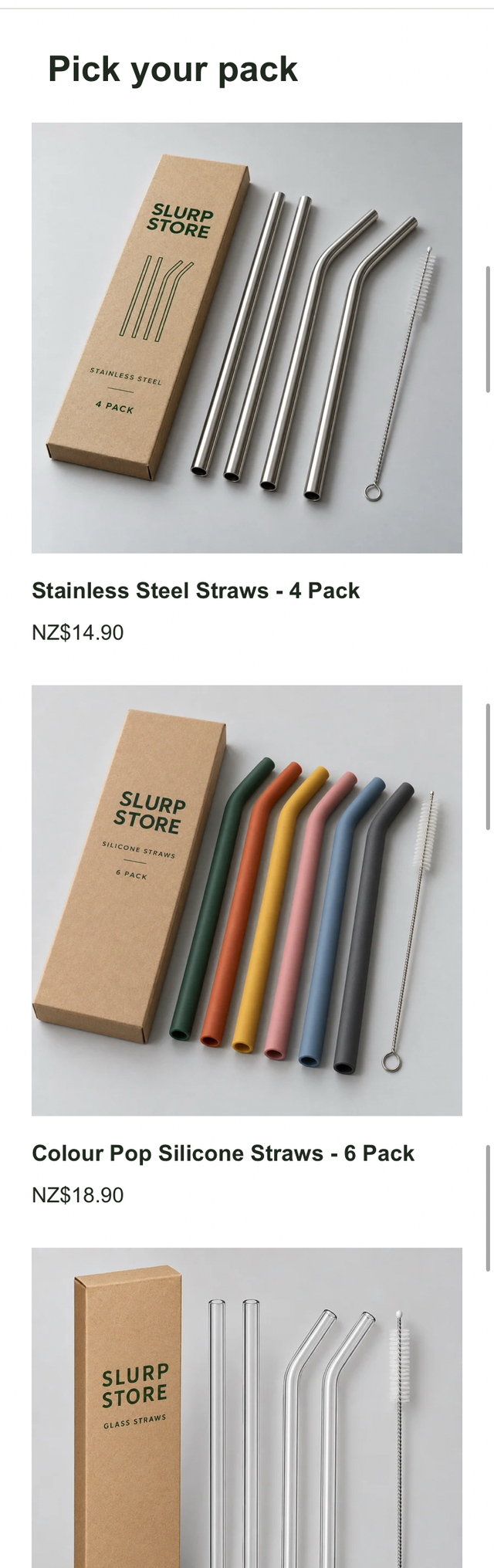
In the Shopify-delivered Slurp Store test, Gmail Android keeps the four products in a two-column grid. The product names wrap across several lines in the narrower spaces. iOS Mail places each product on its own row, with a larger photograph and more room for the name. That makes the email longer.
Gmail Android: two columns
iOS Mail: stacked products
Open the full mobile comparison
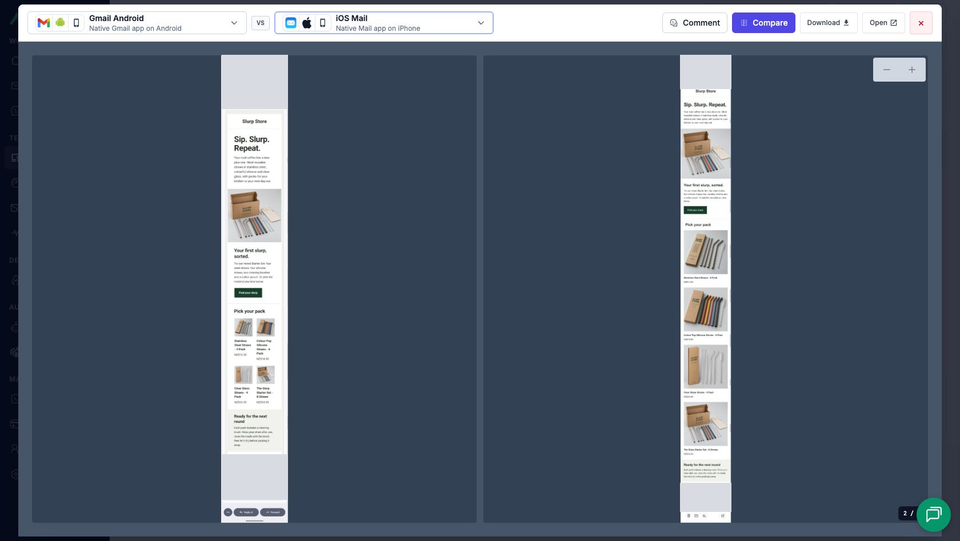
Both mobile captures display the starter-set photograph, all four product images and the green Find your slurp button. The Gmail.com and Outlook Classic captures also display those elements, with a two-column product grid. These observations describe this email in the selected clients; they do not establish that every Shopify template will behave the same way.
Start with the product names and prices at full size. Can you read each name without confusing it with the neighboring product? Does its price stay beside the right image? In this example, Android's compact grid is the part to inspect closely, while the iOS version needs a longer scroll to reach the final product and footer. A difference in layout is worth reviewing, but it is not automatically a broken email.
Continue through the shopping button, image proportions and unsubscribe content. Send a copy to a test inbox you can open and click its links to check their destinations; the screenshot shows their appearance, not where they lead.
If a colleague is reviewing the campaign, use a comment or review link to identify the client and the exact element that needs attention. For example: "Gmail Android keeps this product grid in two columns; check whether the longer product names need more room." Open the shared view before sending it to check which campaign details are visible.
After editing the Shopify draft, send a fresh test and compare its captures with the earlier revision before approving the change. A saved target profile lets you repeat the same client selection.
If Shopify will not send the test
If Shopify reports Test emails are temporarily unavailable for your store, check its account notices, sender verification and Messaging requirements. Ask the person who manages your sender domain to complete any authentication records Shopify requests.
An Authenticated domain status confirms that setup step; it does not explain every sending restriction. If the message still cannot be sent, contact Shopify Support with the exact error. There is no received email for MailSlurp to capture when Shopify rejects the send.
You can use MailSlurp's Paste HTML option to inspect a template during layout work. Use HTML with its Liquid values already resolved, then repeat the address workflow from Shopify when sending is available. An imported-HTML preview and a Shopify-delivered test have different sources, so keep their results separate.
Next: test Shopify inbox placement
A readable email can still land in spam. Continue with Shopify inbox placement testing to send the campaign to controlled provider inboxes and inspect the folders where it arrives. Keep that result separate from the device-rendering review.