
blog
GetResponse Autoresponder Not Working? Trace the Cycle Before Spam
Diagnose a missing GetResponse autoresponder from signup settings and cycle days through bounces, domain authentication, inbox placement, and device rendering.
When a GetResponse autoresponder is not working, the spam folder is only one possible destination. The contact may never have entered the autoresponder cycle. The signup method may not have added them to it. The first message may be scheduled for a different cycle day. An edit can even remove a queued contact from the message they were waiting to receive.
Trace the automation first. Test mailbox placement second.
Quick answer
Use this sequence when a GetResponse autoresponder is missing:
- Confirm the account can send and the autoresponder is active.
- Check that the signup source adds contacts to the autoresponder cycle.
- Match the contact's cycle day with the first scheduled message.
- Review whether the message was edited while contacts were queued.
- Inspect send status, rejection, bounce, complaint, and contact inactivity data.
- Authenticate the From domain with SPF, DKIM, and DMARC alignment.
- Send the final message to controlled Gmail and Outlook seed inboxes.
- Preview the delivered email across mobile, Outlook, webmail, light mode, and dark mode.
This separates "not scheduled," "not accepted," and "accepted but placed in spam" before the team changes the wrong part of the campaign.
Confirm the account and autoresponder are active
Start with the simple gates. GetResponse may pause sending while an account is under a compliance review or restricted by an outstanding billing issue. The dashboard should show whether either condition applies.
Then open Autoresponders and confirm the correct message is switched on. Check the list attached to the cycle and use one known contact as the trace case.
Record:
- list name
- autoresponder message name
- message cycle day
- the contact's current autoresponder day
- signup source
- subscription timestamp and timezone
- send, bounce, or rejection status
That small record is more useful than repeatedly signing up with new addresses because it shows exactly where one contact should have moved.
Check whether the signup source starts the cycle
GetResponse does not enable autoresponder enrollment by default for every subscription method. A form, popup, landing page, webinar, import, manual contact, or API integration can add a contact to a list without adding that person to the autoresponder cycle.
Inspect the source that created the contact:
- For forms and popups, enable Add to an autoresponder cycle in subscription settings.
- For a landing page, enable Add to the cycle on day.
- For a webinar, check the registration and subscription setting.
- For imports and manual additions, select the autoresponder-cycle option during the add process.
- For an external form or API, include the equivalent cycle enrollment setting in the integration.
Do not test only with a manually created contact when customers normally enter through a landing page. Use the real subscription path so the test covers the setting that caused the problem.
Match the cycle day exactly
In GetResponse, day zero is the day a contact subscribes. If a signup source adds contacts on day one while the welcome message is scheduled for day zero, that contact misses the first message.
Compare three values:
- the cycle day selected by the signup source
- the day assigned to the autoresponder message
- the current autoresponder day shown on the contact
Also check delivery-day and time restrictions. A contact can be correctly enrolled but waiting for the next allowed delivery window.
Editing matters too. GetResponse states that saving and publishing an autoresponder message can remove contacts who were already queued to receive that message. When a live message must change, record which contacts were waiting and decide how they will receive the corrected version.
Read bounce and rejection reasons before spam placement
Once GetResponse attempted the message, use Reports to inspect the appropriate stream: email marketing, autoresponders, automation messages, or transactional email.
GetResponse distinguishes hard and soft bounces and reports reasons such as:
- failed DMARC authentication
- address does not exist
- recycled address
- full mailbox
- blocked content
- inbox timeout
- reputation-related block
- other temporary delivery failure
A rejection or hard bounce means the provider did not accept the message. Spam placement means it accepted the email and then filed it in Spam or Junk. Those outcomes require different fixes.
Do not re-add an address that GetResponse removed after repeated bounces simply to raise the send count. Correct a confirmed typo; otherwise preserve the suppression.
Authenticate the From domain
In GetResponse's email and domain settings, add a From address on a domain the business owns and complete the supplied DNS records.
Confirm that:
- DKIM passes for the sending domain
- SPF authorizes the sending path
- the visible From domain aligns under DMARC
- multiple SPF senders are merged into one valid record
- the reply-to inbox is monitored
- public Yahoo, AOL, or other free addresses are not used for bulk sending
- DNS changes have propagated before launch
Authentication establishes identity. Inbox providers still evaluate recipient consent, engagement, complaints, bounces, content, links, frequency, and domain reputation when choosing a folder.
Use MailSlurp domain monitoring to watch SPF, DKIM, DMARC, MX, blacklist, and certificate changes after setup. This is useful when GetResponse is one of several services authorized to use the domain.
Test the final message across providers
Create a MailSlurp inbox placement run and copy its unique marker and controlled seed addresses. Add those recipients through a dedicated GetResponse test list or other controlled method that preserves the final sender and message.
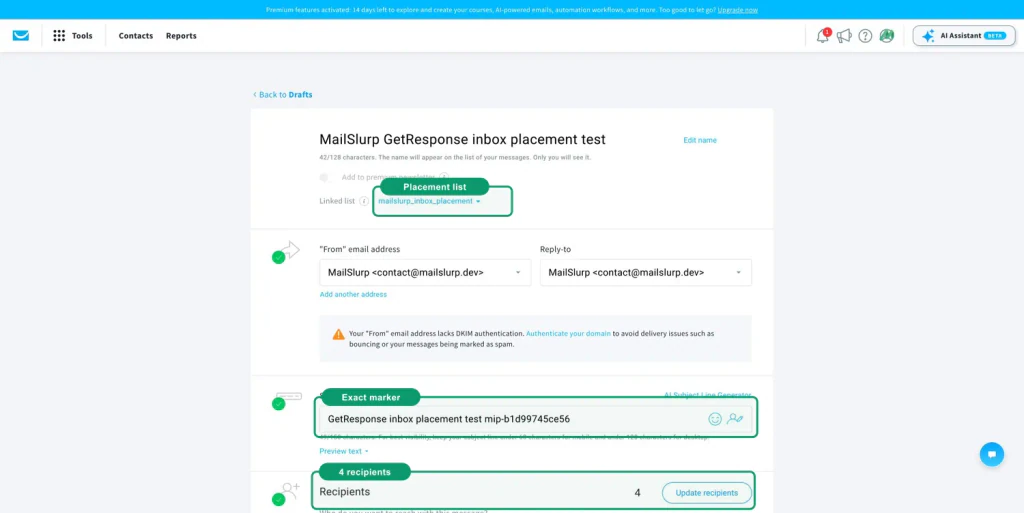
Follow the GetResponse inbox placement testing guide for the complete marker, recipient, send, and results workflow.
Interpret the result by provider:
- Spam across providers: inspect authentication, permission, inactive exposure, complaints, links, and recent volume changes.
- Gmail Promotions: this is inbox categorization, not a bounce or spam rejection.
- One provider differs: focus on that provider's reputation and filtering signals.
- Not received: return to list membership, cycle day, enrollment, message status, and bounce reason.
- Primary inbox is healthy: move to content, links, personalization, and rendering checks.
A seed test is a controlled comparison. Repeat it after one targeted correction rather than changing the cycle, domain, subject, list, and template together.
Preview the delivered autoresponder
The GetResponse editor does not reproduce every inbox engine. The received message includes final tracking redirects, hosted images, personalization, footer content, and client-specific HTML behavior.
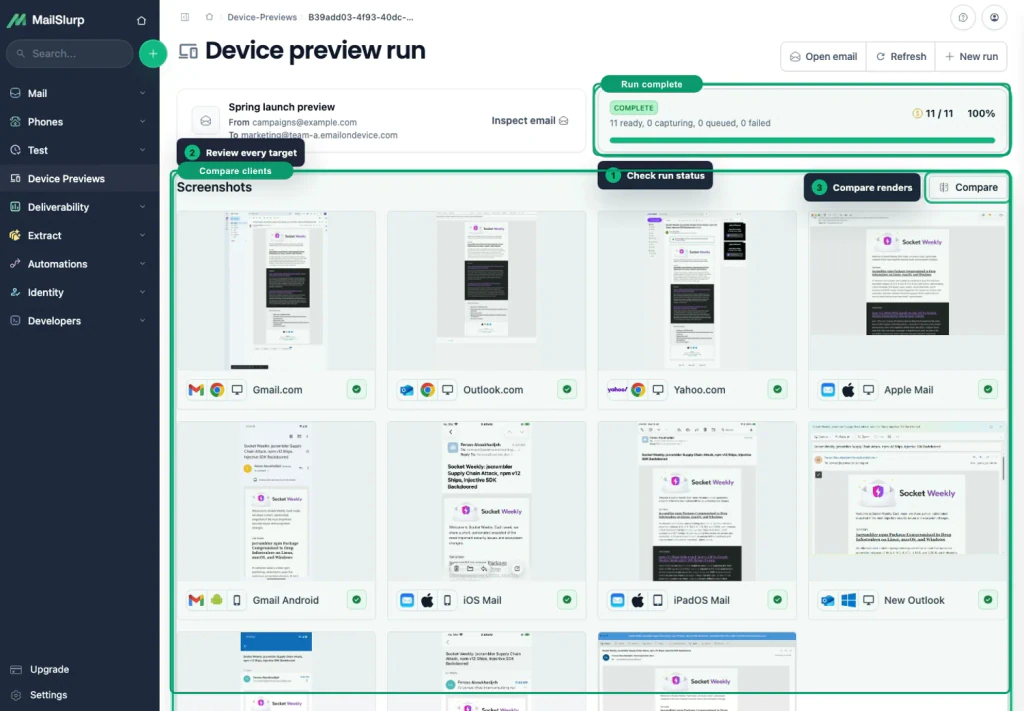
Use the GetResponse device rendering guide and inspect:
- the welcome message and CTA appear early on a phone
- buttons are easy to tap and retain visible labels
- personalized fields have sensible fallbacks
- columns stack in the intended order
- Outlook preserves spacing, backgrounds, and fonts
- dark mode does not hide the logo or CTA
- tracked links reach the correct destination
- unsubscribe and preference links remain readable
For a welcome sequence, test the entire handoff from form submission through the first useful action. A message that arrives but sends the subscriber to a broken page has not completed the job.
Fix the earliest failing stage
Use the evidence to choose one change:
- Remove the account restriction or complete the active review.
- Turn on the autoresponder message.
- Enable cycle enrollment for the real signup source.
- Align the source day, message day, and contact day.
- Recover contacts displaced by a published edit.
- Fix authentication, bounces, consent, or reputation.
- Repair a broken link or client-specific layout.
- Repeat the complete signup, placement, and rendering test.
This preserves the working parts of the flow and makes the result explainable.
Frequently asked questions
Why is my GetResponse autoresponder not sending?
Check account restrictions, message status, subscription-method settings, cycle-day alignment, delivery windows, and whether the message was edited while the contact was queued. Then inspect the contact's send or bounce activity.
Why did a contact join the list but miss day zero?
The signup source may have added the contact to a different autoresponder day or not added them to the cycle at all. Match the source setting with the first message's cycle day.
Does Delivered mean the primary inbox?
No. It normally means the receiving system accepted the message. The provider can still place it in Promotions, Spam, Junk, or another folder.
Should I re-add bounced GetResponse contacts?
Do not re-add an address simply to override a suppression. Review the bounce reason and correct only a confirmed address error. Repeated attempts to invalid mailboxes can damage reputation.
Which MailSlurp checks should I use with GetResponse?
Use GetResponse inbox placement testing for provider folder results, GetResponse device rendering for received-client layouts, and domain monitoring for ongoing sender checks.
For current platform details, see GetResponse's primary documentation for autoresponder troubleshooting, email domains, bounce reasons, and message reporting.