
Email Preheader Text: Make the Inbox Preview Worth Reading
Write useful email preheader text, check what Gmail and Outlook display, and prevent your inbox preview from filling with footer or browser-link text.
Use with your tools
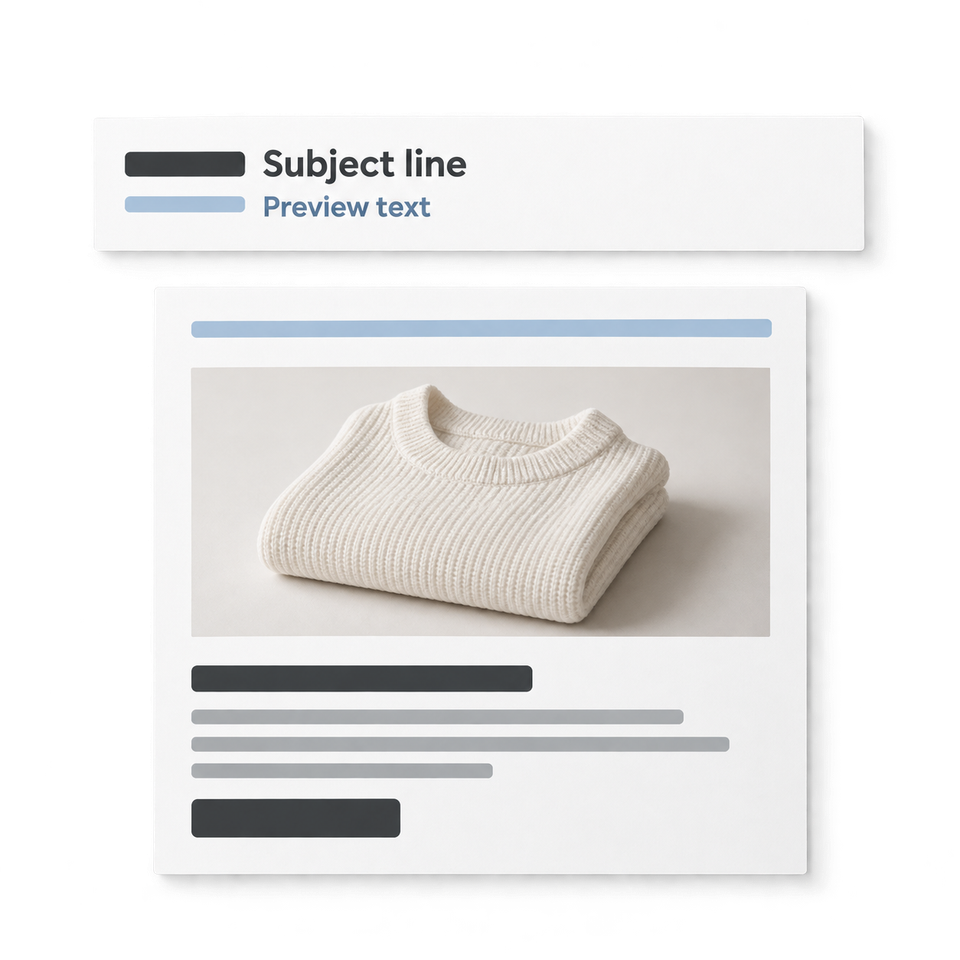
Your subject line promises something useful. The text beside it says "View this email in your browser." That small mismatch is a good reason to check the email preheader before sending a campaign.
An email preheader is text near the start of the message, often used to supply the preview snippet beside or below the subject in an inbox. The mail app decides what it displays. Write the most useful detail first, set the preview text in your email service provider (ESP) and check both the inbox row and the opened email after delivery.
What should the preheader say?
Use it to add something the subject leaves out: a relevant date, what changed, who the message is for or what happens next. Repeating the entire subject spends the reader's attention twice without explaining more.
These are illustrative writing examples, not measured campaign results:
- Subject: "Your workshop is tomorrow". Preheader: "Join at 10 am; your meeting link and preparation notes are inside."
- Subject: "Your order has shipped". Preheader: "Track the delivery and check where to update your delivery instructions."
- Subject: "A change to Friday's opening hours". Preheader: "We close at 3 pm this Friday and reopen at our usual time on Saturday."
Make the snippet accurate for that recipient. If the date, price or next step is personalized in the email, check that the preview text agrees with it. A polished generic line can become misleading when it sits beside recipient-specific content.
How long should email preview text be?
There is no character count that displays in full everywhere. The subject length, sender name, screen width and inbox settings all affect available space. Treat a recommended length as a drafting aid, then test the actual display.
A useful editing exercise is to read only the first clause. Does it still say something helpful? Put secondary detail afterward so truncation does not hide the reason to open. Avoid relying on the final word to reverse the meaning of the sentence.
Mailchimp's preview-text guidance recommends keeping it short, putting important information first and using it to support the subject. In its regular-email checklist, the Subject section contains the subject and preview-text fields. Other ESPs place this setting elsewhere; use the campaign's current preview-text control before editing template code.
Stop unwanted text filling the inbox row
If you leave the preview field empty, a client may use text from the message body. This can expose a browser link, navigation, image alternative or other material that makes little sense beside the subject.
When unwanted words appear, work through the received version:
- Confirm the campaign has custom preview text saved.
- Check whether the template also contains an older preheader block.
- Send a fresh test from the same ESP and From identity.
- Read the inbox row before opening it.
- Open the email and check for a visible duplicate above the design.
A duplicate hidden block and an empty preview field are different problems. Fix the source of the unwanted words before adding elaborate spacing tricks. If the preview text itself appears above the logo, use the hidden preheader repair guide, which includes a real Gmail mobile repair.
Review the inbox and body separately
Ask reviewers to check two views. The inbox row answers whether the sender, subject and snippet make sense together. The opened email answers whether the layout and message survive the client.
For the inbox view, send to test mailboxes your team controls and inspect the apps your readers use. Include a narrow phone view and a desktop view. Inbox settings can change the number of preview lines; make sure the review captures the setting you used rather than declaring one universal length.
For the opened message, send through your ESP to MailSlurp device previews. Compare supported Gmail, Outlook, Apple Mail and mobile clients, including relevant light and dark modes. Our Mailchimp guide walks through sending the delivered campaign for preview.
A clean body render does not tell you exactly what an inbox row showed. Keeping the two checks separate also makes repairs easier: the designer can correct a leaked block while the campaign author improves an unhelpful snippet.
Check personalization and test-send differences
Use controlled contacts that exercise the content you intend to send. A preview sent without contact data may show a fallback name or omit a conditional paragraph. That can change the text available to the inbox snippet.
If your ESP's test-send mode handles personalization differently from a regular campaign, use a separate test-only audience for the final check. Verify recipient counts carefully and keep those contacts out of customer automations. For a multi-language campaign, review each language; a line that fits comfortably in English may truncate at an awkward point in another language.
Is preheader text the same as the subject?
No. They are separate parts of the inbox introduction. The subject names the message; the preview text can add useful context. Avoid making one unintelligible without the other.
Why does the preview differ between Gmail and Outlook?
Each app controls its inbox display and can select or truncate message text differently. Compare the received campaign in both rather than assuming the ESP editor is an exact inbox preview.
Should the preheader be visible after opening?
That depends on the design. A visible introductory line can be intentional. A block intended only for the inbox snippet should not unexpectedly appear above the campaign; test that behavior in the delivered version.
Before the next send, read the sender name, subject and snippet aloud as one introduction. Check the opened email separately for any unintended preheader text.