
guides
Why Your Hidden Email Preheader Appears in the Message
Fix preview text leaking above your campaign. See a real Gmail mobile repair, check your ESP settings, and approve the inbox snippet and opened email separately.
You wrote a helpful line of preview text, then opened the test email and found it sitting above the logo. Sometimes it brings a trail of spaces or stray characters with it. The campaign suddenly starts with a piece of text that was supposed to stay out of sight.
First check whether the unwanted words appear in the inbox list or inside the opened email. For a body leak, inspect the campaign's preview-text settings and custom preheader block. Send a fresh test after the repair and compare the same mail app that exposed the problem.
Preview text and a hidden preheader are different things
Preview text is the short snippet beside or below the subject in an inbox. A preheader is text near the beginning of the email's HTML. Templates often hide that block in the opened message so it can contribute useful snippet text without repeating the campaign headline.
The email app chooses how to display its inbox row. Screen width, user settings and the message itself can affect what fits. Litmus' preview-text reference explains this distinction and the different places clients may obtain snippet text.
That gives you two separate approval questions:
| Where the problem appears | What to inspect |
|---|---|
| Beside the subject in the inbox | Intended preview text, first visible copy, length and client settings |
| Above the logo after opening | Preheader hiding styles, duplicated blocks and spacing characters |
| In both places | The complete received message and both views after each change |
A clean message-body screenshot answers the second question. Open a real test inbox to answer the first.
A real repair in Gmail on Android and iPhone
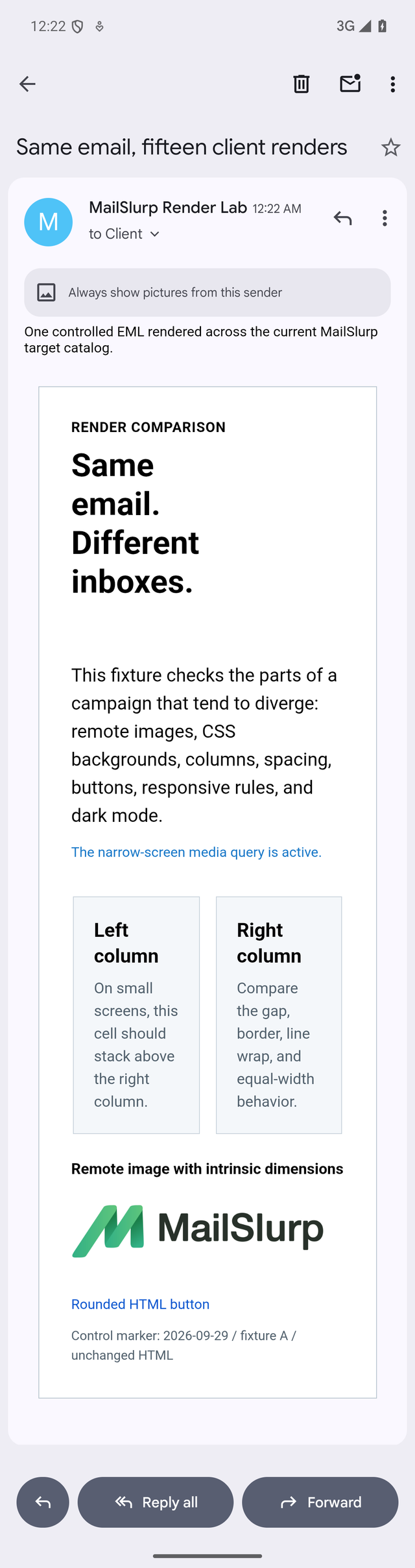
Our September 29, 2026 client-comparison email included a preheader hidden by a CSS class. CSS is the styling that controls how the email looks. The Gmail Android and Gmail iOS captures displayed the text above the designed message even though the source asked for it to be hidden.
We kept the HTML content and layout, then added hiding styles directly to the preheader element. This is called inline styling. The revised Gmail Android and Gmail iOS captures no longer showed that preheader in the opened body.
Before: hidden text appears
After: body starts with the design
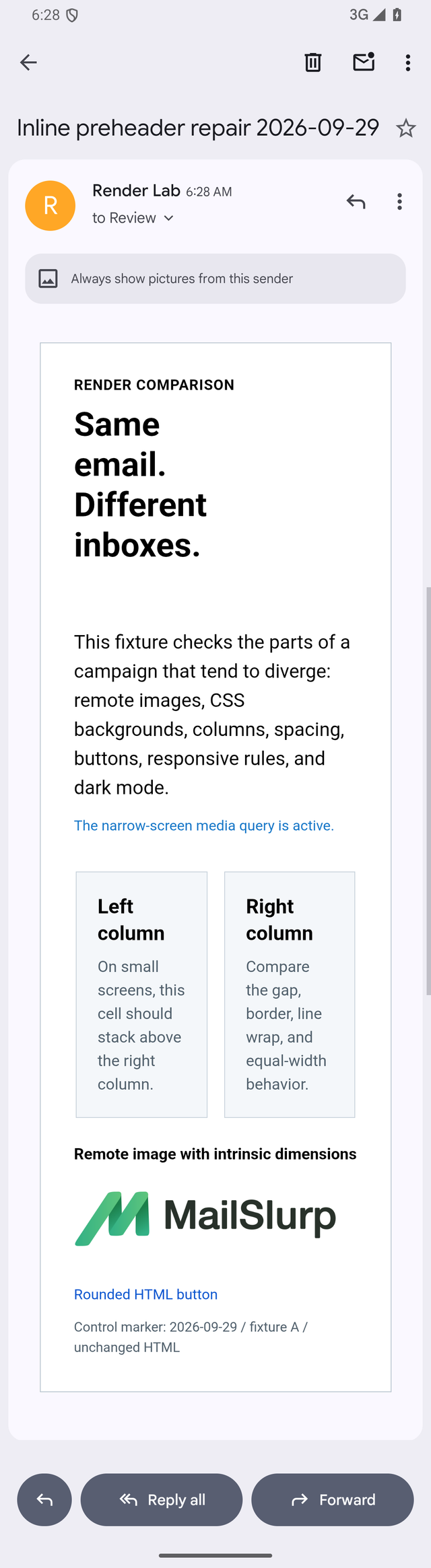
This result supports a specific template repair. It does not mean Gmail never supports hidden preheaders or CSS classes. Google's Gmail CSS reference explicitly documents class selectors and style blocks. A complete message can behave differently from a small support example.
The original email and inline repair are available as EML files for a template developer to compare. They are controlled MailSlurp tests, rather than a campaign exported from an ESP.
Check for two competing preheaders
Before asking someone to rewrite the template, look in your email service provider's preview-text field. Then check whether the imported template already contains a custom preheader. A designer may have added one while the marketer later supplied another in the builder.
Search the received email for the exact unwanted sentence. If it occurs twice, find which part owns each copy. Keep the provider's intended mechanism where it meets your needs, and remove the redundant custom block from a duplicate campaign first.
For a HubSpot marketing email, test the finished email after editing its preview text or template. For a Mailchimp campaign, use the campaign's preview settings and then a new test send. The HubSpot and Mailchimp rendering guides show how to deliver that revision to MailSlurp.
If you cannot edit the HTML, give your designer the unwanted sentence and a screenshot showing where it appears. "Hide this block in the opened Gmail Android email while preserving useful inbox preview text" is a much clearer request than "fix the header."
Remove padding from the experiment before adding more
Some templates append invisible spacing characters to keep later content out of the inbox snippet. If those characters become visible or create a large gap, test a copy without that custom padding. Keep the actual preview sentence unchanged so you can see which part made the difference.
Do not start by stacking several snippets from different tutorials. You can end up with duplicated preheaders, competing rules and a repair that nobody can maintain. Compare the builder's normal output with one targeted custom change.
Use ordinary customer-facing words in the preview text. If a client exposes them, they should still make sense. A useful line such as "Your October picks, with free delivery until Friday" is a more graceful fallback than a string of spacer characters or an internal instruction.
Also avoid placing information only in the preheader. A deadline, price condition or essential account instruction belongs in the visible message too, because snippets can be shortened or replaced.
Approve the first screen twice
Send the final revision to a controlled inbox and your MailSlurp render address. Use a distinct subject so the result is easy to identify.
In the inbox list, check the sender, subject and snippet together. Try a short preview sentence and a longer one if your normal campaigns vary. The beginning should remain useful even when the rest is cut off.
In the opened message, look above the logo for duplicated text, unexpected spacing or stray characters. Compare the exact Gmail app that originally failed, then a second important client. Read the first paragraph too: removing a preheader should not accidentally remove the beginning of the campaign.
When both views are correct, save the repaired template as the version the team will reuse. Add this small first-screen check to your email rendering QA checklist so the next campaign starts with the message you intended.