
guides
Email Rendering QA Checklist for Gmail, Outlook, Mobile, and Dark Mode
Use this email rendering QA checklist to preview final emails across clients, devices, dark mode, links, images, and release workflows.
Use with your tools
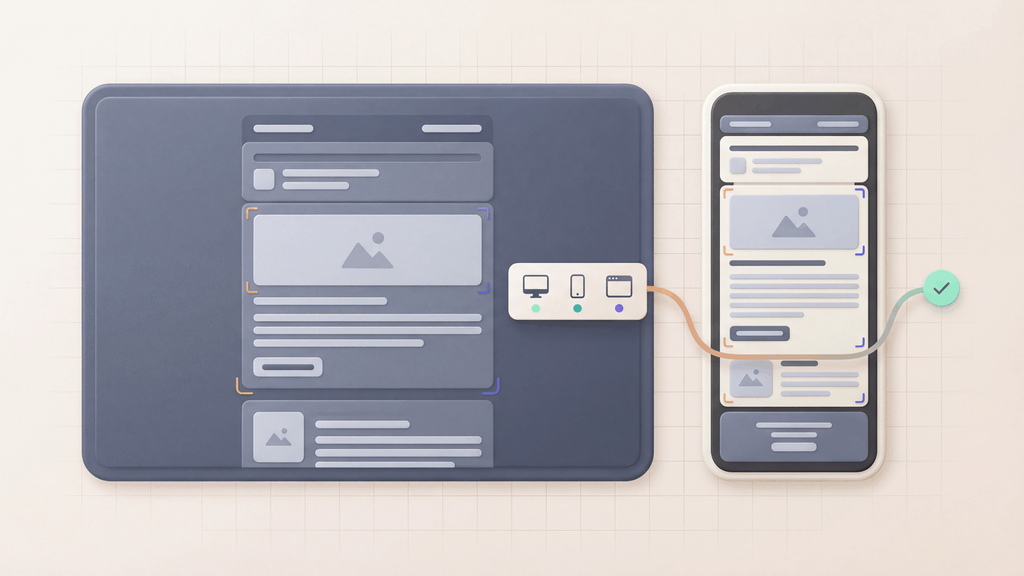
Email rendering QA checks whether the final delivered email is readable, clickable, and trustworthy across the inboxes your customers use.
Use this checklist before important campaigns, transactional templates, password resets, OTP messages, onboarding emails, invoices, account alerts, and lifecycle sends. It pairs visual review with the message checks that make a launch decision reliable.
Quick answer
Run email rendering QA after the final email has been generated by your app, ESP, or staging workflow.
The minimum checklist is:
- Send the final email to a controlled MailSlurp inbox or render address.
- Confirm the message arrived with the expected subject, sender, recipient, and content.
- Preview Gmail, Outlook, iPhone, Android, desktop, light mode, and dark mode.
- Check CTA visibility, image loading, layout width, footer content, and unsubscribe or support links.
- Validate links, tokens, tracking URLs, and personalization output.
- Store the result or share it with the launch owner before approval.
For a quick one-off pass, use Free email render. For repeatable team review, use MailSlurp device previews with inbox, API, and notification workflows.
If multiple reviewers need to sign off, use the email preview approval workflow to assign owners, record defects, and approve the final rendered version.
When to run this checklist
Run a full rendering QA pass when:
- a template changes
- a campaign uses personalization or dynamic content
- tracking links, hosted images, or unsubscribe blocks are added
- an ESP, app, or build pipeline transforms the final HTML
- a critical CTA drives signup, revenue, support, or account recovery
- the email must work on Outlook, Gmail, mobile, or dark mode
- the team needs launch evidence instead of informal screenshots
If the send is low risk, a fast render check may be enough. If the send affects activation, billing, security, compliance, or a major campaign, keep the checklist attached to the release record.
Rendering matrix
Start with the clients that matter most to your audience. Do not let long-tail coverage delay the checks that catch common failures.
| Client group | Must-check items | Why it matters |
|---|---|---|
| Gmail web and mobile | clipping, image loading, CTA placement, preheader text | Gmail is common across consumer and business users |
| Outlook desktop and web | spacing, tables, buttons, fallback fonts, link behavior | Outlook can expose layout defects that browser previews miss |
| iPhone and Android | responsive stacking, tap targets, hero crop, first-screen clarity | Mobile readers often see less context before they click |
| Apple Mail and desktop clients | images, fallback text, dark mode, footer content | Desktop clients can keep emails open during review and support workflows |
| Dark mode variants | contrast, logos, button colors, backgrounds, legal text | Color transforms can hide important content |
Review the clients that create the most business risk first, then add more targets as the workflow matures.
Content and personalization checks
Before looking at screenshots, confirm the message content is the final output.
- The subject, preheader, and sender name match the approved version.
- Personalization variables render with real or fallback-safe values.
- Conditional blocks appear for the intended recipient segment.
- Legal, unsubscribe, support, and preference links are present.
- Plain text and HTML parts both contain the required message.
- Tracking wrappers do not replace, strip, or break important links.
MailSlurp inboxes help here because you can inspect the delivered email before opening the render. Use email integration testing when the same message also needs assertions for tokens, OTPs, reset links, invoices, attachments, or security alerts.
For the inbox introduction, use the email preheader guide to check the sender, subject and preview text together. Review the inbox row separately from the opened message.
Visual rendering checks
Open the render output and look for customer-visible defects.
- The primary CTA is visible without awkward scrolling.
- Buttons remain readable in light mode and dark mode.
- Desktop width does not clip, overflow, or create horizontal scrolling.
- Mobile views stack in the right order.
- Images load, align, and include useful alt text.
- The footer, legal copy, and unsubscribe links remain reachable.
- Links are tappable on mobile.
- Fallback fonts do not break the layout.
- Background colors and logos survive dark mode transforms.
If a defect appears, update the template, resend the final email, and rerun the same target set. Do not approve from a stale render.
Add the email accessibility checklist for reading order, enlarged text and assistive navigation alongside the visual review.
Link, image, and HTML checks
Rendering QA is stronger when paired with functional checks.
Before launch:
- Click every primary CTA.
- Confirm reset, verification, unsubscribe, and preference links go to the right environment.
- Confirm tracking parameters are present where expected.
- Check hosted image URLs from the final email, not only from the editor.
- Verify fallback text for blocked or missing images.
- Confirm important HTML features are supported by the target clients.
Pair rendering review with email compatibility testing when links, images, and HTML support need to be checked beside the visual preview.
If the main action looks right but is difficult to tap or fails with images off, follow the bulletproof email button checks.
Deliverability and sender checks
Rendering QA does not replace deliverability checks. The email must reach the inbox and render correctly after it arrives.
For important sends, add:
- SPF, DKIM, and DMARC checks for the sending domain
- sender name and reply-to verification
- spam-risk review for the final message
- inbox placement checks when sender reputation matters
- header review when routing or tracking changed
Use email deliverability testing, inbox placement testing, and the email deliverability audit checklist when placement risk is part of the launch decision.
Approval workflow
Keep the workflow short enough that people will actually use it.
| Step | Owner | Pass criteria |
|---|---|---|
| Final send captured | QA or campaign owner | The delivered email is the same version intended for launch |
| Content verified | Campaign, product, or support owner | Copy, variables, links, and legal content are correct |
| Render targets reviewed | Design, marketing, or QA owner | No blocking defects on required clients and devices |
| Functional checks passed | QA or engineering owner | Links, tokens, CTAs, and images work in the target environment |
| Launch decision recorded | Launch owner | Result link or notes are attached to the release or campaign checklist |
MailSlurp can support quick manual review, Slack or Teams notifications, render addresses, .eml imports, and API-triggered preview runs. Choose the smallest workflow that gives your team reliable evidence.
API and CI pattern
Use API-triggered device previews when the same email must pass before every release.
A practical CI pattern is:
- Create a MailSlurp inbox for the test run.
- Trigger the application flow that sends the email.
- Wait for the email and assert subject, sender, body, and links.
- Trigger device previews for the required target set.
- Poll until the render run completes.
- Store the render result with the CI job or release record.
- Fail the release if required checks do not pass.
This pattern works well for signup verification, password reset, OTP, billing, notification, and onboarding templates where visual and functional defects both matter.
ESP campaign pattern
For ESP campaigns, render the final test send rather than the editor preview.
- Finish personalization, tracking, images, and footer settings in the ESP.
- Send a test email to a MailSlurp render address or inbox.
- Preview Gmail, Outlook, mobile, desktop, light mode, and dark mode.
- Check links, unsubscribe, preference center, and hosted images.
- Share the render result with the launch owner.
Use the ESP email preview testing guide for platform-specific workflows, including HubSpot, Klaviyo, Mailchimp, Salesforce Marketing Cloud, and Customer.io.
Related MailSlurp guides
- Email rendering test
- Email preview tool
- Email preview API
- Email render address
- .eml email preview
- Best email preview tools
- Email testing before you send
- Email preview approval workflow
- Email client testing
- HTML email preview
- Dark mode email preview
- Device previews
- Free email render
FAQ
What is email rendering QA?
Email rendering QA is the process of reviewing the final email across inbox clients, devices, and viewing modes before launch. It checks visual rendering, links, images, dynamic content, and approval evidence.
What should be in an email rendering checklist?
At minimum, check final-message receipt, Gmail, Outlook, mobile, desktop, dark mode, CTA visibility, images, links, unsubscribe or support content, personalization output, and launch-owner approval.
Should I use a browser preview or real email previews?
Use browser previews while building. Use real email previews before launch because inbox clients handle HTML, CSS, images, and dark mode differently from a normal browser.
Can rendering QA run automatically?
Yes. MailSlurp supports API-driven inbox workflows and device previews, so teams can capture a real email, assert its content, trigger render runs, and attach results to CI or release gates.
How often should I run rendering QA?
Run a full pass when a template changes, a high-impact campaign launches, or a product email affects signup, password reset, billing, security, or support. Use a smaller target set for routine checks and a broader set for major launches.