
guides
Gmail Clipped Your Campaign: How to Find and Fix the Missing Content
See a real Gmail clipping test, find the HTML that makes a short email too large, and restore the offer and footer before sending your campaign.
The top of your newsletter looks fine. Then Gmail stops halfway through and offers a "View entire message" link. Your last product, offer conditions or unsubscribe link may be on the other side of that click.
To fix Gmail clipping, reduce the final email's HTML size and send a fresh test. Start by confirming that the message is actually clipped: a broken image, a collapsed conversation and a cut-off layout need different repairs. Keep the campaign's essential information while removing unnecessary content and formatting.
A short email can still be too large
We tested this with three synthetic newsletters on September 29, 2026. Each contained the same short reading-list message, a link and a clearly labeled footer. The difference was repeated empty HTML formatting: invisible markup that added bytes without adding anything useful for the reader.
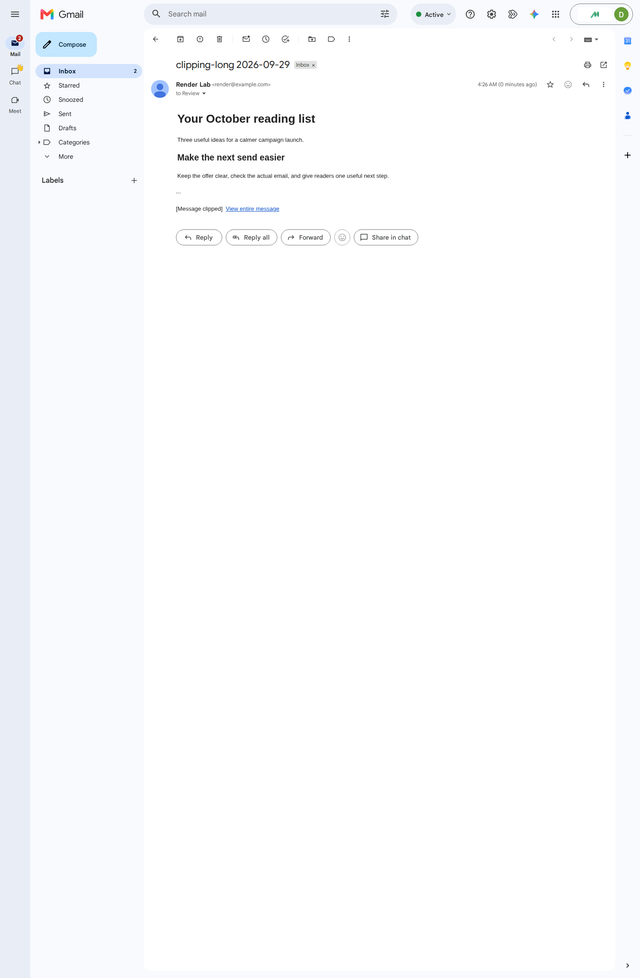
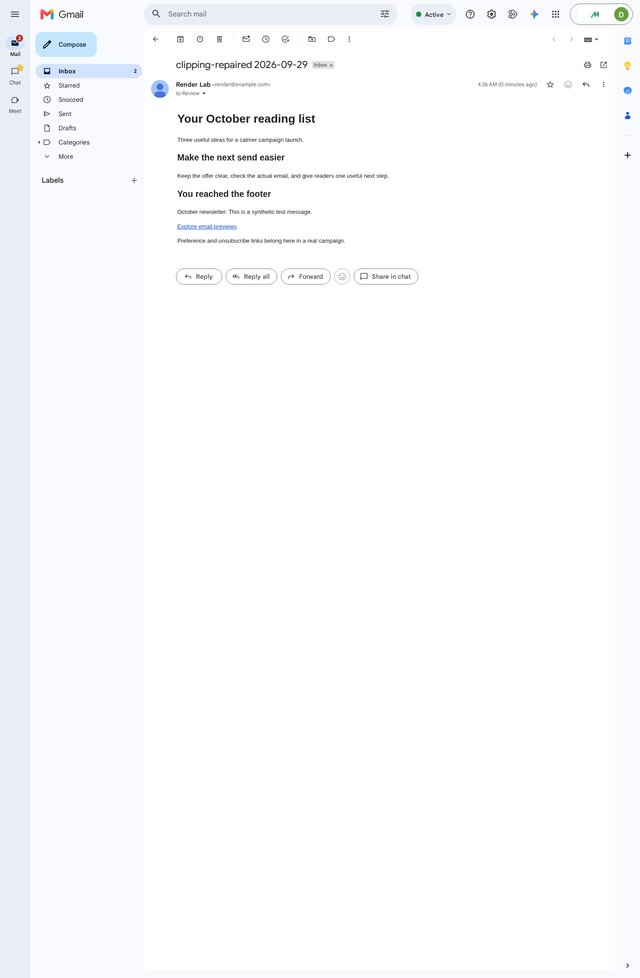
The largest version contained 117,984 bytes of decoded HTML. In the MailSlurp Gmail web capture, Gmail displayed "Message clipped" and hid the footer. Removing most of that redundant markup brought the HTML to 17,952 bytes. The next capture showed the footer and its link.
Repeated formatting: footer clipped
Reduced formatting: footer visible
| Test message | Decoded HTML | Complete EML file | Gmail web result |
|---|---|---|---|
| Repeated formatting | 117,984 bytes | 125,768 bytes | Clipping notice; footer hidden |
| Intermediate control | 74,976 bytes | 80,153 bytes | Footer visible |
| Reduced formatting | 17,952 bytes | 19,679 bytes | Footer visible |
An EML file is the saved email, including headers, plain-text content and MIME encoding. Its file size is not the same measurement as the decoded HTML body. This distinction matters when a designer and marketer compare different size reports and appear to disagree.
The test demonstrates a repair, not the exact clipping boundary for every Gmail message. You can download the larger test email and reduced version to inspect or rerender them.
Confirm which part of the message disappeared
Look for Gmail's clipping notice beneath the visible message. If it is there, compare the content above the notice with the complete message: which offer, condition or footer element is hidden?
If there is no clipping notice, check the symptom before removing content:
- An image is blank but the text continues: investigate the image URL, download setting or format.
- Text extends beyond the right edge: investigate layout width and mobile rendering.
- An older reply is collapsed: open the relevant message in the conversation.
- The saved email never contained the missing section: inspect the campaign's conditional content or export.
Those distinctions prevent a frustrating cycle of shortening the email while leaving the actual fault untouched. For a phone-width problem, follow the iPhone and Android preview guide.
Check the version your email platform actually sent
Your email service provider, or ESP, can add tracking links and campaign markup to the finished send. Ask for the received message, rather than measuring only the HTML before upload.
Mailchimp's clipping guidance identifies messages over 102KB as a clipping risk. It also notes that repeated tests with the same subject can be threaded together, and recommends a new test subject. Hosted image dimensions are a separate issue: shrinking an image does not remove its surrounding email markup.
For a useful diagnosis, give your designer three things: the received EML, the Gmail capture with the missing section, and the campaign revision that produced it. Ask them to report the decoded HTML size separately from the complete file size. You do not need to read the code yourself to make that request precise.
When personalisation or conditional sections change the message, test a representative long version too. A small test with empty customer fields may not be the largest email the campaign generates.
Trim the template without losing the reason to send it
Duplicate the campaign before editing. Then work from the least valuable material towards the most valuable:
- Remove unused content blocks and repeated navigation.
- Recreate pasted text using the builder's normal text styles if it carries excessive formatting.
- Shorten repeated product descriptions and link to useful detail on the website.
- Ask the template developer to remove redundant markup while preserving required client fallbacks.
- Send again and compare both the size and the actual Gmail result.
Keep the offer, important conditions, sender identity and preference or unsubscribe links intact. Deleting the footer to make the message smaller defeats the purpose of the repair. Equally, moving the main button higher may help readers reach it, but it does not resolve clipping farther down.
Avoid blanket HTML cleanup. Some apparently repetitive code exists to support Outlook or a mobile layout. Make a focused change, then check the other clients that matter to the campaign.
Retest the whole campaign, including the bottom
In MailSlurp, start a device preview and copy its render address. Send the revised campaign to that address from your ESP, then open the completed Gmail results. The Mailchimp rendering walkthrough shows this handoff with the real campaign UI.
Use a new subject for the test revision. Compare Gmail web with the Gmail apps your audience uses; the Gmail preview guide explains those targets. Scroll to the bottom of each result instead of approving from the first screen.
Check that the complete offer, final content block and footer are visible. Open the campaign's important links from a safe received test message as a separate check: seeing a link in a screenshot does not confirm its destination works.
The version to schedule is the one you just tested. A late addition of another product row deserves another send, especially when the earlier version was close to the size limit. Check the finished campaign in MailSlurp device previews before that last addition becomes a missing footer.