
guides
How to Sign Up for MailSlurp and Set Up Your First API Workflow
Step-by-step MailSlurp sign-up guide for developers and QA teams, including email verification, API key setup, and first-run checks.
This guide walks through account creation, login, API-key setup, and first-run checks so you can start testing email workflows quickly.
Before you start
Have these ready:
- an email address you can access immediately
- a password manager (recommended)
- your target environment (
local,staging, orci)
Go to the signup page: app.mailslurp.com/sign-up.
Step 1: Create your account
Enter your name, email, and password, then submit the form.
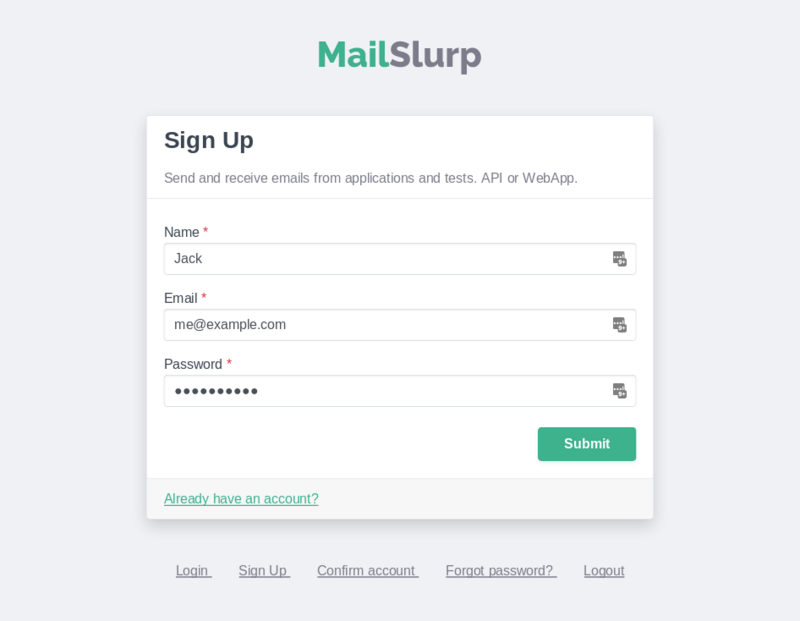
Tips:
- use a team-owned email for shared environments
- keep personal and production workspaces separate
- prefer unique passwords and MFA where available
Step 2: Confirm your email address
MailSlurp sends a confirmation link or code to the address you entered.
- open the message and click the link, or
- copy the code into the confirmation field
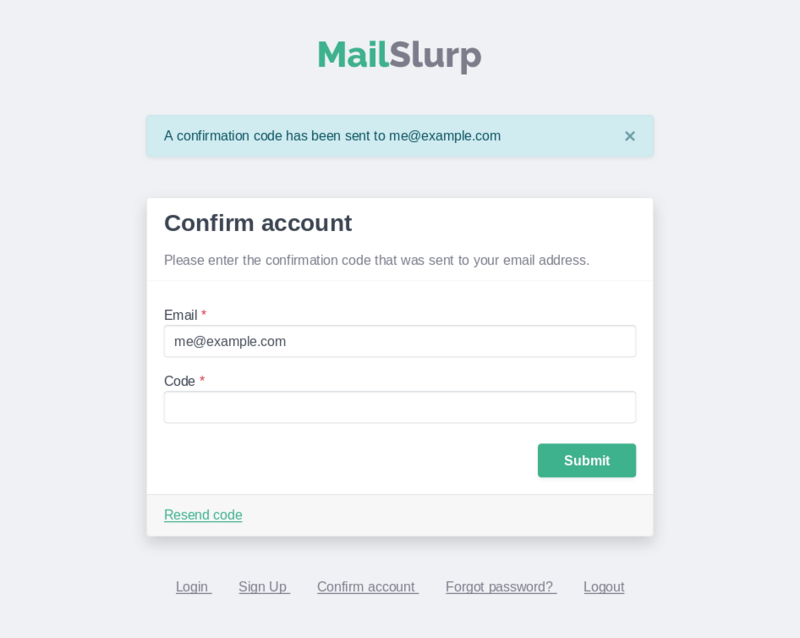
If the message does not arrive, check spam/quarantine first and then retry from the signup flow.
Step 3: Log in
After verification, sign in at app.mailslurp.com/login.
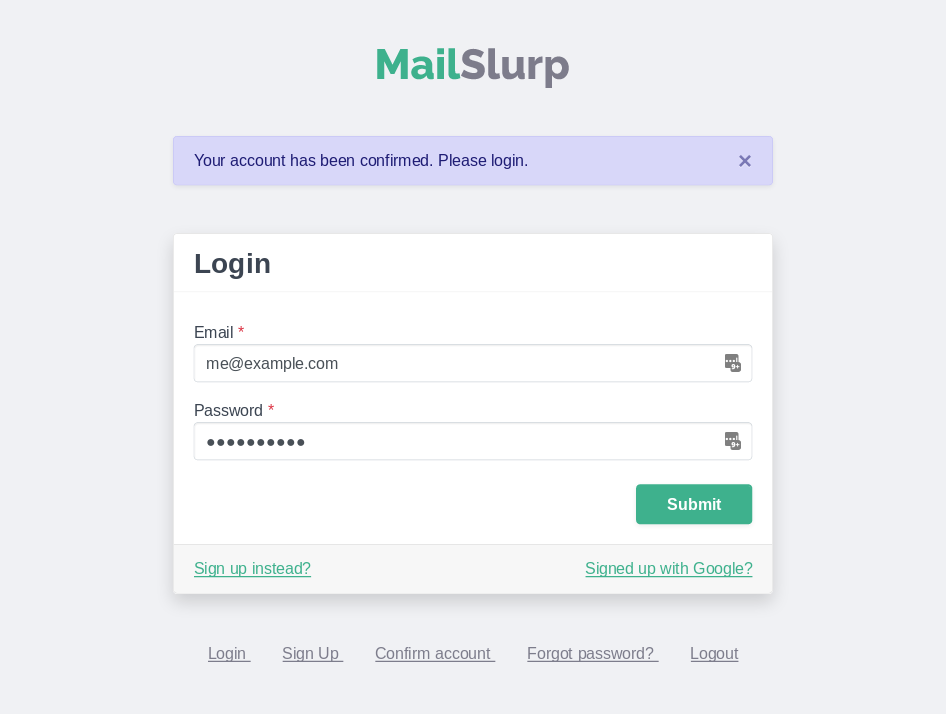
Step 4: Create your first API key
From settings, generate an API key for your environment. Keep separate keys for local development, CI, and production workloads.
Settings page: app.mailslurp.com/settings
Operational guidance:
- rotate keys on a schedule
- do not commit keys to source control
- inject keys via environment variables in CI
Step 5: Run a first-run validation
Use your API key to create an inbox and confirm your account is ready for automation.
Suggested path:
- Create an inbox via dashboard or API.
- Send a test message to that inbox.
- Fetch the received message with an SDK or REST call.
If you want a complete walkthrough, continue with getting started and receive emails in code.
Common setup issues
"I didn't get the verification email"
- check spam/junk and organization quarantine
- verify you entered the email correctly
- resend verification from signup
"I can log in but API calls fail"
- confirm the key is copied correctly (no extra spaces)
- verify the key is being read by your runtime environment
- test a simple endpoint before full test-suite integration
"Team members cannot access shared workflows"
- confirm workspace membership and roles
- use separate keys per service, not one shared personal key
- document key ownership for audits and rotations
Next steps
After account setup, move to one of these: