










Test an Appwrite password reset with Playwright and a real email
Follow a delivered Appwrite recovery email in Playwright, save a new password, and verify which password opens the original account in a fresh browser.
By MailSlurpPublished
Use with your tools

When someone follows an Appwrite password reset email, they land on a page your application owns. That page can display a perfectly good password form even if its submit button never sends the recovery secret back to Appwrite. A test that stops at the form misses the failure the user will discover at their next sign-in.
We'll start with a password we know works and change it using the link from a real email. Playwright drives a small web app, and MailSlurp gives the test a fresh inbox for the account. At the end we'll try each password in a separate browser and ask Appwrite which account the successful login opened.
Set up password recovery in an Appwrite project
Use a dedicated Appwrite project with Email/Password authentication enabled. Register a Web platform with the hostname localhost. The example runs there on port 4174 and handles recovery links at /recover. Appwrite checks the hostname you send in the recovery request against the platforms registered for your project. Appwrite email and password authentication
Download the runnable Playwright project, extract it and open the directory containing package.json. You'll need Node.js 22.12 or newer. Install the dependencies and create a local settings file:
npm ci
npx playwright install chromium
cp .env.example .env.local
Set VITE_APPWRITE_ENDPOINT to the project's regional API endpoint, including /v1, and set VITE_APPWRITE_PROJECT_ID to the project ID. Put the MailSlurp key in MAILSLURP_API_KEY. Only the Node test runner needs that key. Then run the link checks and the hosted browser test:
npm test
npm run test:staging
Request a recovery email for a working account
The test creates an inbox, registers its address with a generated password, and signs in once. It saves the account ID that Appwrite returns and signs out. This first login gives the test a known working credential and a specific account to look for after the reset.
In a fresh browser, Playwright clicks Forgot password? and submits the same address. The browser asks Appwrite to put an application URL in the email:
await account.createRecovery({
  email,
  url: new URL('/recover', location.origin).href
});
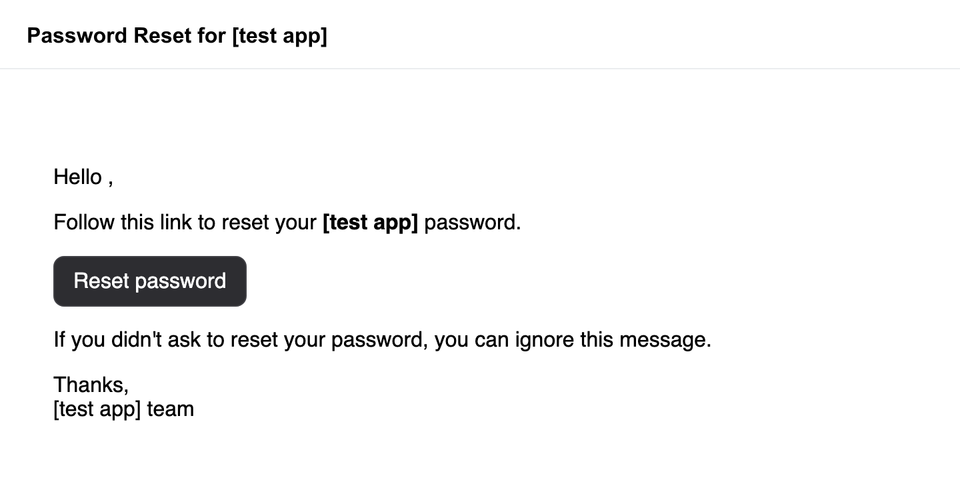
The Node runner records the time just before submitting the form. It waits for a message delivered to that inbox after the request and reads the links from that message. The email we received contained a Reset password button and another link. The test selects the URL with the callback's exact origin and path, a single nonempty secret, and the userId of the account we just created. MailSlurp email waits
Save the replacement password on the callback page
Opening the email takes the browser directly to the app's recovery form. On arrival, the app reads the two values from the query string and clears them from the address bar. It keeps them in memory while the user chooses a password. Reloading the form clears those values, so open the original email link again if you reload before submitting.
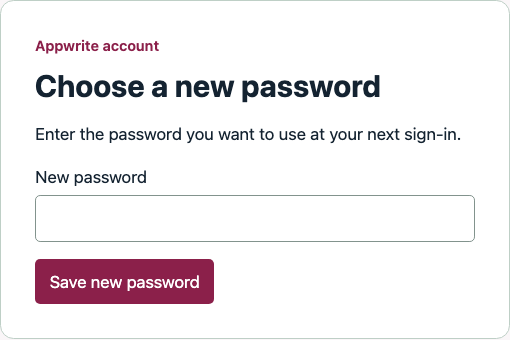
The form passes both values and the replacement password to the Web SDK. Show the confirmation only after this call succeeds:
await account.updateRecovery({ userId, secret, password });
There is no sign-in call on this page. Completing recovery and creating a session are two separate actions. Appwrite Account API
Try both passwords in fresh browser sessions
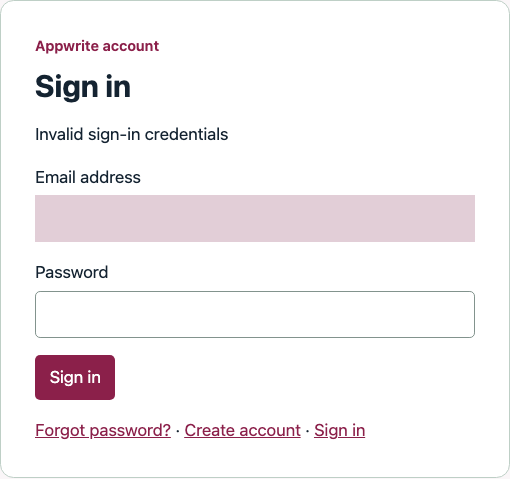
Close the recovery browser and sign in with the original password in a new Playwright context. The example displays the message below only when Appwrite returns user_invalid_credentials. A network error or rate limit produces a different message and fails the assertion.
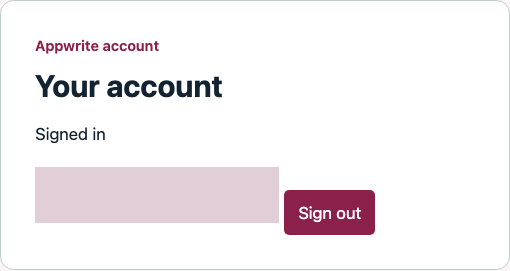
Open a second fresh context and enter the new password. Wait for sign-in, then reload. On startup the example calls account.get(). The test reads that response and checks the account ID as well as the email shown on screen:
const accountResponse = accountRead(page); // Wait for GET /account on reload.
await page.reload();
const response = await accountResponse;
const user = await response.json();
expect(user.$id).toBe(accountId);
await expect(page.getByLabel('Account email')).toHaveText(inbox.emailAddress);
The runner signs out and deletes the temporary inbox. Each run leaves one user in the Appwrite staging project.
What are common issues when users don't receive password reset emails?
Check the request before investigating the mailbox. Use an address that has already signed in to this project. Check that the callback hostname is registered and inspect the response from createRecovery. A rejected callback or a rate-limited request can stop the flow before there is any email to find.
If Appwrite accepted the request, check the recipient address against the inbox you're reading. For a personal mailbox, look in junk and quarantine. For an automated test, scope the wait to the inbox created for this run and set its start time before submitting the form. If you use custom SMTP, check the sender's delivery log for a rejection.
If the email arrives and the user can open the form, delivery has succeeded. Check that the callback preserved both userId and secret and that updateRecovery succeeded before showing confirmation. Then repeat the two fresh sign-ins to see which password Appwrite accepts.