










Test Appwrite sign-out on another device with Playwright
Sign the same Appwrite user in twice with emailed codes. Revoke other sessions, reload both browsers, and verify the requesting browser still has account access.
By MailSlurpPublished
Use with your tools

A customer signs in on a shared computer and later wants to sign that computer out from their laptop. Either browser can display a reassuring confirmation message. To test the feature, you need to make a new account request from the shared computer after the laptop revokes its session. Check the laptop too: accidentally signing out both devices is a different bug.
We'll give one Appwrite user two browser sessions. Each browser signs in with a separate email code delivered to the same MailSlurp inbox. Using one inbox matters here. Two different email addresses would create two different users and tell us nothing about revoking a session on the same account.
What should I do if I forget to sign out from a shared device?
In an Appwrite app with a device management screen, sign in on a device you control and choose Sign out other devices. The sample calls account.deleteSessions({ current: false }), which keeps the session making the request. The shared computer can still display a page it already loaded. Reopen the account or reload the page there to find out whether it can still retrieve the user's data. Appwrite Account API
Run the two-browser example
Open the Appwrite email OTP project. Register localhost as a Web platform in a staging Appwrite project and enable email OTP sign-in with the six-digit message template. From the example directory, use Node.js 22.13 or newer:
npm ci
npx playwright install chromium
cp .env.example .env.local
Set VITE_APPWRITE_ENDPOINT to the project's regional endpoint, VITE_APPWRITE_PROJECT_ID to its project ID, and MAILSLURP_API_KEY for the Node runner. Run npm test -- --grep 'sign out other devices'. Playwright starts the app on localhost:4174. For the individual signup and code-entry steps, see the Appwrite email OTP walkthrough.
Establish two independent sessions
Use Playwright's default page for the laptop and a new browser context for the shared computer. Two tabs in one context share storage and can both be using the same session. In the second context, request a new code for the same address. The runner reads only email that arrived after that request and submits the code in the browser that requested it.
In the first browser, choose Check active sessions. The sample calls account.listSessions(). Our new user had two active sessions before revocation.
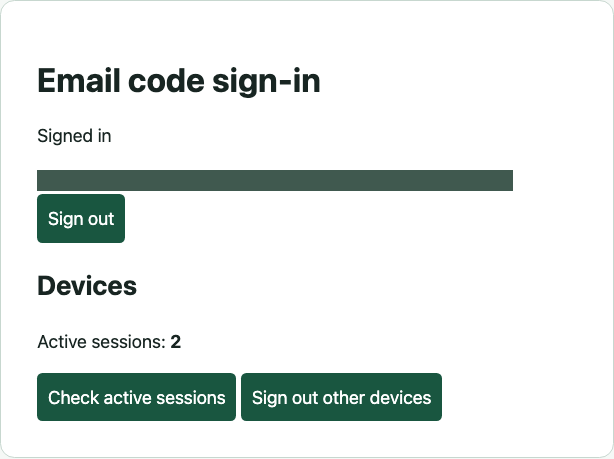
Revoke the other session and reload both browsers
Click Sign out other devices in the first browser. In the app, the two calls that update the device count are:
await account.deleteSessions({ current: false });
const { sessions } = await account.listSessions();
Reload the second browser. The app calls account.get() again and displays Signed out when Appwrite returns 401. Playwright checks that the sign-in form is back. Then it reloads the first browser, checks the email address, and counts the remaining sessions:
await second.reload();
await expect(second.locator('p[role=status]')).toHaveText('Signed out');
await page.reload();
await expect(page.getByLabel('Signed-in email')).toHaveText(inbox.emailAddress);
await page.getByRole('button', { name: 'Check active sessions' }).click();
await expect(page.locator('#session-count')).toHaveText('1');
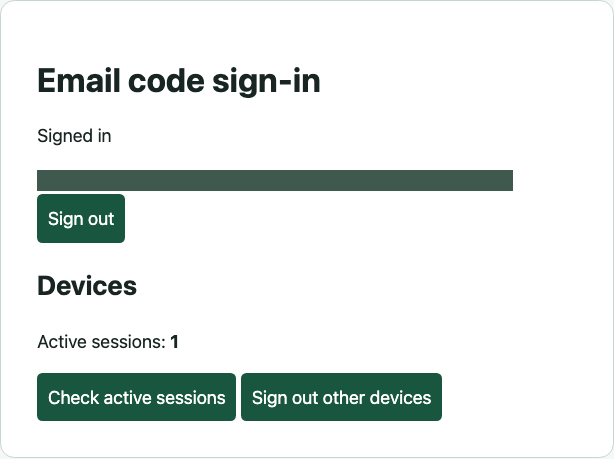
If both browsers stay signed in, check that each created its own session and that the second browser actually fetched the account after revocation. If both are signed out, inspect the current argument. The example ends by signing the remaining browser out of its current session.