










Test a Supabase password reset with Playwright and a real email
Follow a real Supabase recovery email in Playwright, change the password, and prove the old password fails and the new one signs in after a fresh browser start.
By MailSlurpPublished
Use with your tools

A customer clicks Forgot password?, opens their email, and reaches the form for choosing a new password. At that point Supabase has already given the browser a recovery session. If your test stops when it sees an authenticated page, it can pass even when the form never saved the new password.
We'll take one staging account through the whole flow. First we'll prove its original password works. Then we'll request a recovery email while signed out, change the password, and try both credentials in separate, clean browsers. Playwright drives the application. MailSlurp provides a real inbox so the runner can follow the same link the customer would receive.
Set up the Supabase forgot-password flow
This example recovers an application user's password. In a dedicated Supabase project, enable email/password signups and email confirmations. Set the Site URL to http://localhost:3000 and add http://localhost:3000/ to the allowed redirect URLs. The Confirm signup and Reset password templates should both use {{ .ConfirmationURL }} so the emailed link goes through Supabase's verification endpoint. Supabase password-based authentication · Redirect URLs
Configure custom SMTP with a sender that can deliver to new test addresses. Supabase's default sender restricts delivery to organization members. We used a dedicated SMTP inbox as the sender and created a separate temporary MailSlurp inbox for the user. Supabase custom SMTP
Download the Playwright password recovery example and open its directory. Use Node.js 22.12 or newer. In .env.local, set the project URL and publishable key in the two VITE_ fields. Keep MAILSLURP_API_KEY unprefixed so only the Node test runner receives it.
npm ci
npx playwright install chromium
cp .env.example .env.local
# Fill in the staging settings before running the tests.
npm test
npm run test:staging
Request the email from a signed-out browser
The test creates an inbox and signs up with a randomly generated password. It confirms the signup email, signs out, and signs back in using that password. This first login matters: it establishes that the old credential was valid before we replaced it.
After signing out again, the runner opens a new browser context, clicks Forgot password?, and submits the same email address. The application asks Supabase to send the recovery message:
const { error } = await auth.resetPasswordForEmail(email, {
  redirectTo: location.origin + '/'
});
Both emails reach the same inbox. The runner records the time of the reset request, waits for a new message, and checks that its verification URL belongs to the staging project. It requires the expected redirect and type=recovery. An earlier signup link points to the same verification endpoint but carries a different action. Supabase resetPasswordForEmail
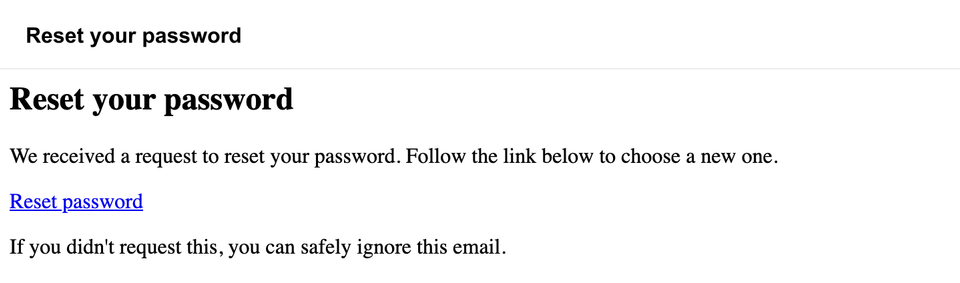
Exchange the callback code and save the password
Playwright opens the recovery link in the browser that requested it. The app uses PKCE: that browser holds the verifier Supabase expects when exchanging the callback code. The app removes the code from the address bar, calls auth.exchangeCodeForSession(code), and displays the password form when the exchange succeeds with data.redirectType === 'recovery'. Supabase PKCE flow
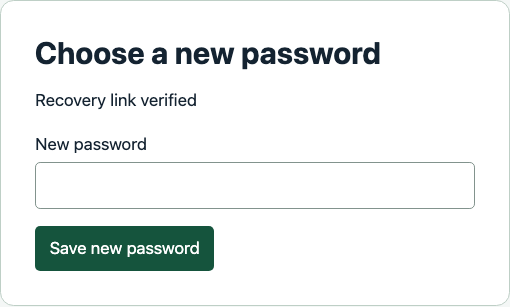
On submission the app calls auth.updateUser({ password }) and checks for an error before displaying confirmation. The runner then signs out and closes the context that held the recovery session. Supabase updateUser
Verify that only the new password signs in
| Browser context | Credential | Expected result |
|---|---|---|
| Before recovery | Original password | Supabase returns the account for the new test inbox. |
| After recovery, first fresh context | Original password | Supabase returns invalid_credentials. |
| After recovery, second fresh context | Replacement password | Sign-in succeeds. Reloading and calling auth.getUser() returns the same inbox address. |
The old-password assertion checks for the specific credentials error. A timeout or an unavailable server must fail the test. For the replacement password, the test waits for sign-in to finish and reloads before reading the account email:
await expect(status(page)).toHaveText('Signed in');
await page.reload();
await expect(page.getByLabel('Account email')).toHaveText(inbox.emailAddress);
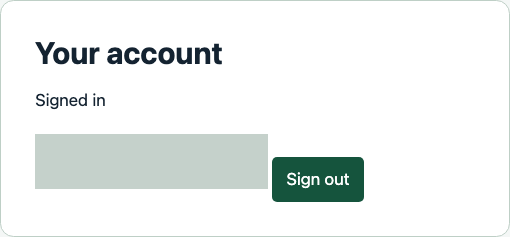
The test signs out and deletes its temporary inbox. Supabase retains the staging user. The runnable example uses a publishable key and generates both passwords in memory.
What are common issues when users don't receive password reset emails?
Start with an address you know belongs to a confirmed user. A generic “check your email” message protects account privacy and gives you no delivery evidence. Check the custom sender's recipient restrictions, SMTP credentials, send logs, and the project's per-address email cooldown. In the test, verify that the mailbox ID belongs to the same address you submitted and that the wait begins just before the reset request.
If the message arrives but the reset form never opens, move on to the verification link. Check its action and allowed redirect, open a fresh message in the browser that requested it, and inspect whether an email scanner has already consumed the link. If the form opens and the old password still works, inspect the response from updateUser and repeat sign-in in a fresh browser. Supabase email template troubleshooting