










Test Clerk email verification with Playwright and a real inbox
Test Clerk signup in Next.js with a fixed development code and a code delivered to a real inbox. Verify the primary email on a protected page after reload.
By MailSlurpPublished
Use with your tools

Clerk gives a Next.js app a sign-up form, an email challenge and a session. Testing the part between those screens takes more work. A form test can accept a development code while a new customer is still waiting for an email. To check what the customer experiences, the test needs an address it can open and the code Clerk actually sent there.
We'll use Playwright for the browser and MailSlurp for the mailbox. We'll visit a protected account page as a guest, complete signup, reload, and check which email Clerk verified. You can run the fast development-code test on each change and the real-delivery test when you need to check the sender, message, and form together.
How do I set up Clerk authentication in my web app?
For a Next.js App Router project, wrap the app in ClerkProvider, add clerkMiddleware() in proxy.js, and render Clerk's sign-up form on your signup route. In this example the provider redirects successful signups to /account. That page reads the user on the server, so you can check whether the address that received the code is the one Clerk verified.
Open the Next.js example on GitHub. Clone the repository and open clerk-email-verification. Use Node.js 22.13 or newer and a dedicated Clerk development application with email-address signup and email-code verification. The sample handles an optional password field. If your signup requires additional profile fields, fill those in the test too. Clerk signup form testing
npm ci
npx playwright install chromium
cp .env.example .env.local
In .env.local, set NEXT_PUBLIC_CLERK_PUBLISHABLE_KEY and CLERK_SECRET_KEY from the same development application. Add MAILSLURP_API_KEY for the real-email test. Only the publishable key belongs in browser code. Playwright starts the app on localhost.
Check the form with Clerk's reserved address
Run npm test -- --grep 'reserved test'. The test visits /account as a guest, follows the redirect to signup, and uses a unique address with Clerk's +clerk_test suffix. In development, Clerk accepts 424242 for that address. This checks that the form, redirect and protected page work without waiting for a message. Clerk test emails and phones
Submit the code from a real email
Run npm test -- --grep 'real signup'. This time Playwright enters the address of a new MailSlurp inbox. The runner records the submit time, clicks Continue, and waits for Clerk's verification field. That field tells us the browser is ready for a code.
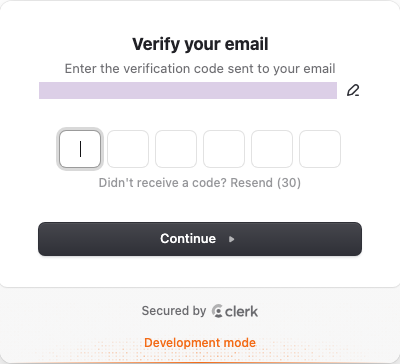
The runner waits for an email sent to that inbox after the form submission. It reads the text lines of that same message, requires a single distinct six-digit value, and enters it in the verification field:
const email = await mail.waitController.waitForLatestEmail({
  inboxId: inbox.id, since, timeout: 90000
});
const { lines } = await mail.emailController.getEmailTextLines({ emailId: email.id });
const codes = new Set(lines.join('\n').match(/\b\d{6}\b/g));
if (codes.size !== 1) throw new Error('Expected one verification code.');
await input.pressSequentially([...codes][0]);
What should be included in an OTP email to ensure user trust?
Identify the application, state what the code is for, and explain what the recipient should do if the request was unexpected. The Clerk development email in this example repeated the digits in the subject and body, named the application, and warned the recipient against sharing the code. When you customize the template, give the app a name your users recognize and rerun the test against that template.
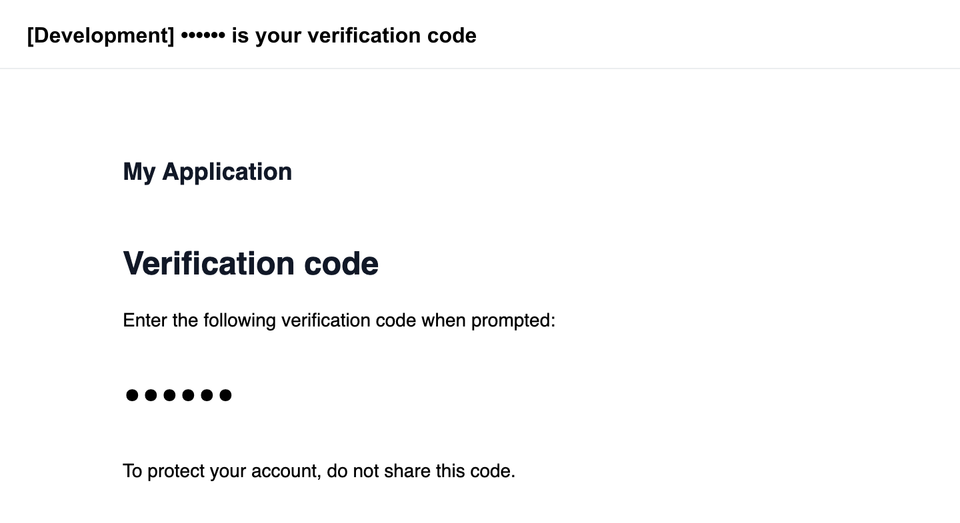
Verify the primary email after a reload
On /account, the Next.js server calls currentUser() and looks up the address matching primaryEmailAddressId. After reload the test requires the exact recipient address and the status verified:
await page.waitForURL('**/account');
await page.reload();
await expect(page.getByLabel('Account email')).toHaveText(inbox.emailAddress);
await expect(page.getByText('verified', { exact: true })).toBeVisible();
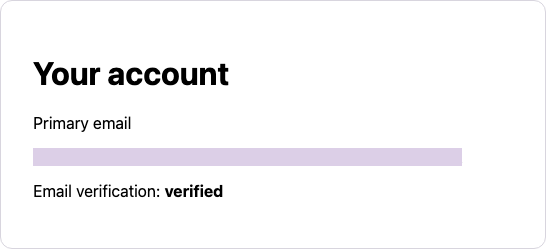
If the reserved-address test passes and the delivery test times out, first check which address signup submitted. A reserved address takes the simulated path. For an ordinary address, check the instance's daily recipient limit and the test's inbox ID. If mail arrived and the page still redirects to signup, inspect the verification result and any additional fields required by your Clerk instance. The test deletes its temporary inbox; the development user remains in Clerk.