
guides
How To Create Outlook Email Templates and Test Them Reliably
Learn how to create reusable Outlook email templates, avoid formatting issues, and test links, variables, rendering, and deliverability before sending.
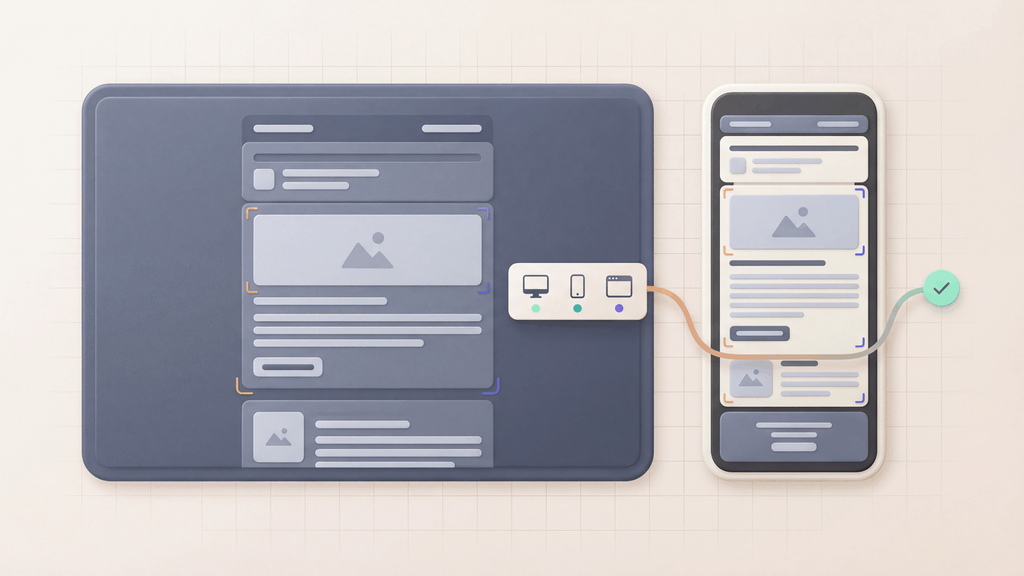
Outlook email templates are useful when teams send the same message repeatedly: sales follow-ups, support replies, onboarding notes, renewal reminders, internal approvals, and operational alerts.
The risk is that a template can look fine while you are editing it and still fail when it reaches a real inbox. Outlook can change spacing, strip or rewrite styles, alter image behavior, and handle links differently across desktop, web, and mobile clients.
This guide shows how to create Outlook templates and how to test them before they become a shared workflow.
Quick answer
To create an Outlook email template:
- Write the message in Outlook.
- Add stable links, variables, and fallback text.
- Use email-safe layout, not browser-style HTML.
- Save the message as an Outlook template or reusable draft.
- Send test copies to controlled inboxes.
- Verify rendering, links, attachments, and spam risk before reusing it at scale.
If the template supports customer-critical work, pair Outlook testing with Email Sandbox, Email client testing, and Email spam checker.
When the main risk is visual layout, use Outlook email rendering or Free email render to preview the template across Outlook and adjacent clients before reuse.
When Outlook templates make sense
Use Outlook templates for repeatable messages where consistency matters but a full marketing automation workflow would be too heavy.
Good fits:
- support replies
- account handoff notes
- renewal reminders
- onboarding instructions
- internal approvals
- customer success follow-ups
- lightweight operational notices
Poor fits:
- high-volume transactional email
- OTP and password reset flows
- dynamic billing messages
- compliance-sensitive lifecycle campaigns
- heavily personalized customer journeys
Those workflows usually need API-driven templates and automated tests.
Create an Outlook email template
1. Start with the job the message must do
Before formatting the email, define the outcome:
- Should the recipient reply?
- Should they click a link?
- Should they confirm account access?
- Should they review an attachment?
- Should they complete a renewal or support step?
Write the first version around that action. A template that tries to cover every case becomes hard to test and easy to misuse.
2. Keep the structure simple
Outlook rendering is less forgiving than normal browser rendering. Keep the template simple:
- one clear opening line
- short paragraphs
- one primary CTA
- plain-text fallback for the key action
- stable image URLs if images are needed
- no complex CSS, scripts, or interactive widgets
For broader template design guidance, use Email templates and Email testing before you send.
3. Add links and variables carefully
Every reusable template needs rules for placeholders.
Use clear markers such as:
{{first_name}}{{account_url}}{{renewal_date}}{{support_ticket_id}}
Then test the rendered message with real example values. Do not only check the source template.
Common mistakes:
- placeholder names leak into the sent email
- links point to staging
- old calendar links stay in the template
- tracking parameters are copied from another campaign
- support addresses or legal copy drift over time
4. Save the reusable template
Outlook workflows vary by plan and client, but teams commonly use:
- saved drafts
- Outlook templates
- Quick Parts
- shared mailbox drafts
- Microsoft 365 template add-ins
The storage method matters less than governance. Make one owner responsible for updating the template and removing stale versions.
Outlook template QA checklist
Before sharing or reusing the template, send it to controlled test inboxes and check:
| Area | What to verify |
|---|---|
| Links | destination, tracking parameters, environment, fallback |
| Variables | no raw placeholders, correct names, correct dates |
| Rendering | desktop Outlook, Outlook web, mobile, and Gmail fallback |
| Spacing | readable paragraphs, no broken tables, no odd line wraps |
| Images | HTTPS, alt text, sensible size, readable without images |
| Attachments | correct file, size, and naming |
| Deliverability | spam score, auth alignment, and provider placement |
Use HTML email spacing when the problem is layout stability, and Email feature compatibility table when you need to check whether a CSS or HTML feature is safe for email clients.
Testing Outlook templates with MailSlurp
MailSlurp is useful when an Outlook template affects a repeatable business process.
You can:
- send a test copy to a MailSlurp inbox
- inspect the final HTML and plain text body
- assert that links point to the right destination
- extract codes or IDs from the message
- check attachments and headers
- run the same test after every template change
That moves the template from "someone reviewed it manually" to "the important parts are verified."
For automated flows, use Email integration testing. For one-off visual checks, use Outlook email rendering and Device previews.
Outlook template mistakes to avoid
- building complex browser-style HTML and assuming Outlook will respect it
- using image-only CTAs with no text fallback
- reusing an old template without checking every link
- copying rich text from documents that introduce hidden spacing
- testing only inside Outlook and not in the recipient's likely client
- treating a shared template as ownerless
Templates are operational assets. If they drive customer action, they need ownership and tests.
Related guides
- Email templates
- HTML email spacing
- Send HTML email in Gmail
- Outlook email rendering
- Device previews
- Email client testing
- Email preview tool
- Email testing checklist
FAQ
Can I create email templates in Outlook?
Yes. Outlook supports reusable drafts and template-style workflows, though the exact method depends on whether you use desktop Outlook, Outlook web, Microsoft 365, or add-ins.
Why does my Outlook email template look different after sending?
Outlook and other email clients do not render HTML like a browser. CSS support, spacing, images, and dark mode behavior can change after send, so test the received message.
Should product emails use Outlook templates?
Usually no. Product emails such as verification, password reset, billing, and alerts should use versioned templates and automated tests. Outlook templates are better for human-operated repeatable messages.