










Test Keycloak email verification with Playwright and a real inbox
Register a Keycloak user, read the verification email sent over SMTP, then check the user's emailVerified flag and sign in from a fresh browser.
By MailSlurpPublished
Use with your tools

A new user can appear in Keycloak's Admin Console while they're still waiting for the email that lets them finish registration. If a signup test stops when it finds the user record, it can pass even when the mail server rejected the message. Checking the inbox catches delivery failures. Checking the user again after clicking the link tells you whether verification actually worked.
In this example Playwright registers through Keycloak's own account console. MailSlurp provides a dedicated SMTP sender and a separate recipient inbox. We'll watch one user's verification flag change, set their password, and sign in from a browser that has never seen the registration page.
How do I set up Keycloak for secure user authentication?
For the email-verification step, enable User registration and Verify email under Realm settings → Login and configure the sender under Realm settings → Email. In Keycloak 26.8.2 the default registration form in this configuration collects the name and email first. The password form comes after the user opens the verification link. That order determines what Playwright should wait for at each step. Keycloak server administration guide
Run a disposable realm locally
Open the runnable Keycloak example. On macOS or Linux, install OpenJDK 25 and Node.js 22.13 or newer, then extract the Keycloak 26.8.2 distribution. From the example directory:
npm ci
npx playwright install chromium
cp .env.example .env.local
Set KC_HOME to the extracted directory containing bin/kc.sh. Set MAILSLURP_API_KEY on the runner using a MailSlurp account with SMTP sending and inbox access. Run npm test. Playwright starts Keycloak on 127.0.0.1:38761 with an in-memory database. The runner creates a realm, configures it with the sender inbox's SMTP credentials, and opens the account console. Keycloak installation guide
Register and read the first account state
The test chooses Register, enters the recipient address and a name, then submits the form. When the browser reaches Email verification, the runner searches the Admin API for the exact email address. It requires one matching record and saves its ID:
const before = await readUser();
expect(before.emailVerified).toBe(false);
Now read the message delivered to that inbox after registration. The default template in this run identified the realm by its display name, explained why the user received the email, and gave the verification link a five-minute lifetime.
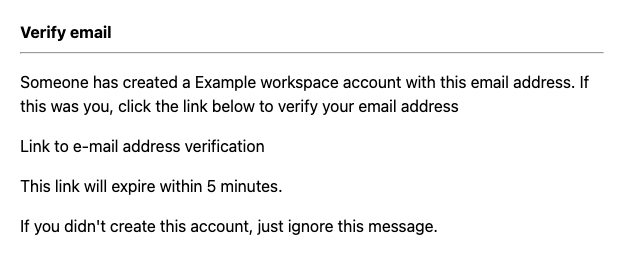
Open the link and finish password setup
The helper in the example accepts one distinct URL with the test server's origin, the realm's /login-actions/action-token path and a nonempty key parameter. Open it in the registering browser. Read the user again to confirm that the flag changed on the original account:
const action = verificationLink(links, baseURL, realm);
await page.goto(action);
await expect.poll(async () => (await readUser()).emailVerified).toBe(true);
expect((await readUser()).id).toBe(before.id);
At this point the address is verified, but the user still needs a password. Keycloak now displays Update password. Submit the new password and wait for the account console's Personal info page.
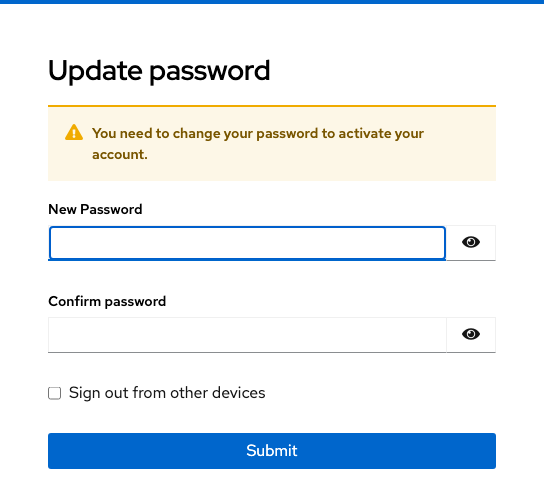
Sign in from a fresh browser
Create a new Playwright context, visit the account console, and sign in with the same address and the password you just set. Reload Personal info and check its email field. This makes the last check independent of the browser session that opened the link.
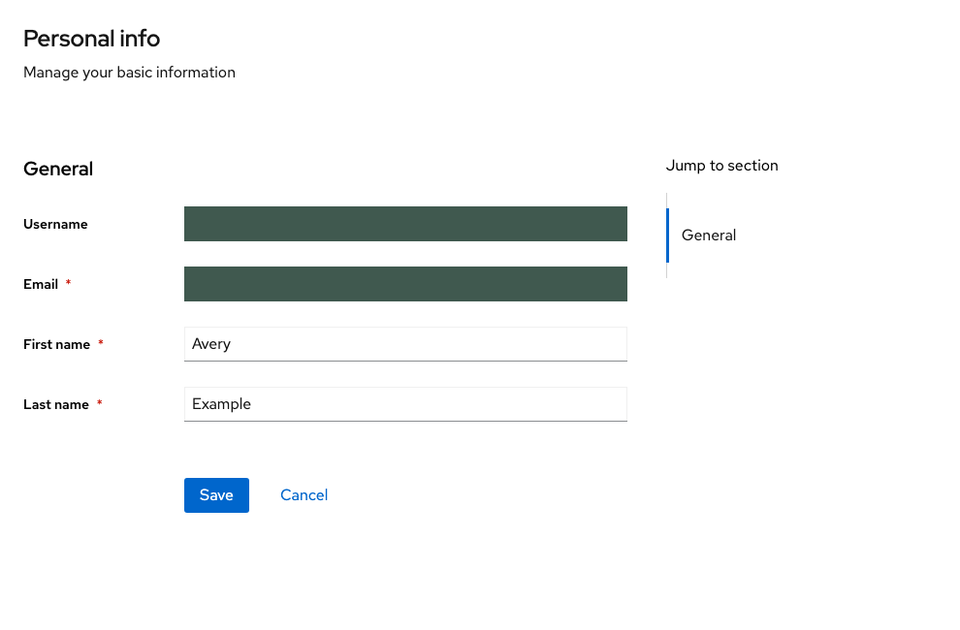
If registration reaches Email verification but the inbox stays empty, check the realm's sender address, SMTP credentials and TLS mode. If the email arrives but the browser cannot open the link, inspect its origin. This example sends a real email containing a loopback URL, so the browser must open it on the machine running Keycloak. For a hosted staging realm, the URL should contain that realm's public hostname.