
How to Preview SendGrid Emails in Gmail and iPhone Mail
Preview a SendGrid email after delivery. Send your HTML or template output to MailSlurp and compare the message in Gmail and Apple Mail on iPhone.
Use with your tools
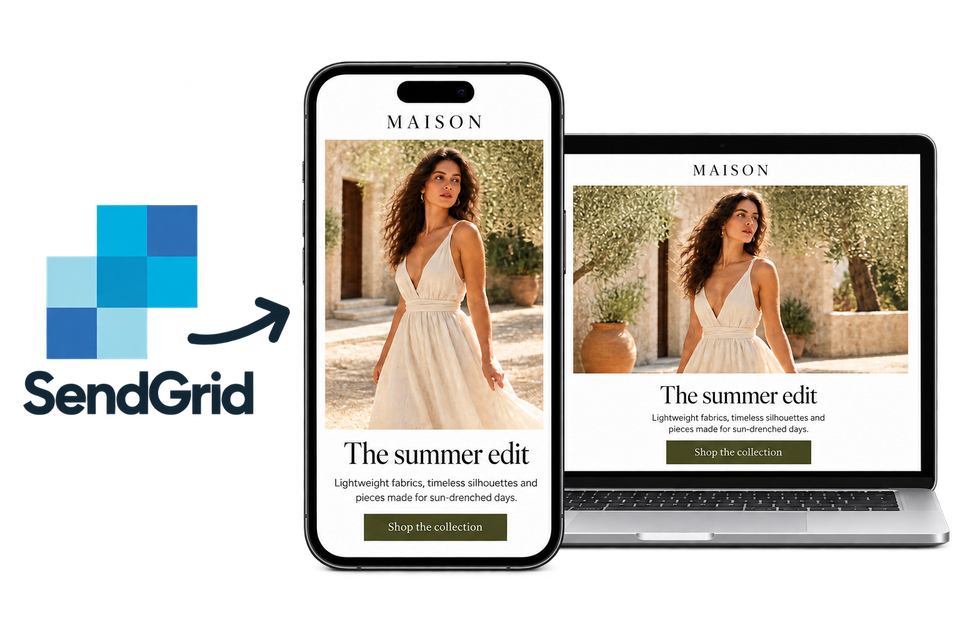
A SendGrid order confirmation needs to work after it reaches the customer: the item names, amounts and order total should still be easy to read on a phone. Previewing the HTML while you build it helps, but the delivered message is the one to check in Gmail, Apple Mail and the other apps your customers use.
Repeating that check manually means sending each revision to test mailboxes, opening the message in each app and collecting screenshots for review. MailSlurp is an email testing platform with automated device previews that brings those captures together. You can keep sending through SendGrid and compare the received email across your selected clients.
How automated device rendering works
Choose the devices and email services you want to test, and MailSlurp gives you a special email address. Send your campaign to that address. MailSlurp opens the email in the selected apps and webmail services, then captures screenshots automatically.
The screenshots come back together, ready to compare across phones, tablets and computers. Check the layout, images and buttons, then share a result link so your team can review the same version of the email.
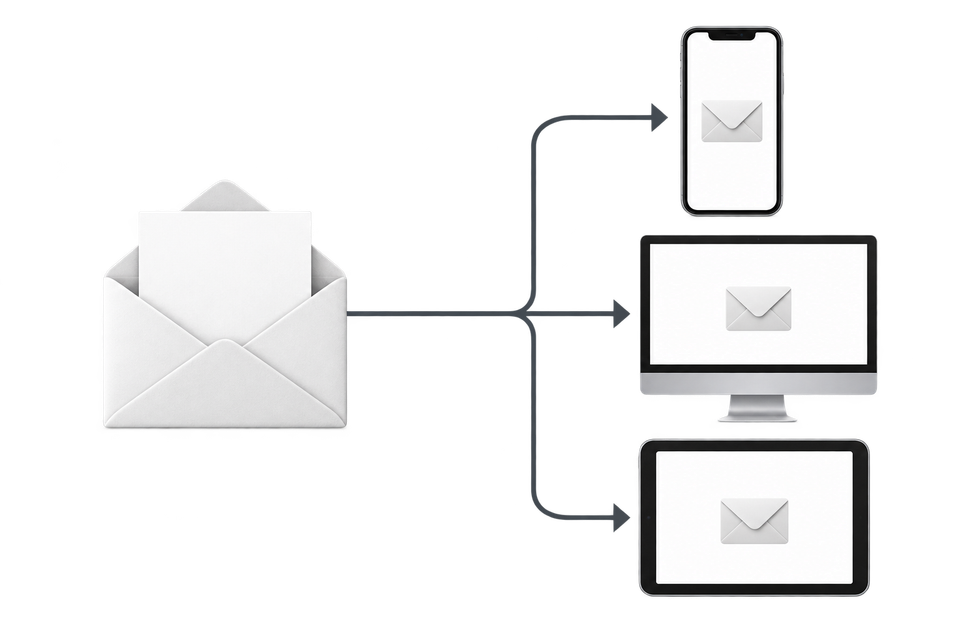
Choose the SendGrid message you want to preview
For an application email, send the finished HTML or populated template through the same SendGrid integration your app uses. Include representative names, products and other values so you can check the content customers will receive. An empty template leaves the most interesting layout questions unanswered.
This walkthrough uses a simple, fictional Paper & Pine order confirmation sent through SendGrid's Mail Send API. It has two line items and a $42 total. On a phone, the item descriptions should wrap without pushing the amounts off the page.
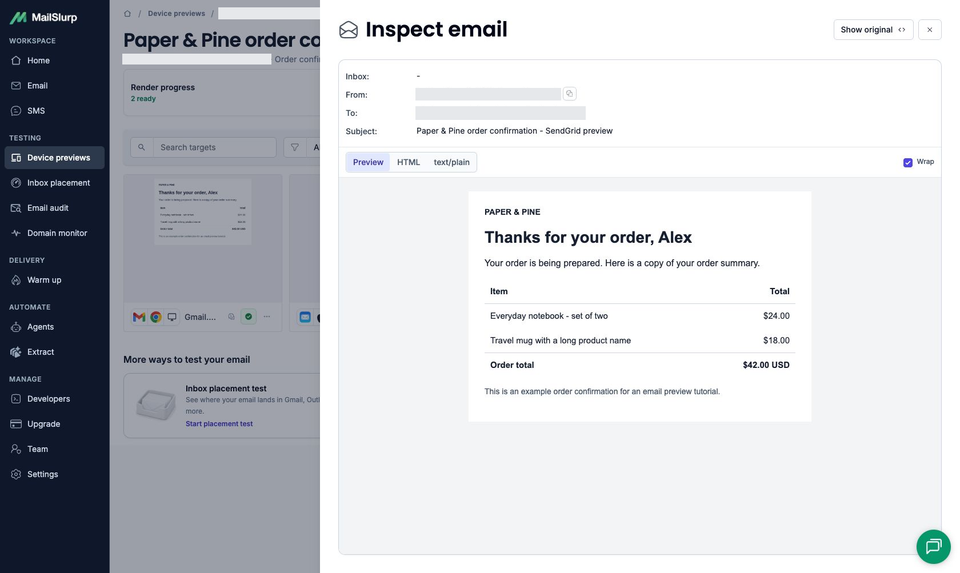
If you work in Marketing > Single Sends, SendGrid also documents Test Your Email > Send Test Message for sending a draft to a chosen address. Its inbox-rendering tests are a separate option. Follow SendGrid's email-testing instructions for those editor controls; the results below come from the API-delivered example.
Send the email from SendGrid to MailSlurp
You'll need an authenticated SendGrid sender, permission to send through its API, and a MailSlurp workspace with device previews and sufficient credits for the clients you choose.
1. Choose Gmail.com and iOS Mail
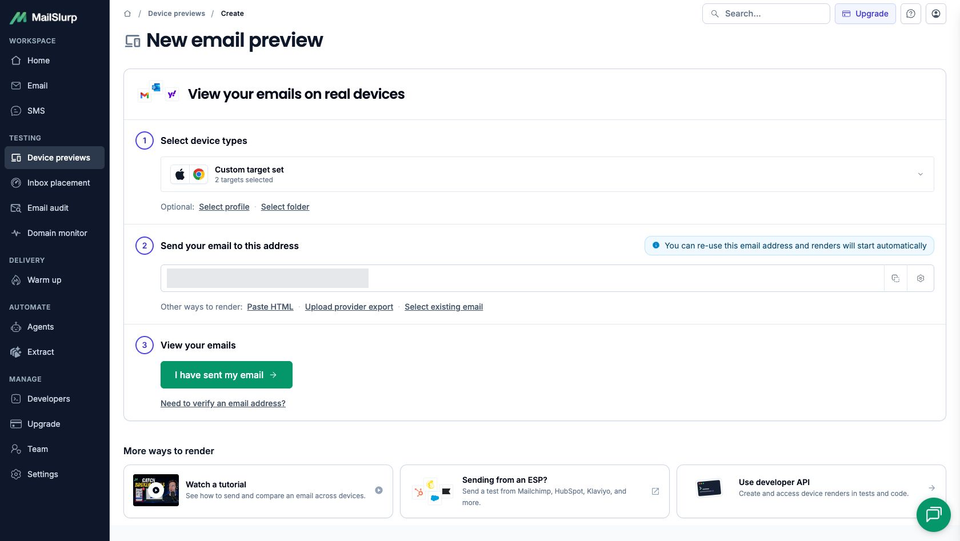
Open MailSlurp's new device preview form. Expand the target selector and select Gmail.com and iOS Mail for this browser-and-phone comparison.
Gmail.com checks Gmail in a browser; iOS Mail checks Apple's Mail app on iPhone. Gmail's iPhone and Android apps are separate targets. Choose additional clients to match your audience, with the available light or dark appearances you need.
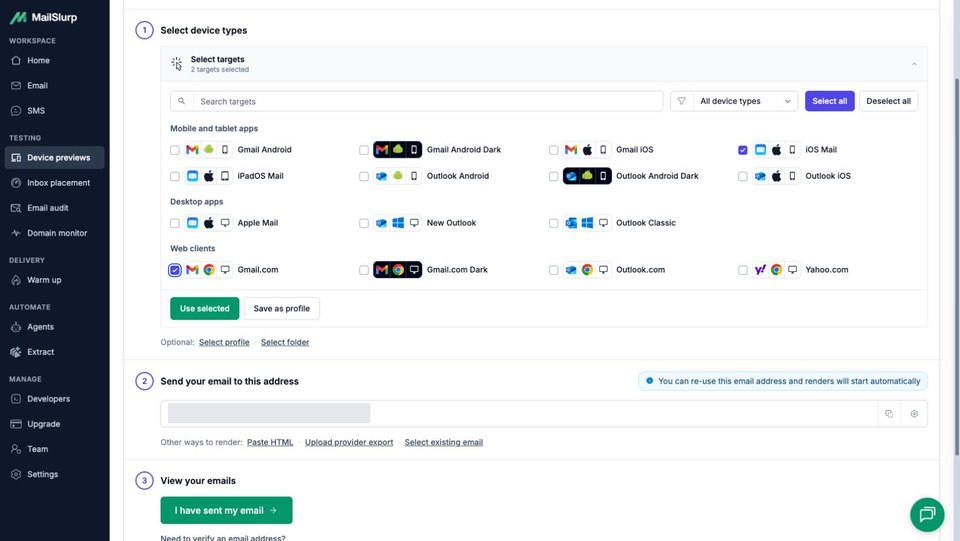
Check the selected-target count before continuing. A saved profile may include more clients than this two-target example.
2. Copy the render address
Choose Use selected to confirm the clients, then copy the complete address under Send your email to this address. Use the address generated for your selection as the only recipient of this preview send.
3. Send the populated email through SendGrid
In your application's test environment, replace the recipient for this message with the copied address. Keep the template version, content and sending settings you intend to check. For a Dynamic Template, supply the representative values through the template's normal data payload.
Use a real delivery send for this check. SendGrid's sandbox mode validates a request without delivering it, so leave that option disabled for the preview.
For saved HTML, the following Node.js example reads email.html and submits it to SendGrid. Set SENDGRID_API_KEY to your API key, SENDGRID_FROM_EMAIL to your verified sender and MAILSLURP_RENDER_ADDRESS to the address you just copied. Save the script as preview-send.mjs, put the finished HTML beside it and run node preview-send.mjs with a current Node.js version.
Send a saved HTML email with the Mail Send API
import { readFile } from 'node:fs/promises';

const key = process.env.SENDGRID_API_KEY;
const from = process.env.SENDGRID_FROM_EMAIL;
const to = process.env.MAILSLURP_RENDER_ADDRESS;
if (!key || !from || !to) {
  throw new Error('Set the API key, verified sender and render address.');
}

const html = await readFile(new URL('./email.html', import.meta.url), 'utf8');
const response = await fetch('https://api.sendgrid.com/v3/mail/send', {
  method: 'POST',
  headers: {
    Authorization: `Bearer ${key}`,
    'Content-Type': 'application/json'
  },
  body: JSON.stringify({
    personalizations: [{ to: [{ email: to }] }],
    from: { email: from },
    subject: 'Order confirmation preview',
    content: [{ type: 'text/html', value: html }]
  })
});
if (response.status !== 202) {
  throw new Error(`SendGrid returned HTTP ${response.status}. Check the send request.`);
}
console.log('SendGrid accepted the email. Check receipt in MailSlurp.');
The Mail Send API reference documents the request fields and accepted response. A 202 response confirms submission; continue to MailSlurp to check receipt and the resulting screenshots.
4. Open the completed previews
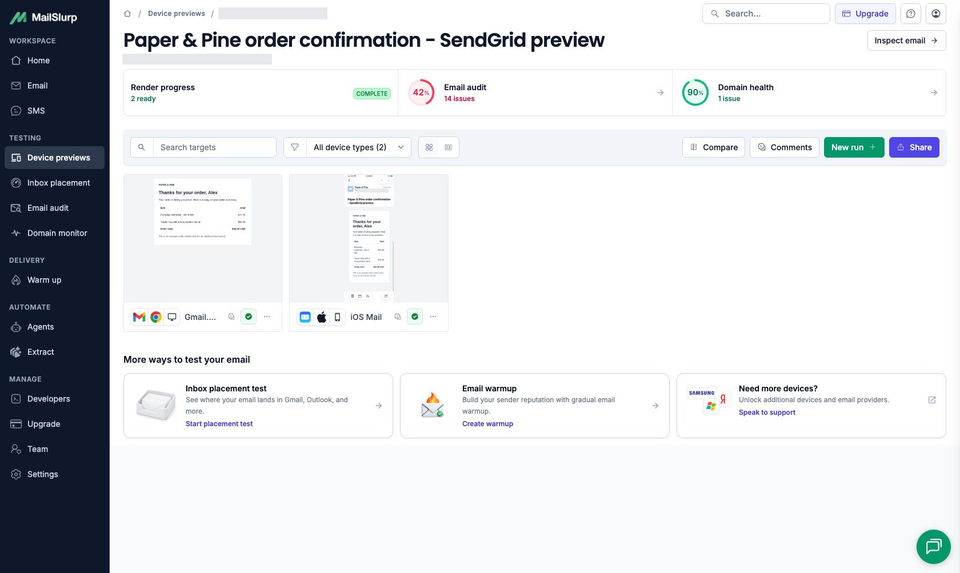
Return to MailSlurp and choose I have sent my email to open the waiting view. The received email starts its render automatically. Open the matching result and wait until Render progress reports that the selected captures are ready.
If the message hasn't appeared, check the recipient and SendGrid's delivery feedback before sending another copy. If the message arrived but a target failed, inspect that target's status separately from the sending step.
Compare the desktop and phone email
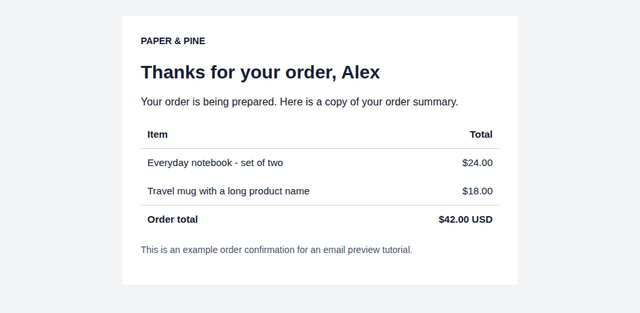
Open the Gmail.com capture, then the iOS Mail capture from the same result. Read through to the footer. Ready tells you the screenshot was captured; the email still needs your review.
Gmail.com
iOS Mail
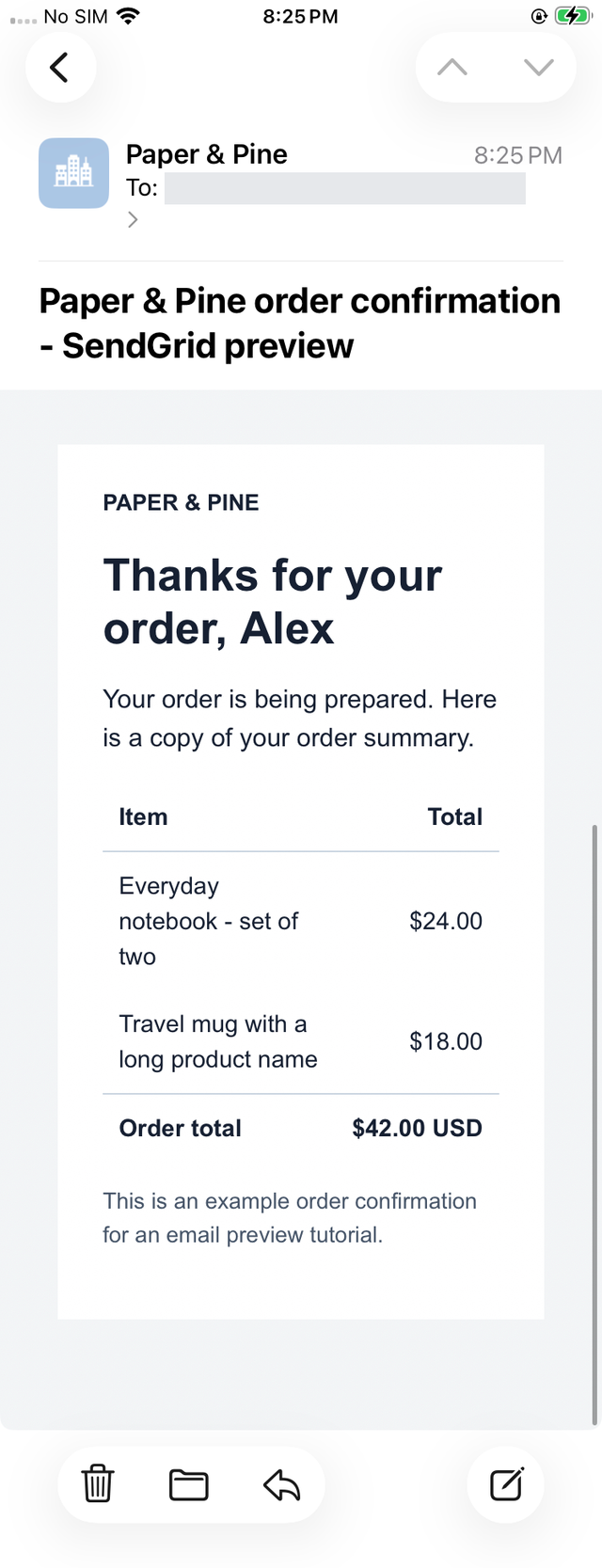
In this example, Gmail keeps each item description on one line. On iPhone, the descriptions wrap while the prices stay in their own column, and the $42 total and footer remain visible.
For your email, check the parts that change with real data: a longer customer name, multiple products, discounts, delivery information and any action button. If you use images, inspect their loading and size too. Test a link's destination separately; its appearance in a screenshot doesn't verify where it leads.
Add other apps when they matter to your audience. The Gmail guide explains its browser and phone targets, and the iPhone Mail walkthrough covers Apple's app. Select supported dark appearances explicitly when checking colors. The two results here cover Gmail.com and iOS Mail only.
After changing the template or its data, send the new version and review its new result. For automated assertions on order values, reset links, headers and delivery events, continue with SendGrid email testing.
To check which folder receives the message, follow the SendGrid inbox placement walkthrough. It uses a separate send to monitored mailboxes and explains the Inbox and Spam observations.