










Test Firebase email-link sign-in across two browsers with Playwright
Request a Firebase sign-in email in one browser, open it in another, confirm the recipient address and check which browser keeps the authenticated session.
By MailSlurpPublished
Use with your tools

A customer requests a Firebase sign-in email on their laptop and opens it in another browser. The link still works, but that browser has never seen the email address saved on the laptop. An automated test that requests and opens the message in the same browser can miss a broken confirmation form on this path.
We'll use two isolated Playwright contexts and a real inbox from MailSlurp. One browser requests the email. The other follows the delivered link, enters the address, and keeps the session after reload. Then we'll go back to the first browser and check that it is still signed out.
How does Firebase authentication work?
With email-link sign-in enabled, Firebase sends a link containing a one-time action code. To complete sign-in, the app supplies Firebase with both the link and the address it was sent to. An app can remember the address in local storage on the requesting browser. A browser with empty storage has to ask the user to enter it. Keep the address out of the redirect URL so the person opening the link supplies that second piece of information. Firebase email-link authentication
Set up the web app and its callback
Open the runnable Firebase project. Use Node.js 22.13 or newer. In a dedicated Firebase project enable Email/Password and Email link (passwordless sign-in). Register a Web app and add localhost to Authentication's Authorized domains. The example uses Firebase's default email action handler.
npm ci
npx playwright install chromium
cp .env.example .env.local
Fill in the Firebase web API key, auth domain and project ID in the three VITE_FIREBASE_ settings. Set MAILSLURP_API_KEY separately for the Node runner, then run npm test. Playwright starts the local app on port 4193.
Request the email in the first browser
Playwright enters the address of a newly created inbox and clicks Send sign-in link. The app asks Firebase to return the recipient to its own origin. It remembers the address only after the send request succeeds:
await sendSignInLinkToEmail(auth, email, {
  url: location.origin + '/',
  handleCodeInApp: true
});
localStorage.setItem('emailForSignIn', email);
The runner waits for the new message, reads its links, and selects the Firebase action URL. It checks the configured auth domain, the /__/auth/action path, mode=signIn, a nonempty oobCode, and the exact continueUrl. That last check catches a staging email that would take the user to the production app.

How does magic link authentication work across different devices?
With Firebase web sign-in, the device that opens the link needs the recipient address. If the user requested the email on a laptop and opens it on a phone, the phone has no copy of the address the app saved on the laptop. Ask for the address again on the phone. Once Firebase accepts the address and link together, the phone has the session.
To exercise that same storage boundary in Playwright, create a new context with browser.newContext(). A second tab in the original context would share its local storage and skip the very question we want to test. Follow the link through Firebase's hosted handler. On arrival at the app, require an empty address field and a Confirm email button.
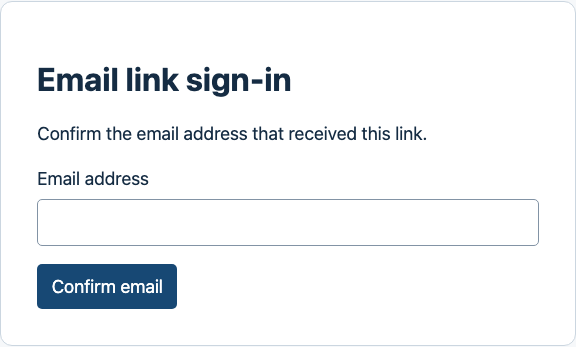
When the user submits the address, the app calls signInWithEmailLink. After success it drops the saved address and clears the action parameters from the address bar. The session belongs to the browser that completed this call.
const result = await signInWithEmailLink(auth, email, link);
localStorage.removeItem('emailForSignIn');
history.replaceState(null, '', '/');
showUser(result.user);
Check both sessions after reload
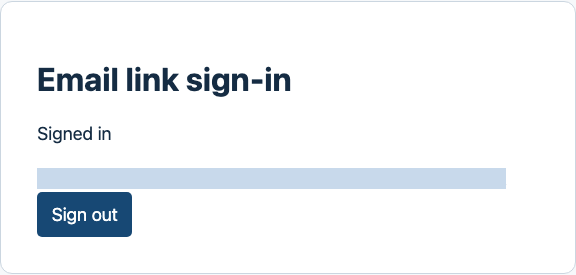
Reload the receiving browser. Its account page must show the full email address of the test inbox. Reload the requesting browser separately. It must show Signed out, even though it initiated the request and remembered the address. The runner signs out the receiving browser and deletes its inbox. Firebase retains the staging user.
If the second browser never reaches the confirmation form, inspect the auth domain and continue URL in the delivered message. If it reaches the form but fails at submission, start with a fresh link and the exact original address. For a send failure, check the enabled sign-in methods, authorized domains and the project's email-link quota. Firebase Authentication limits