










Why Are My Emails Going to Spam? How to Find Out and Fix It
Find out why your emails go to spam: see where they land in Gmail and Outlook, read your spam score, fix SPF, DKIM, DMARC, blocklist and list problems, then test again.
By Jack MahoneyPublished
Use with your tools
Your email platform says the campaign was delivered. Opens are down anyway, replies have stopped, and a customer mentions they found your message in junk. Both things are true: "delivered" means the receiving server accepted the message, not that it reached the inbox. Gmail, Outlook and Yahoo decide the folder privately, and nobody can look inside a recipient's spam folder to check.
So the question "why are my emails going to spam?" really has two parts: finding out where your mail lands, and finding out why. This guide answers the common questions first, then walks through a real test that landed in spam, what the report showed, and the fixes in the order that usually matters. The examples use MailSlurp, which sends your real email to seed mailboxes at Gmail, Outlook and other providers, reports which folder each copy landed in, and checks the spam score, authentication and blocklists behind the result.
Frequently asked questions
Why are my emails going to spam?
Usually one of four things: authentication is missing or doesn't align with your From domain; your domain or sending IP has a poor reputation, such as a blocklist listing or a high complaint rate; your list contains old, unengaged or purchased addresses; or the content and links look like spam, for example link domains that don't match the sender. Gmail and Outlook weigh these differently, so the same email can land in different folders. The causes
How do I know if my emails are going to spam?
You can't see a recipient's folder, so send the same email to seed mailboxes you can read, known as an inbox placement test, and check where each copy landed. For live campaigns, watch your spam rate in Google Postmaster Tools and look for opens and clicks falling at one provider. Find out where they land
How can I check my email spam score?
Send your real email, from your usual sender and platform, to a spam tester. MailSlurp's free spam test runs the first test for a sender without an account and reports a spam score out of 10, authentication and content findings, and where each seed mailbox put the message. A good score doesn't guarantee the inbox, because Gmail and Outlook also judge your sender reputation. Reading a spam score
How do I stop my emails going to spam?
Fix the causes in order: authenticate with SPF and DKIM and publish DMARC aligned with your From domain; check blocklists and your complaint rate; clean the list and add one-click unsubscribe; fix content and link problems; then send a new test and compare it with the last one. The fixes
Why do my emails go to spam in Gmail but not Outlook?
Each provider runs its own filters on its own data about your domain, IP and recipients, so they often disagree. In the tests below, one message landed in Promotions at one Gmail mailbox and Spam at another. Test with several mailboxes at each provider your audience uses. Why providers disagree
Why are my emails going to spam when SPF, DKIM and DMARC pass?
Authentication proves who sent the email, not that recipients want it. Reputation, complaints, list quality and content still decide the folder. Also check alignment: SPF can pass for your email platform's domain while DMARC fails for your own From domain.
Is the Gmail Promotions tab the same as spam?
No. Promotions is a tab inside the Gmail inbox for marketing mail, and people can still see and open it. Spam is a separate folder that most people never check. A good placement test reports the two separately.
How do I test email deliverability before sending?
Send the final email through the platform and sender you'll really use to a set of seed mailboxes, then check three things together: the folder at each provider, the spam score, and the authentication and blocklist checks. Fix what they show and test again before the real send. Test on every release
Why emails go to spam
Mailbox providers don't publish their filters, but the reasons mail lands in spam fall into four groups. Most spam problems involve more than one.
Authentication
SPF lists the servers allowed to send for your domain. DKIM signs each message so the receiver can check it wasn't changed. DMARC tells receivers what to do when a message claiming to be from your domain fails both, and it only passes when SPF or DKIM passes for the domain in your From address. That last part catches a lot of senders: an email platform that signs with its own domain can pass SPF and DKIM for itself while your From domain fails DMARC.
Gmail now requires every sender to use SPF or DKIM, and senders of more than 5,000 messages a day to Gmail must use both, publish DMARC and align it with the From domain. Yahoo and Microsoft have similar rules for bulk senders.
Reputation
Providers keep a history for your sending domain and IP address. Complaints, messages to addresses that don't exist, and sudden jumps in volume all lower it. A listing on a public blocklist, which many filters consult, can send mail to spam on its own. If you send from a platform's shared IP addresses, other customers' behaviour affects that IP's reputation too.
Google asks senders to keep the spam rate shown in Postmaster Tools below 0.3%, and recommends staying under 0.10%.
List and engagement
Old addresses turn into spam traps, purchased lists generate complaints, and people who never open your email teach the filter that it isn't wanted. Marketing mail also needs an obvious way out: Gmail requires one-click unsubscribe for bulk senders, and people who can't find the unsubscribe link press "Report spam" instead.
Content and links
Content matters less than most people think, and spam trigger words matter less still. What does count: link domains that don't match your sender, URL shorteners, emails that are one big image or mostly links, a missing plain-text version, and attachments people didn't expect. The spam trigger words guide explains which content checks are worth fixing.
Find out where your emails actually land
Your email platform's reports can't tell you the folder. Opens can't either: images may be blocked, and Apple Mail Privacy Protection loads them automatically. The direct way is an inbox placement test: send your real email to a set of seed mailboxes at Gmail, Google Workspace, Outlook, Microsoft 365 and other providers, then look at where each copy went.
Here's a real one. We sent a test email through SendGrid to eight seed mailboxes from a MailSlurp inbox placement test. Every copy arrived, and five of the eight went to spam:
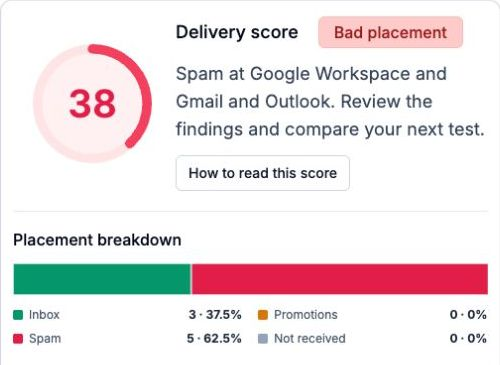
The provider list shows which mailboxes did what. All three Microsoft 365 business mailboxes put the message in Focused, the inbox. Both Google Workspace mailboxes, both Gmail mailboxes and the Outlook.com mailbox put it in spam:
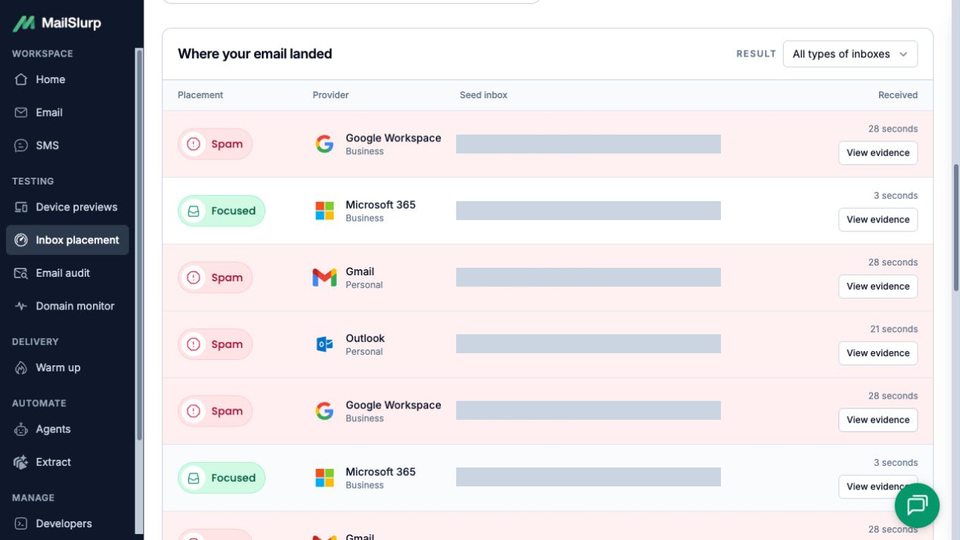
Without the test, this send would look fine: the platform accepted it, and the copies at Microsoft 365 reached the inbox. Only the mailboxes nobody on the team uses showed the problem.
For a one-off check, the free spam test gives you a seed list and a report for a single sender without an account. For repeated tests, a history of results and tests from your own code, use inbox placement tests in a MailSlurp account.
Read the reasons behind a spam result
A folder tells you something is wrong. The checks underneath tell you what. In the same SendGrid test, two findings stood out:
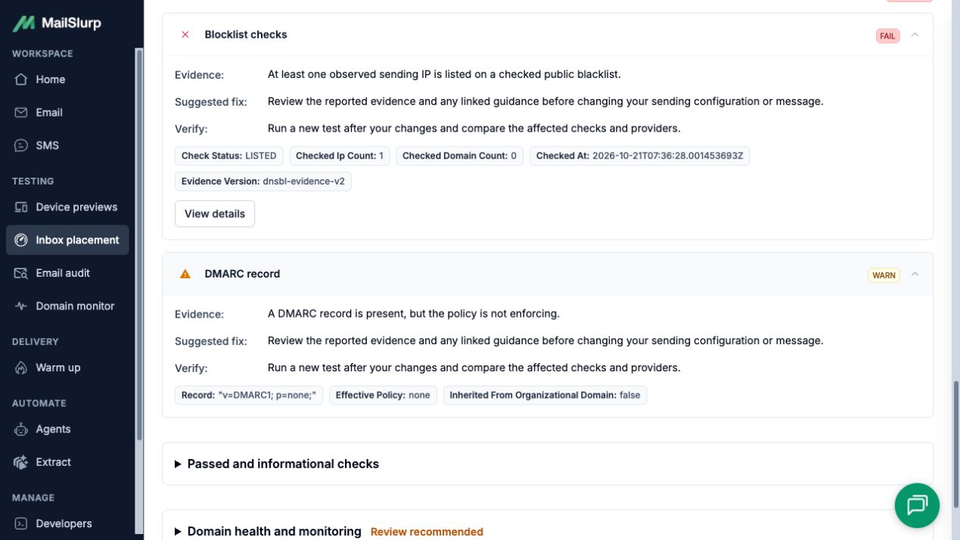
- Blocklist: fail. One sending IP that delivered the copies was listed on a public blocklist. On a shared IP that's a problem for your email platform's support team, and a reason to ask about a dedicated IP if it keeps happening. One listing at one moment isn't a verdict on the platform as a whole, but it is enough to send mail to spam at the providers that check that list.
- DMARC: warning. The domain published
v=DMARC1; p=none;. That's a valid starting point for collecting reports, but it tells receivers to do nothing with mail that fails, which gives filters less reason to trust the domain. Once your reports show your real senders passing, move toquarantineand thenreject.
Check authentication in the headers yourself
Every delivered email carries its authentication results in its headers. In Gmail, open the message, choose Show original from the three-dot menu, and Gmail lists SPF, DKIM and DMARC with PASS or FAIL. Outlook shows the same information in the message source. Paste the full headers into the email header analyzer to see the route the message took and each result in one place, and use the DMARC checker and blacklist checker for your domain and sending IP.
What a spam score tells you (and what it doesn't)
A spam score is a filter's estimate of how spam-like one message looks. The classic version is SpamAssassin, an open-source filter that adds points for each rule a message trips, such as missing authentication, suspicious links or formatting, and by default treats 5 points or more as spam. Spam testers run checks like these against your real email and report the result as a score.
MailSlurp's free spam test scores the message out of 10, from healthy to severe spam risk, and lists the authentication findings (SPF alignment, the DKIM signature and how strict your DMARC policy is) and content findings (an urgent subject line, link domains that don't match your sender, a message that is mostly links) behind it. Send the email you'll really send, from the platform and address you'll really use; a test from a different account tells you about that account.
A spam score can't see your sender reputation or how your recipients have treated your past email, and Gmail and Outlook don't use SpamAssassin. That's why a message can score well and still land in spam, as several copies in the test above did. Read the score and the placement result together: fix what the score flags, then use placement to see whether it worked. The SpamAssassin score guide goes deeper into individual rules.
Why Gmail and Outlook disagree
There's no single spam filter. Gmail, Outlook.com, Microsoft 365, Google Workspace and Yahoo each use their own signals, including what their own users have done with your mail, and business mailboxes add the organisation's own rules. Even two mailboxes at the same provider can disagree.
A second real test shows how much. A Shopify product launch campaign went to eight seed mailboxes: two landed in Focused, three in Promotions and three in Spam, and Gmail and Google Workspace each split across folders:
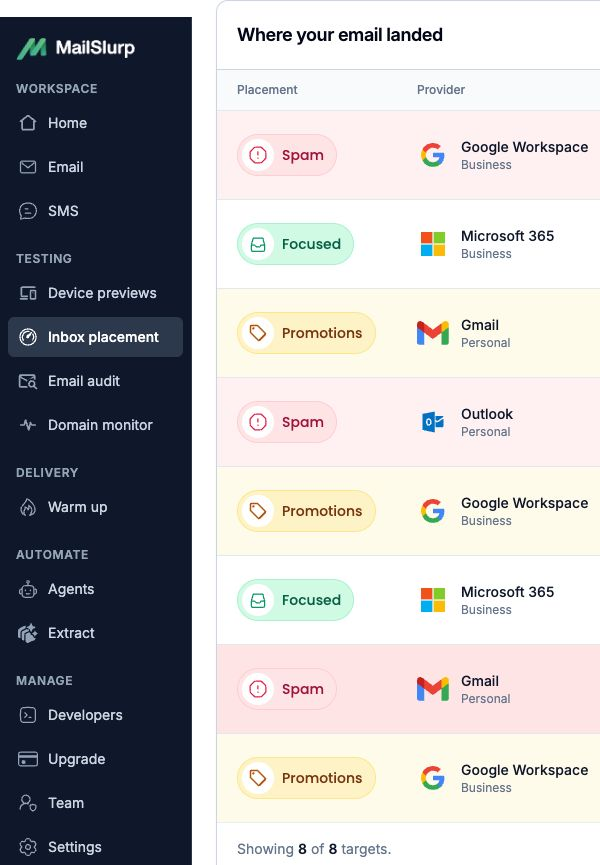
Two lessons from that result:
- Test the providers your audience uses, with more than one mailbox each. If most of your list is on Gmail, a clean result at Outlook doesn't tell you much, and one Gmail mailbox can be unlucky.
- Promotions isn't spam. The three Promotions copies are still in the inbox, in a tab. If Promotions is a problem for you, the Gmail Promotions guide covers what moves mail between tabs. Spam is the outcome to fix first.
How to stop your emails going to spam
Work through these in order. Each step builds on the one before, and there's no point polishing content while authentication is failing.
1. Authenticate every sending service
List everything that sends as your domain: your email marketing platform, your app's transactional provider, your help desk, your CRM. Each needs SPF or a DKIM signature for your domain. DNS records look like these, with your own domain and your providers' values:
example.com.         TXT  "v=spf1 include:_spf.your-email-platform.example ~all"
_dmarc.example.com.  TXT  "v=DMARC1; p=none; rua=mailto:dmarc-reports@example.com"
Start DMARC at p=none with a report address, read the reports until every legitimate sender passes, then move to p=quarantine and later p=reject. The DMARC record generator builds the record, and DMARC monitoring reads the reports for you.
2. Check blocklists and your complaint rate
Look up your sending domain and IP in the blacklist checker. If you're listed, find out why before you request removal, or you'll be listed again. Add your domain to Google Postmaster Tools and keep its spam rate under 0.3%, ideally under 0.10%.
3. Clean the list and make unsubscribing easy
Remove addresses that hard-bounce, stop mailing people who haven't opened in months, and never buy lists. For marketing mail, add a visible unsubscribe link and one-click unsubscribe headers, which most email platforms can add for you:
List-Unsubscribe: <https://example.com/unsubscribe/opaque-subscriber-token>
List-Unsubscribe-Post: List-Unsubscribe=One-Click
4. Fix content and links
Use link domains that match or relate to your sender, drop URL shorteners, include a plain-text version, and don't send one big image. Email Audit checks a received email for spam risk, broken links and images, and other problems before your customers see them.
5. Warm up new domains and IP addresses
A brand-new domain or dedicated IP that suddenly sends thousands of emails looks like a spammer. Increase volume gradually, starting with your most engaged recipients. Email warmup builds that history for you.
6. Test again and compare
Send a new placement test after each change and compare it with the last one: the folder at each provider, the spam score and the checks. Change one thing at a time, so you know which fix worked.
Check placement before every important send
Spam problems tend to appear after a change nobody connected to email: a new sending service, a DNS edit, a template redesign, a list import. Testing before each important send, and on a schedule, catches them before your customers do.
MailSlurp's inbox placement tests run from the API too, so a release pipeline or a scheduled job can create a test, send the real email through your platform to its seed addresses, and read the results. Creating a test returns the seed addresses and a tracking token that your email's subject must include:
export async function createTest(placement, senderDomain, fromEmail) {
  // A test gives you seed addresses at Gmail, Outlook, Yahoo and other providers.
  const run = await placement.createInboxPlacementTest({
    createInboxPlacementTestOptions: {
      requestedSegment: CreateInboxPlacementTestOptionsRequestedSegmentEnum.ALL_INBOXES,
      senderDomain,
      fromEmail,
      publicShareRequested: false,
      addressFormat: CreateInboxPlacementTestOptionsAddressFormatEnum.COMMA,
    },
  });
  // Keep the tracking token: the campaign you send must include it.
  return { testId: run.id, trackingToken: run.trackingToken, seedAddresses: run.seedAddresses };
}
After you send, the test fills in as each seed mailbox receives its copy:
export async function waitForResults(placement, testId) {
  // Seeds report as messages arrive; poll until the test completes (usually a few minutes).
  for (let attempt = 0; attempt < 40; attempt += 1) {
    const run = await placement.getInboxPlacementTest({ id: testId });
    if (run.completedAt) {
      return { inbox: run.inboxTargets, spam: run.spamTargets, missing: run.notReceivedTargets, total: run.totalTargets };
    }
    await new Promise(resolve => setTimeout(resolve, 15_000));
  }
  throw new Error(`Inbox placement test ${testId} is still running`);
}
Then count the folders by provider, and fail the job if an important provider puts the email in spam:
export async function placementByProvider(placement, testId) {
  // Count where each provider put the email: INBOX, SPAM or not received.
  const { results } = await placement.getInboxPlacementTestResults({ id: testId });
  const byProvider = {};
  for (const target of results?.targets ?? []) {
    const folder = target.placementFolder ?? 'NOT_RECEIVED';
    byProvider[target.provider] ??= {};
    byProvider[target.provider][folder] = (byProvider[target.provider][folder] ?? 0) + 1;
  }
  return byProvider;
}
The inbox placement automation docs cover the full flow, including sending through your own email platform. Between tests, the domain monitor watches your SPF, DKIM, DMARC and MX records and shows when one drifts from what you expect, which is when spam problems often start.