














Test WooCommerce order emails with MailSlurp
Documentation navigation
No matching docs.
Install MailSlurp for WooCommerce, connect your account and check Processing order emails on devices and in seed mailboxes, including saved Kadence templates.
Overview
An order notification can fit the WooCommerce preview and still wrap badly on a phone. A successful SMTP handoff also leaves a separate question - which mailbox folder received the message? Checking both usually requires test accounts, devices and a record of which template version you sent.
MailSlurp brings device screenshots and inbox placement results into WooCommerce > Email testing. Send WooCommerce’s Processing order notification with a fictional order and customer, inspect the delivered email, then repeat after saving your template changes. The plugin uses your store’s configured mailer.
Install and connect
You need WordPress 7.1 or later, WooCommerce 11.3 or later, PHP 8.3 or later, permission to manage WooCommerce, and a working mailer. Start on your staging store so you can inspect the sample template and sender before testing the live store.
Connect your MailSlurp account
- Check the WordPress Plugin Directory listing for MailSlurp Email Testing for WooCommerce. Once the listing is available, search for that name under Plugins > Add New Plugin, then choose Install Now and Activate. You can also download the plugin ZIP, select Upload Plugin on that same screen and activate it after upload.
- Sign in to MailSlurp, or create an account. Open Developers > API keys and create a key for this store. A restricted key needs READ_EMAIL permission.
- Ask the person managing your WordPress installation to add the key to
wp-config.php, above the line that loadswp-settings.php.
define('MAILSLURP_API_KEY', 'your-store-api-key');- Open WooCommerce > Email testing > Connection and choose Check connection. The check verifies the credential and permission to read rendering results. Confirm the account shown is the one you intend to use. Keep the key private. You can revoke it in MailSlurp’s API key settings.
- Confirm that your store’s mailer is configured with the sending address and domain you intend to test.
The key stays in your WordPress configuration. WordPress administrators with permission to manage WooCommerce can create tests and review this store’s history.
The plugin reads the saved Processing order template. Save changes in WooCommerce or your email designer before starting a test.
Check an order email on devices
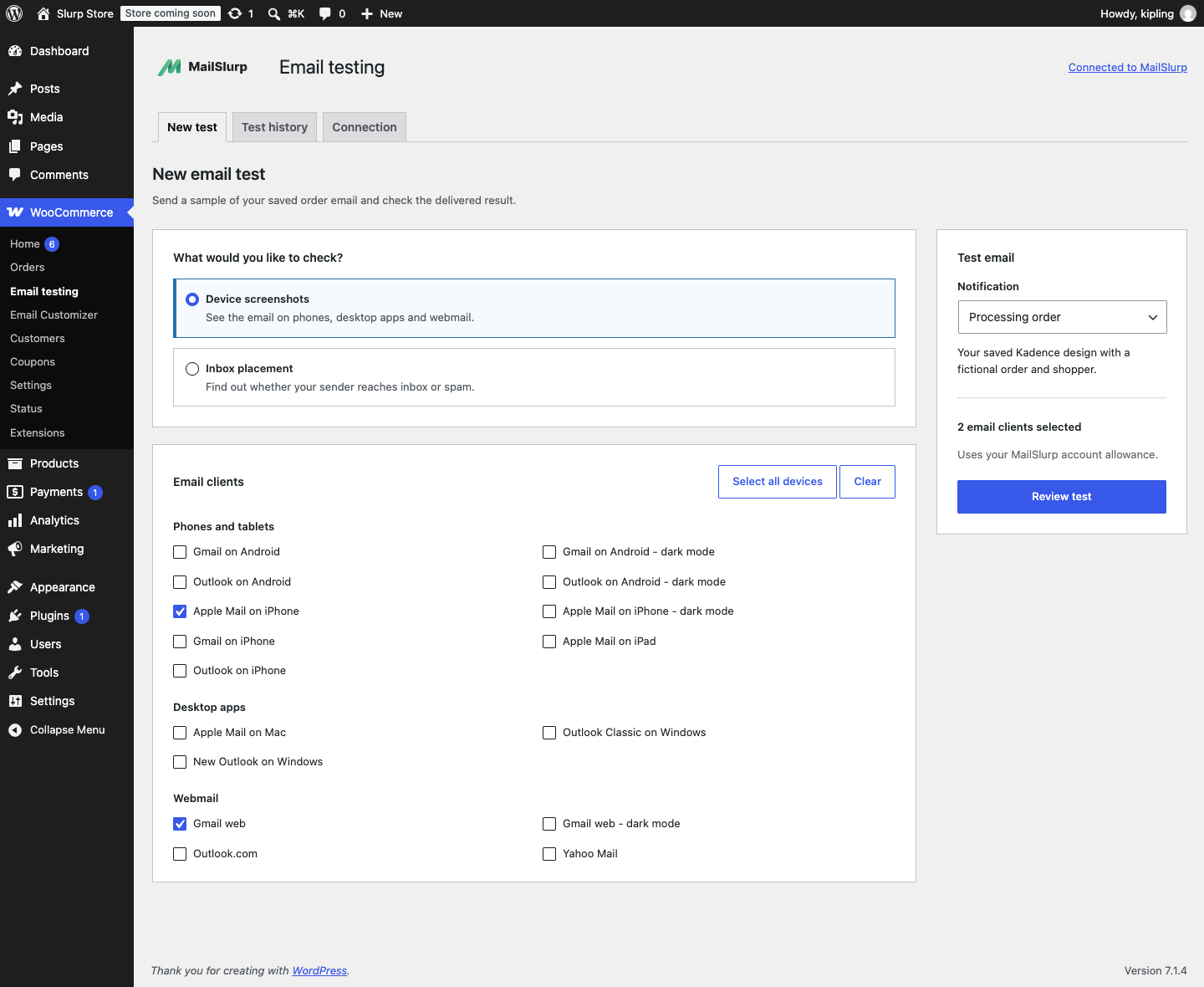
- Choose Device screenshots in New test.
- Select your email clients. Use Select all devices to check every client in the current list, or Clear to pick a smaller set.
- Choose Review test, check the selected clients, then choose Send test email. The store sends one sample to the MailSlurp address reserved for that test. Device rendering uses your MailSlurp allowance.
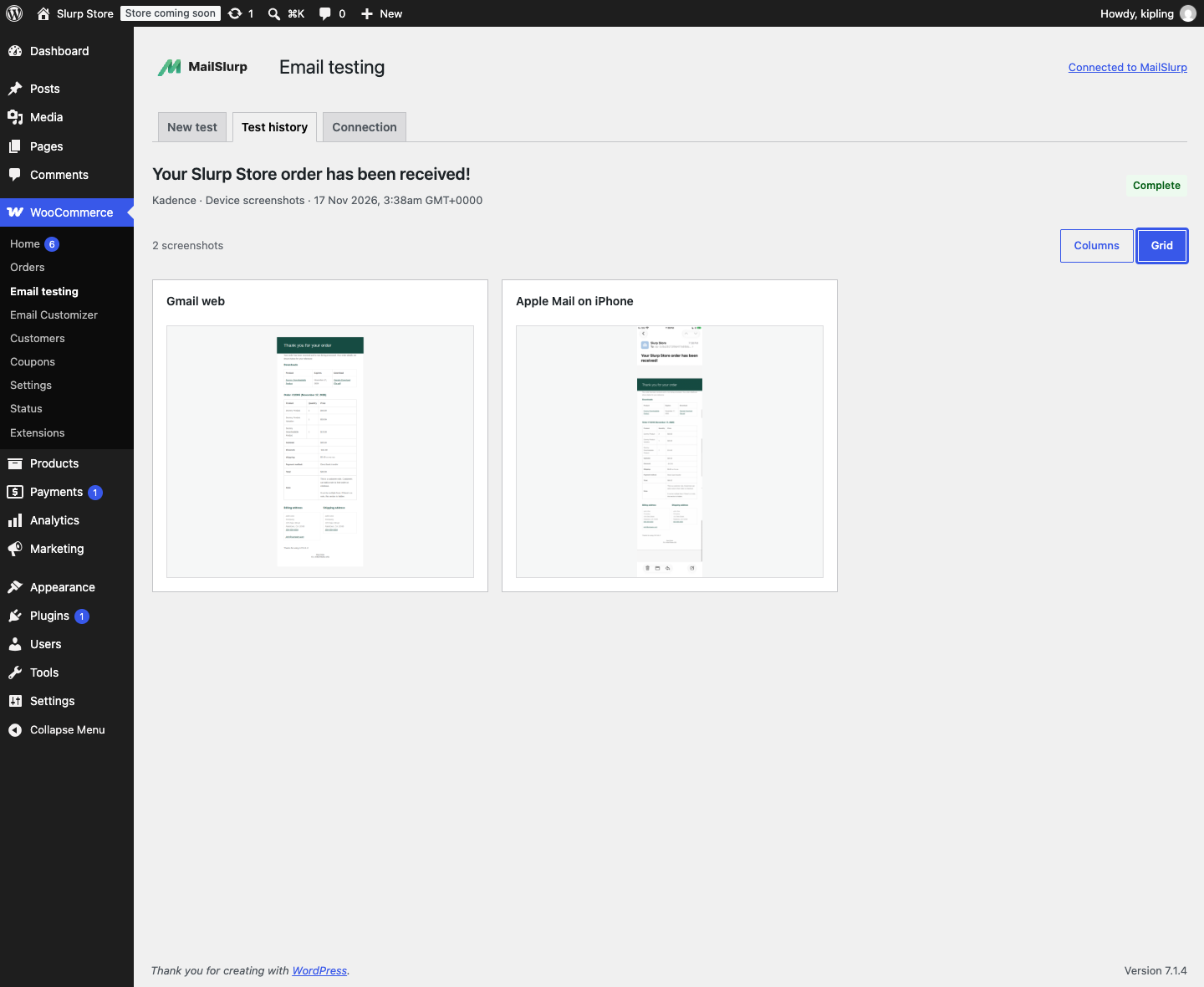
- Open Test history and select the email subject to open its result page. Results update automatically while the page is open. Choose Columns for full-length screenshots or Grid to scan several clients, then click a screenshot to inspect it at full size.
- Check product names, prices, images, buttons and spacing. Save any template edits and send a new test to capture that revision.
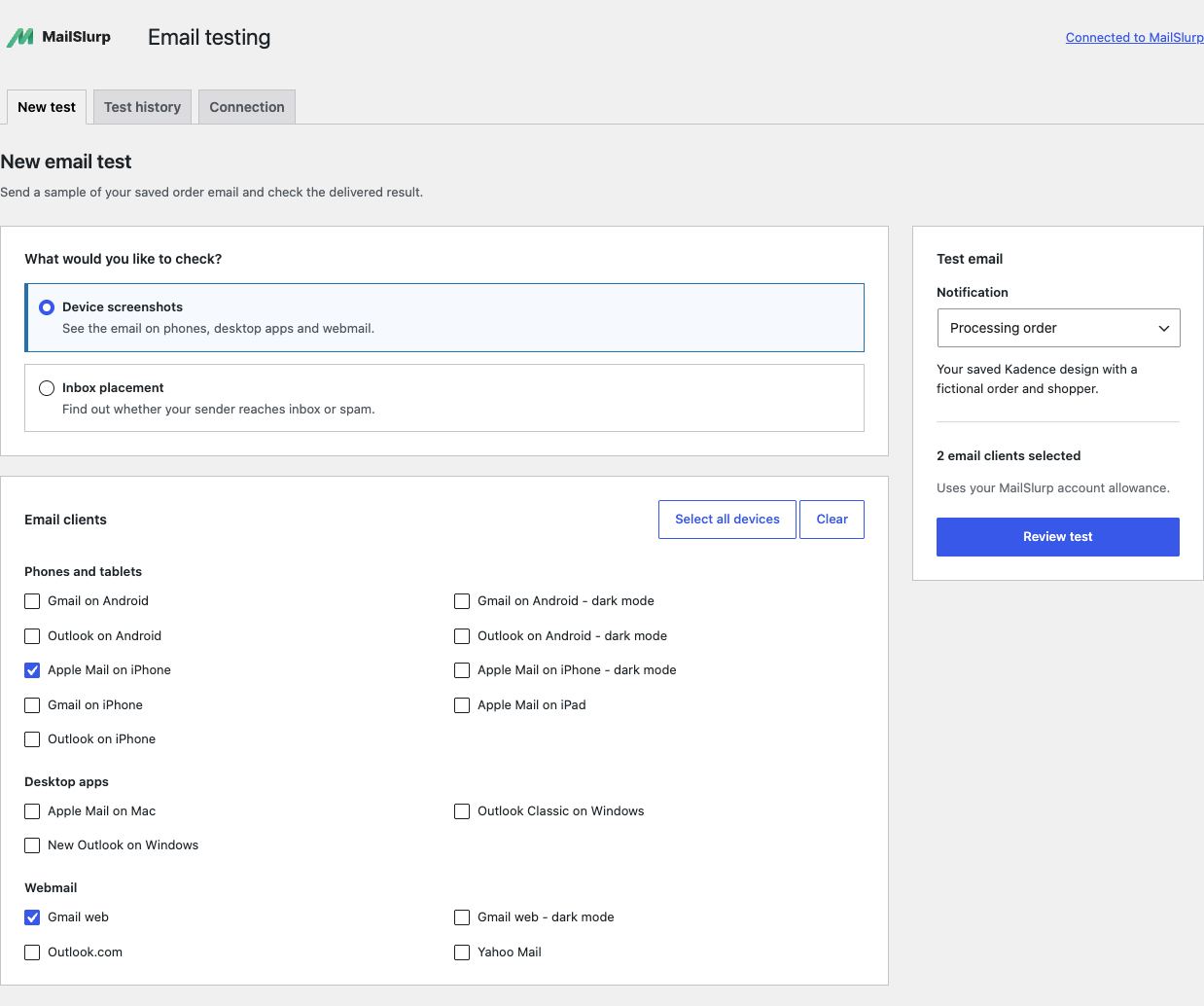
View the full WordPress New test page
A mailer accepting a copy is the first stage. Screenshots appear after MailSlurp receives it and captures the selected clients. The progress bar shows activity while waiting, then counts clients as they finish.
Test a Kadence template
Save your design in Kadence WooCommerce Email Designer, then return to WooCommerce > Email testing. The Processing order sample uses the saved Kadence template. Choose the clients and send a new test after each revision you want to inspect.
The example below shows a saved green Kadence header in Gmail and iPhone Mail, with both captures displayed in the plugin.
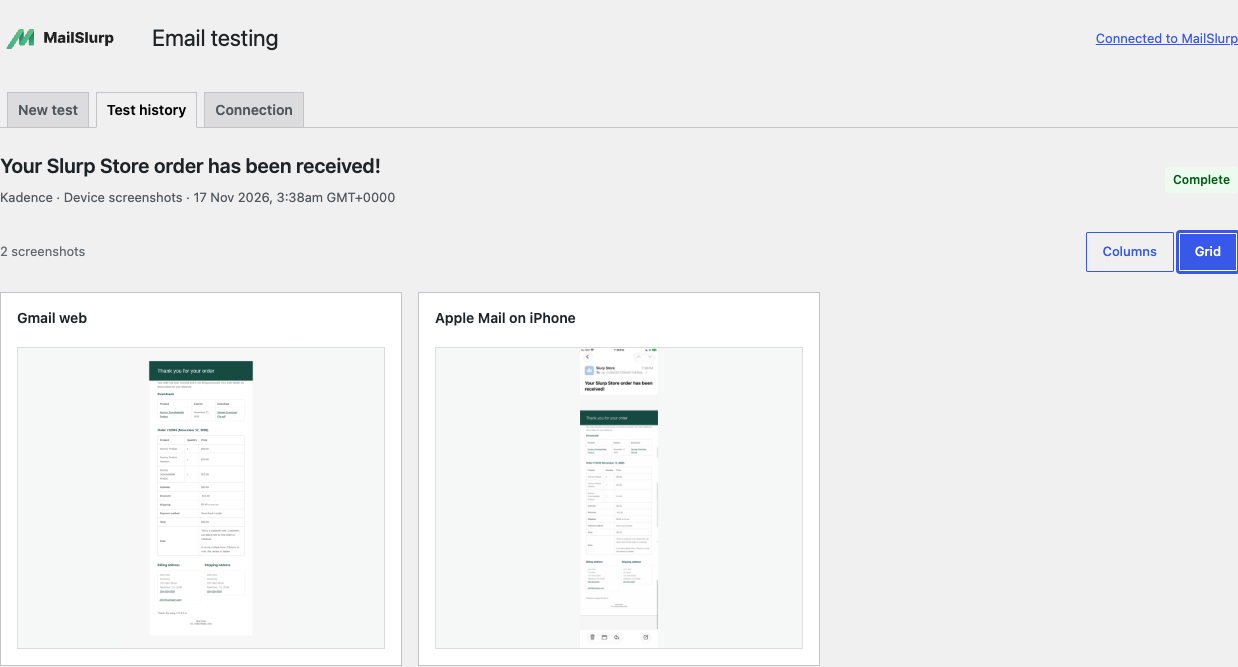
View the device result in the full WordPress admin
Check inbox placement
- Open New test, choose Inbox placement, then Review test. Confirm with Send test email.
- MailSlurp creates a fresh placement run and tracking token. Your store sends an individually addressed copy to each test mailbox, with that token identifying the run. Placement allowance is used when the run is created, even if sending later fails.
- Open Test history and select the test subject. The result page updates automatically. The summary counts inbox, spam or junk, and waiting mailboxes. The table shows each provider, observed folder and delivery state.
- Keep waiting mailboxes separate from received results. A completed test can show a mix of inbox, spam and junk folders.
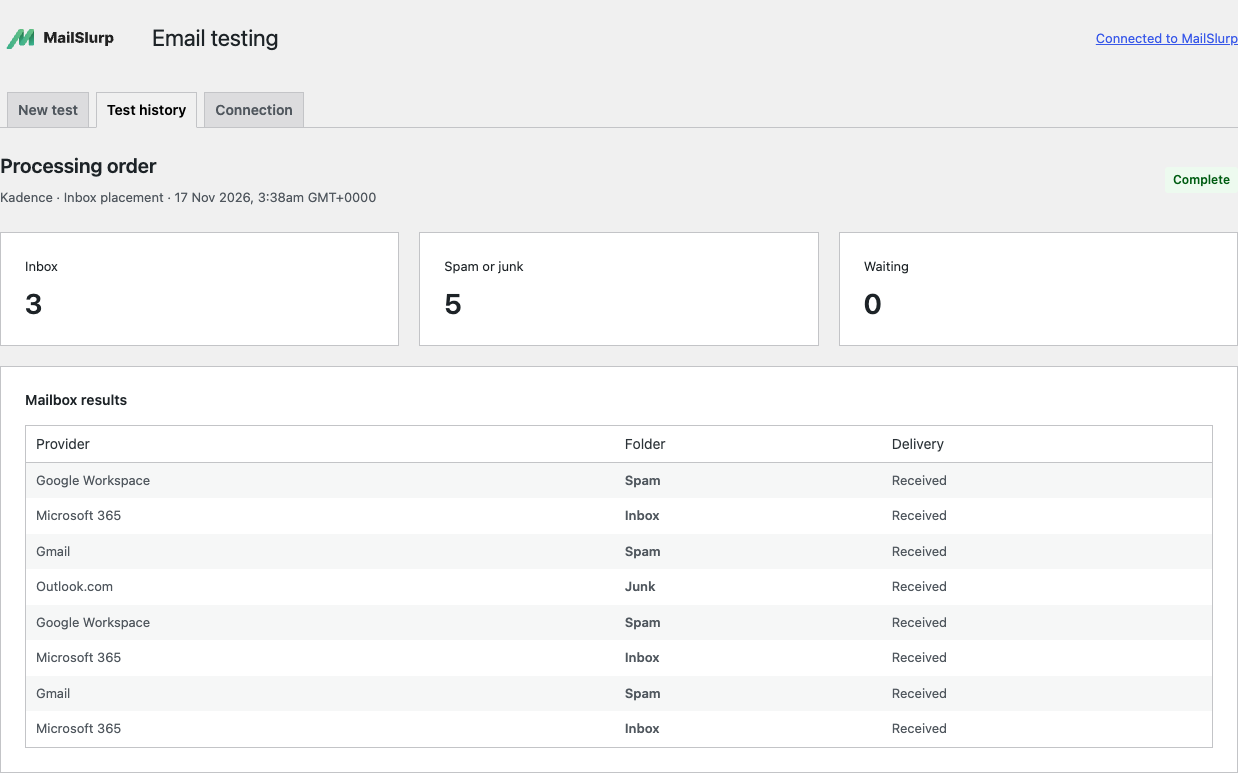
View the placement result in the full WordPress admin
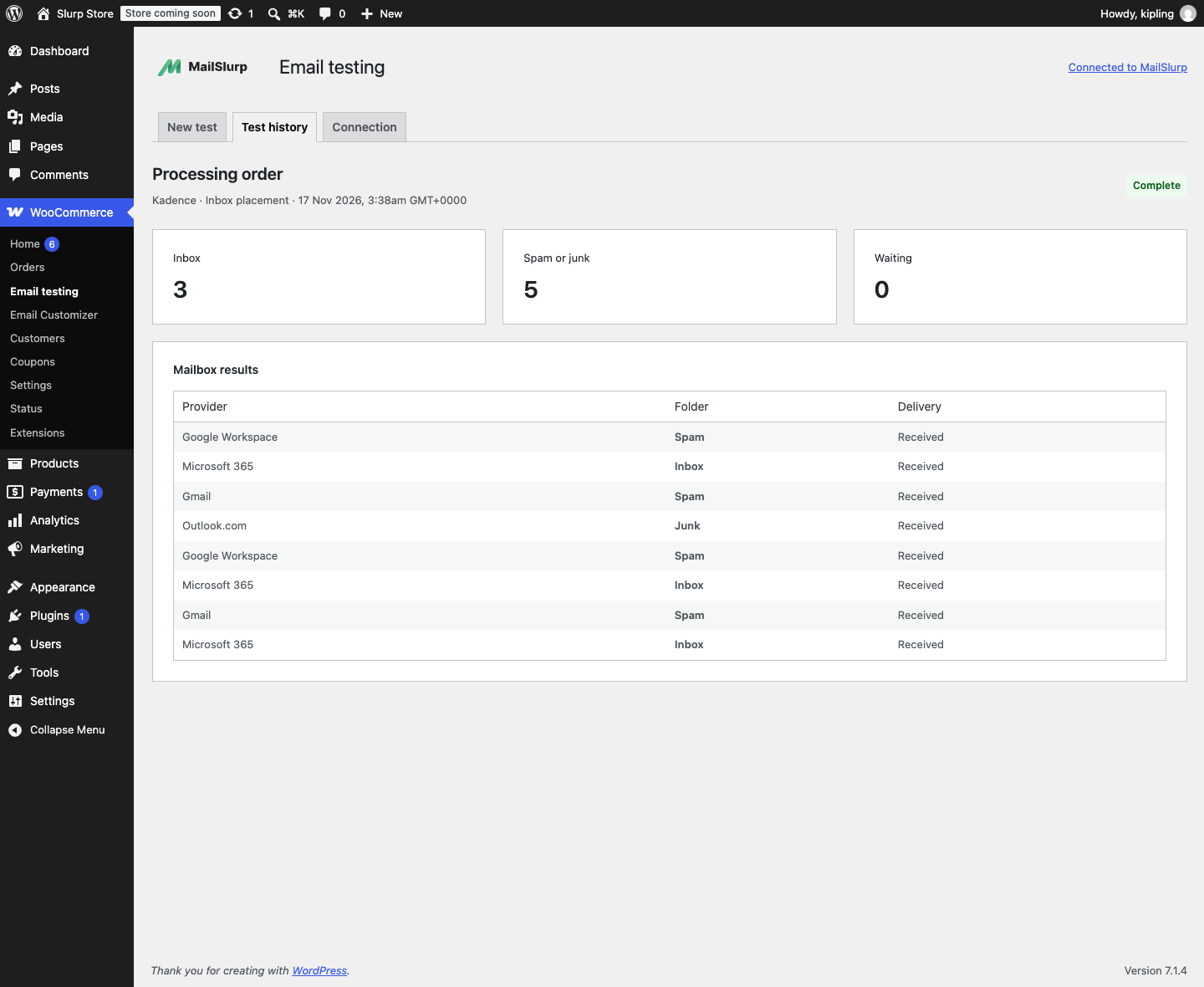
Placement describes the sender, message and test mailboxes used for that run. After changing the sender or notification, run another test to observe the new delivery. For a fuller explanation of the folders and seed workflow, see inbox placement testing.
Connection, allowance and send errors
The connection check fails
Confirm that MAILSLURP_API_KEY is a non-empty string in the loaded wp-config.php, with no spaces or line breaks around the key. Check that it is active in the intended MailSlurp account and has READ_EMAIL permission. After changing or replacing a key, return to Connection and choose Check connection. The verified account is tied to that configured key.
A missing, revoked or insufficiently permitted key needs a connection repair. Complete any verification requested by your MailSlurp account. These errors have a connection action instead of an upgrade prompt.
The account needs more allowance or access
The plugin checks account access before sending. A MailSlurp subscription or allowance block appears as MailSlurp subscription update required, with View account upgrade options. The link opens MailSlurp in another tab and keeps this WordPress test available. Sign in to the same MailSlurp account whose key is configured for this store.
After updating that account, return to the saved WordPress test and choose Check account again or Check again. The check reads access and existing results without sending another email. If the page says This test was not sent, choose Start a new test and review it before sending. If an email was already sent, continue reviewing that saved run.
Tests use the connected account’s included allowance and normal paid usage rules. A successful connection check verifies access to the API; the server decides the allowance available for each test.
MailSlurp reports a billing or temporary service issue
Use Review MailSlurp billing for an overdue-payment or billing error. Permission errors point back to the connection, and a restricted account can require MailSlurp support. A temporary service or rate-limit error keeps the saved result and retries with a delay. Subscription blocks pause automatic retries until you check again.
The mailer rejects a test or the outcome is uncertain
Check your WordPress mailer’s configuration and logs. A failed or uncertain handoff appears in the saved test. Open that test and inspect any received results before sending again. SMTP acceptance and mailbox receipt are recorded at different stages.
A screenshot or mailbox result is missing
Keep the saved test open to collect later results automatically. Check that the store’s mailer accepted the copy and that you selected the intended client. A client that fails or times out stays visible in the result gallery. Other completed screenshots remain available while you investigate it. An expired test address needs a new test after you check the store mailer.
Frequently asked questions
Do I need to place an order or run a checkout?
The Processing order test uses WooCommerce’s fictional sample order and customer. It can exercise the saved email template without creating a customer purchase.
Does MailSlurp replace my SMTP plugin?
The test uses the mailer configured for the store. MailSlurp receives the test copies, captures devices and observes mailbox folders. The plugin restricts the test’s recipients and attachments at the WordPress mail-arguments and PHPMailer boundaries. SMTP2GO was used for live tests; WP Mail SMTP’s Other SMTP transport and FluentSMTP’s SMTP transport were also checked with a local mail sink. Other provider-specific API transports should be checked on your staging store.
Can I use the plugin on more than one site?
Give each store its own API key and keep its test history in that store. Stores sharing an account can run placement tests concurrently: each new test creates a separate run and tracking token. Some seed mailboxes can be shared, but their received messages are matched to the token for that run. Account allowance is shared. Use separate MailSlurp accounts where account-level access must also be separate.
How can I test other notification types?
The plugin’s first workflow is Processing order. You can also send a WooCommerce notification manually to a MailSlurp render address or seed test. Follow the WooCommerce email-preview walkthrough or the WooCommerce placement walkthrough for those steps.
What happens when I uninstall?
Deactivation keeps this site’s history. Uninstalling removes its local test records, connection cache and temporary plugin caches. Remote tests and the MailSlurp account follow the account’s retention and subscription settings. Remove MAILSLURP_API_KEY from wp-config.php yourself when it is no longer needed.
Running this code needs an API key. Get one free